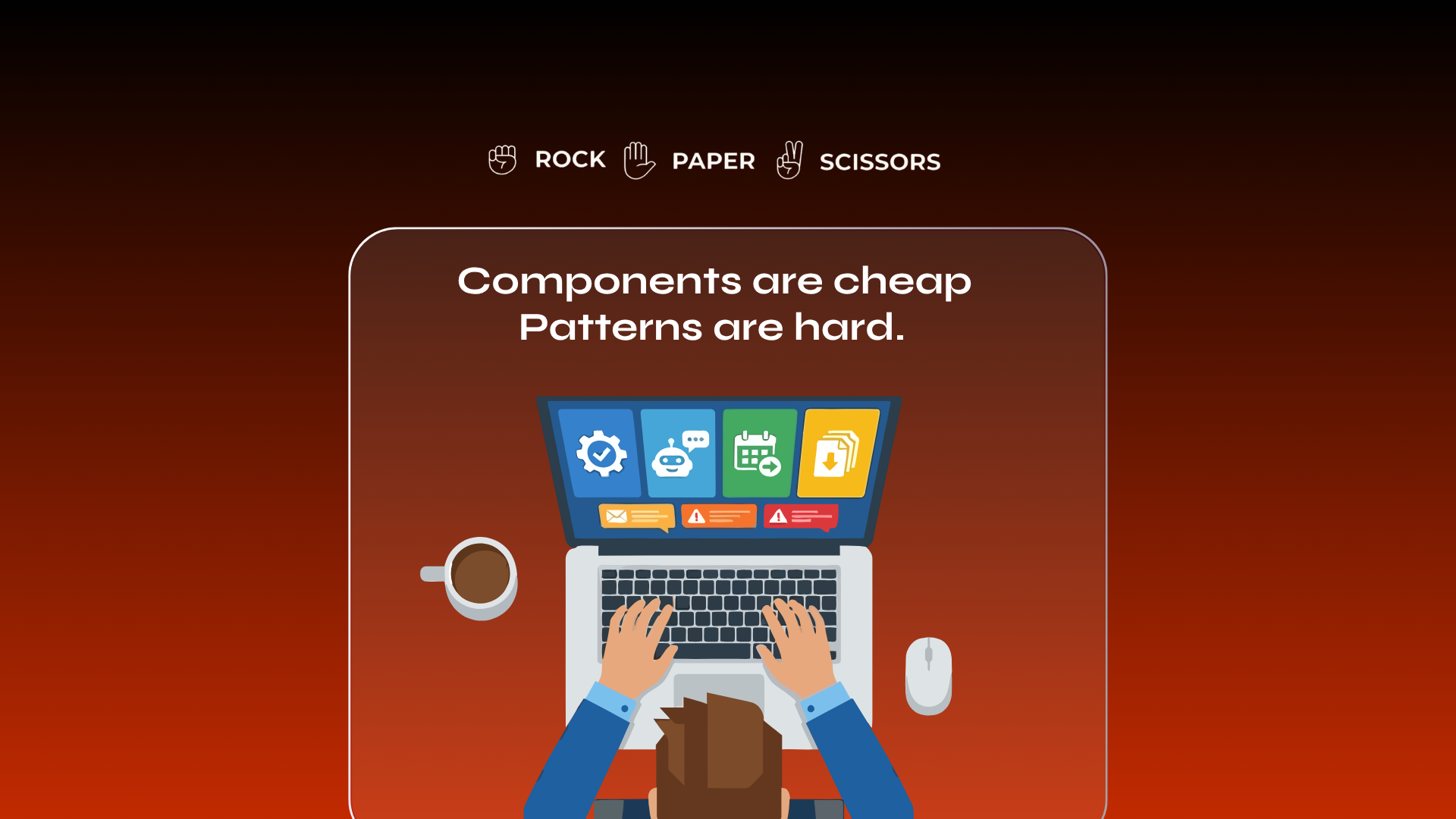
The next big problem in enterprise design systems almost nobody is talking about.
A client said something to me last week that I haven’t stopped thinking about.
“You’re solving the screen problem, great. But can you help us with our design system patterns? Our dashboards have the same filter behaving three different ways.”
That single sentence captures the part of the design systems story almost nobody is talking about right now.
Every conversation about AI in design is stuck on components. Generate me a button. Build me a screen. Spin up a card. And honestly , that part is mostly solved. Tools like v0, Stitch, Replit, Figma’s own AI features have all made it absurdly easy to produce a UI element that looks polished and works on first glance.
But components are the easy layer.
Patterns are the hard one.
And in 2026, the gap between “we have a beautiful component library” and “we ship a consistent product” has become the most expensive, least-discussed problem in enterprise design
The filter story
Back to that client conversation.
Their main dashboard had three different sets of filters across three sections of the portal. One slid in from the right as a side panel. One opened as a modal. One expanded inline above the table. Same user task , filter a list of records , and three completely different muscle memories required.
Nobody on their team had designed it this way on purpose.
It happened the way it always happens in enterprises. Different squads. Different sprints. Different “we needed it shipped by Friday” moments. Each filter implementation was perfectly reasonable in isolation. Combined, they made the product feel like three different products.
Their component library was healthy. Their button looked the same everywhere. Their inputs were tokenized correctly. The components were not the problem.
The pattern was.
What’s the difference, actually?
The terms get used interchangeably, and that’s part of why the problem stays invisible. So let’s be precise.
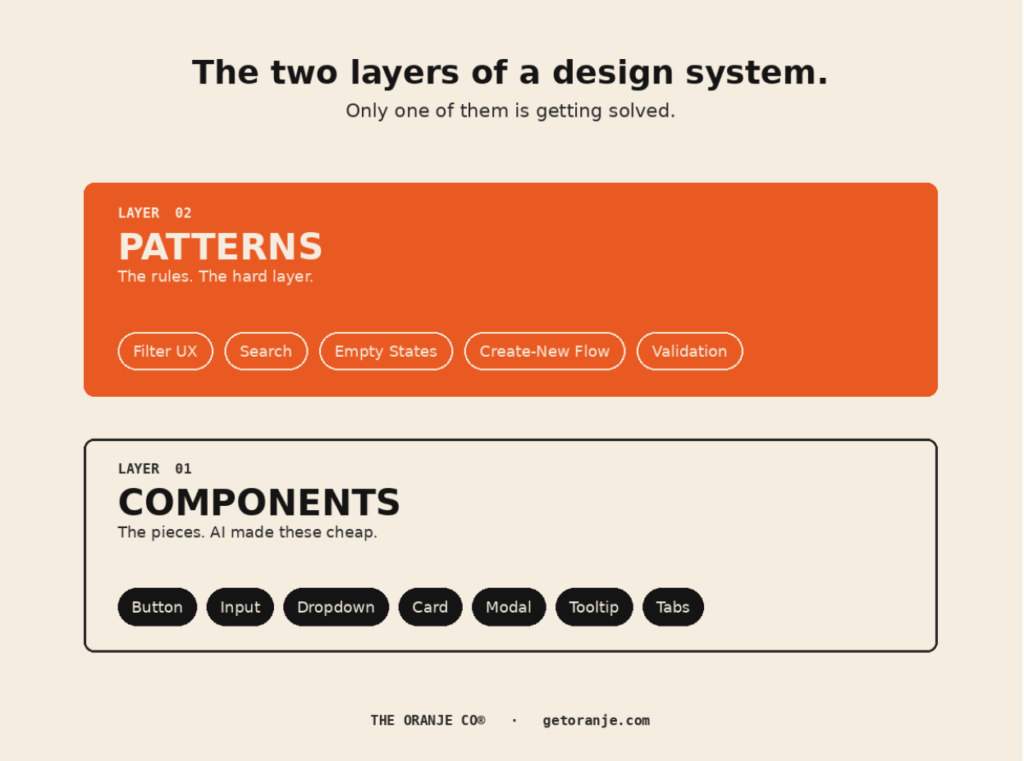
A component is a reusable UI element. A button. An input. A dropdown. It’s a concrete thing, with specific styling and behavior, that you can drop into a screen. As UXPin puts it, “a component library is a collection of reusable, coded UI elements.”
A pattern is one level up. It’s a solution to a recurring problem. Filtering a list. Authenticating a user. Showing an empty state. Validating a form. Patterns describe how components combine to accomplish a task , every time that task shows up in your product.
The U.S. government’s CMS Design System defines it well: “A pattern is more than the sum of its parts. Patterns are solutions, whereas a component can be considered a UI chunk.”
Or to put it the way I find easiest to remember: components are the lego pieces. Patterns are the rules for what you can build with them, and how it should behave.
Every AI-generated screen ships with 20 to 35% of its pixels wrong. Here is why.
A Product Manager I know went overnight to Pencil.ai. Next morning he came back with UI screens. Beautiful. Polished. Ready to ship. He said “I gave a screen example to do it”.
Nothing about them matched the user he was building for. Because nobody had thought about the user. He had gone from PRD to final UI in a single prompt, skipping every step in between.
Cool. Cool cool cool.
That is one problem with AI-generated screens. Here is the other.
The screen looks right. Then it isn’t.
The AI world claims screen generation is a solved problem. It isn’t.
Every AI-generated screen ships with 20 to 35% of the pixels wrong. Padding drift. Font weight drift. Color drift. Icon substitutions. Hover states that were never specced.
A single screen looks fine. Multiply that by fifteen screens across a product and you have an app that feels subtly off in a way nobody can point to. Users notice. They just do not know why.
Recently in one of my design reviews
A designer on my team sent me a Figma file for review. AI-generated screens. I asked if he had reviewed it himself. He said yes.
I opened it. Inconsistent VIMM loads. Patterns that broke silently between screens. Values that were 2px off from what our design system said. Icons swapped for close-but-not-identical variants.
He had reviewed it. But shallow-reviewed it. AI had generated the screens. And when AI generates something clean-looking, the reflex is to accept, not audit.
This is what drift looks like at the human layer. AI makes it easy to move fast. The muscle for catching drift atrophies. Every “yes I reviewed it” quietly becomes less true.
Why this happens
AI screen generators read Figma and confidently write code. But Figma is not the source of truth. It is a very convincing preview
Every drift you see between the design and the shipped screen is Figma lying to you. Once the screen hits a real browser, real OS, real font engine, “pixel perfect” stops existing.
AI amplified this because AI generates screens that look right. But neither Figma nor AI agrees on what “24 pixels” means once the browser gets involved.
The fix
Stop treating Figma as the destination. Start treating code as the destination.
Design tokens live in code. Components live in code. AI generates screens that plug into that token system, not screens that “match the Figma frame.”
The moment code is the source of truth, screen drift stops being a design problem. It becomes a governance problem. Governance is solvable.
That is what we are building at Oranje. Same tokens. Same behavior. Same render. Every screen, every time.
How AI agents ship code while you sleep. Why harness engineering is the new craft. And what breaks along the way.
Physical manufacturing has a term for it. Dark factories. Automated production lines that run in the dark because there is no human on the floor. Toyota. FANUC. Every serious manufacturer has one now. Rows of robotic arms working in the dark, only lit when a human walks in for maintenance.
Software is finally catching up.
I have been writing a lot lately about designers over-relying on AI. Cutting corners. Skipping the craft. Shipping brittle work. All still true.
But there is a version of AI that is genuinely the right answer at enterprise scale. A properly trained one. Wrapped in the right harness. Coordinated with real orchestration. This blog is about that version. What it is. How it works. Where teams get it wrong. And what “properly trained” actually looks like when you build it seriously.
What is a dark software factory
A dark software factory is a codebase where AI agents plan, write, test, review, and ship code with no human approval step in the loop. Specs go in. Software comes out. The human role is defining what to build and why. The how is entirely autonomous.
Dan Shapiro put a useful framework around this. He mapped software development onto the NHTSA’s five-level framework for autonomous driving. Level 1 is AI-assisted (a copilot suggesting completions). Level 2 is AI-generated code with human review. Level 4 is spec-driven, where humans write specs and check outputs. Level 5 is the dark factory. Humans define what and why. Everything else is autonomous.
The infrastructure exists now. Here is how it works.
Why now, not two years ago
The dark factory is not new as an idea. It is new as a working reality.
Two inflection points made it possible. First, the model quality threshold. Leading models from Anthropic and Google now score in the high percentiles on SWE-bench, the industry-standard benchmark for real-world coding tasks. Above roughly 75% on SWE-bench Verified, you have models capable enough for autonomous code work on most enterprise codebases.
Second, the infrastructure layer. In late 2024 and through 2025, teams built the validation harnesses, observability layers, and self-healing loops that make human review unnecessary. That is the piece nobody was talking about a year ago. Everyone was chasing model quality. The winners were building harnesses.
The result: a small handful of teams, StrongDM most publicly, are shipping production code entirely without humans on the floor.
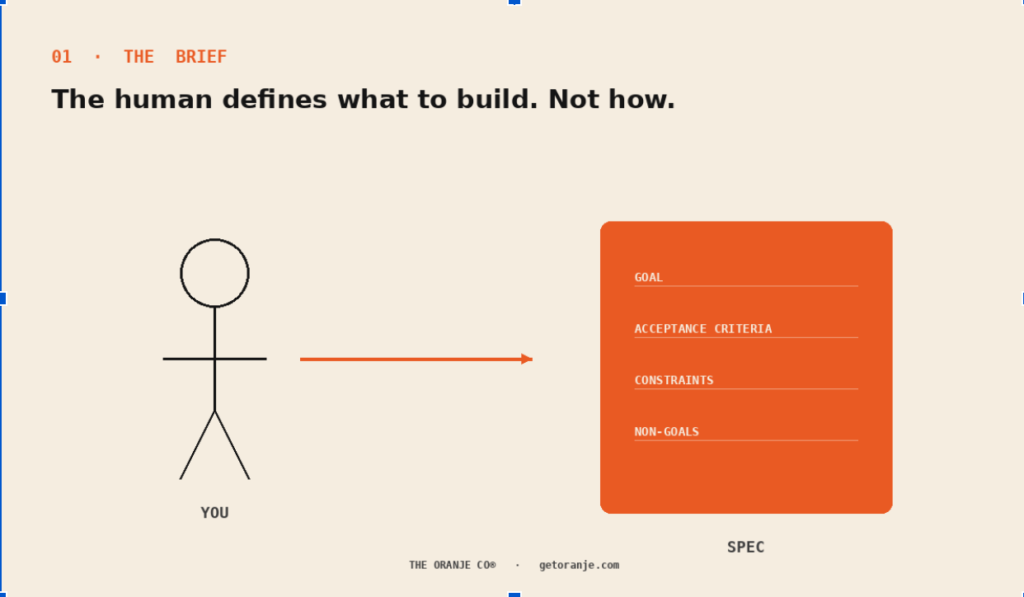
Step 1. The Brief
The human defines what to build. Not how.
The brief is your spec. It includes the goal, acceptance criteria, what must not break, constraints on architecture or dependencies, and explicit non-goals.
Example. Instead of “add rate limiting,” a real dark factory brief looks like: “Add rate limiting to /api/checkout. Must handle 5,000 requests per second per user. Must return HTTP 429 with Retry-After header. Must not affect existing /api/cart endpoints. Must use Redis, already provisioned. Must include tests covering burst traffic and cool-down. Not a goal: dashboard visualization of rate-limit events.”
The clearer the brief, the better the output. This is now the highest-leverage skill in software: writing a spec precise enough to be autonomously executed. Vague briefs produce vague code. Precise briefs produce production code.
The teams that will win are the ones who invest in spec-writing as a discipline.
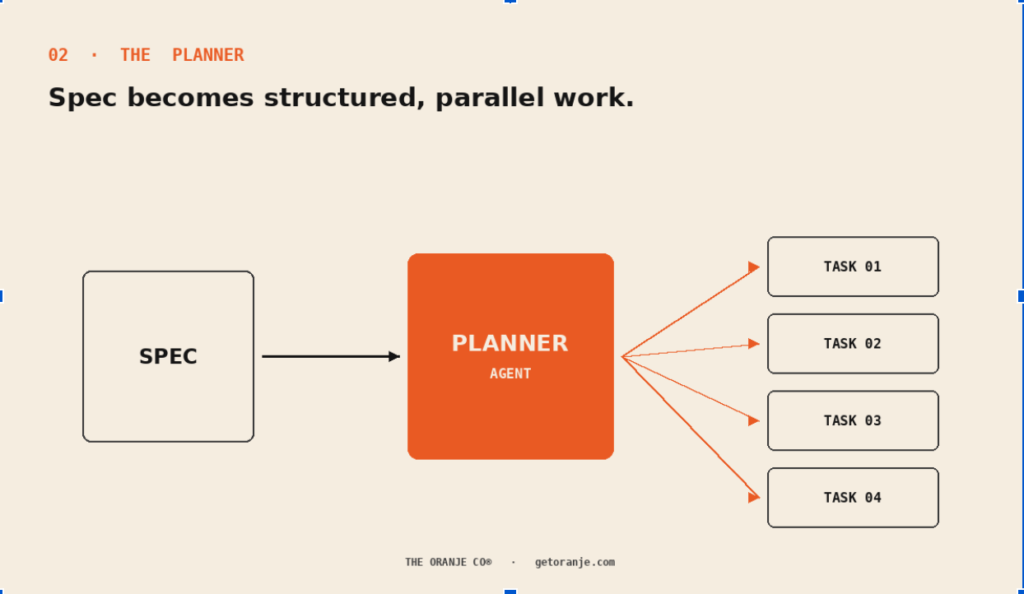
Step 2. The Planner
A planner agent converts the brief into structured tasks. It reads the codebase, maps dependencies, splits work into parallel branches with clear success criteria.
Most implementations fail here. A weak planner produces conflicting tasks that break during execution. A strong planner produces clean, isolated units of work that agents can execute in parallel without stepping on each other.
Example. Take the rate-limiting brief from above. A strong planner outputs six parallel tasks: (1) add Redis-backed rate-limit middleware, (2) update /api/checkout to use it, (3) write unit tests for the middleware, (4) write integration tests for burst behavior, (5) update API documentation, (6) add observability hooks for rate-limit events. Each task has its own success criteria. Each can run in parallel without conflicting with the others.
The planner is the architect. If the planner is wrong, everything downstream is wrong. Which is why every serious dark factory dedicates its best-tuned model to the planning role, and its cheaper models to execution.
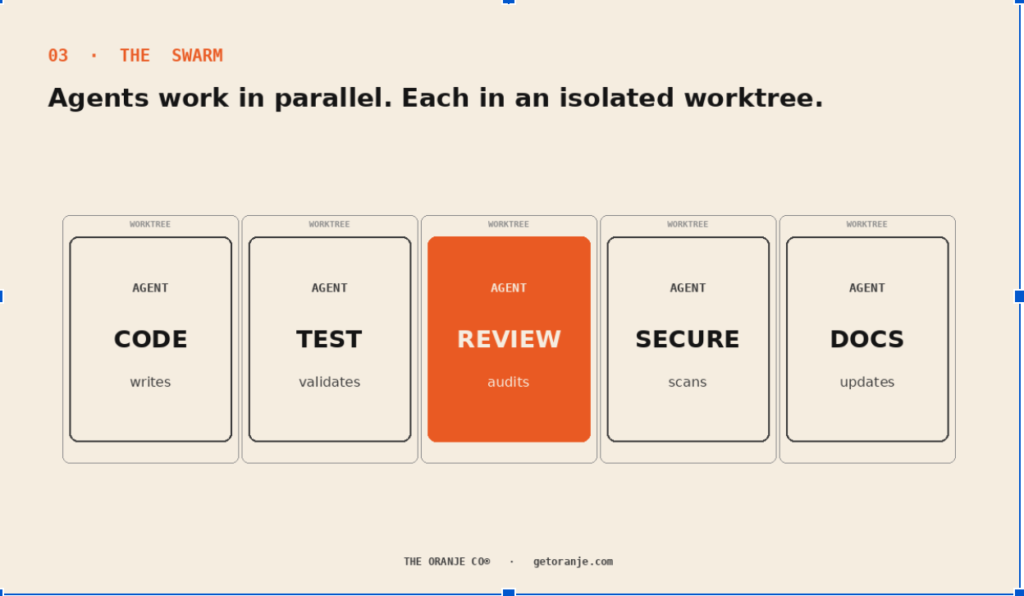
Step 3. The Swarm
Multiple agents work in parallel, each in an isolated Git worktree so nothing clobbers anything else. One writes the code. Another writes tests. A third reviews. A fourth runs security checks. A fifth updates the documentation.
This is the split-and-merge pattern.
Here is where the honest reality shows up. Belitsoft’s 2026 data found enterprises now run 12 AI agents on average. But 50% of them work alone. No coordination. No shared state. No handoff protocol. That is why most implementations fail.
The failure modes are documented and expensive.
Infinite handoff loops. Agent A delegates to B. B delegates to C. C delegates back to A. Nobody owns the task. The loop burns tokens until someone kills it. This is now considered the number one production failure mode in multi-agent systems.
Cascade failures. A bad output at stage one poisons every downstream stage. The “From Spark to Fire” cascade paper published in 2026 found that a single false claim at the start of a hub-and-spoke topology can infect 100% of downstream agents. One wrong context, thirty broken components.
Cost runaway. A dev team’s runaway agent loop can generate 500,000 API calls in a day at 50 cents each. That is $75,000 in a single overnight run. Real teams have lost this money. Twice.
Coordination is not a nice-to-have. It is the whole engineering problem.
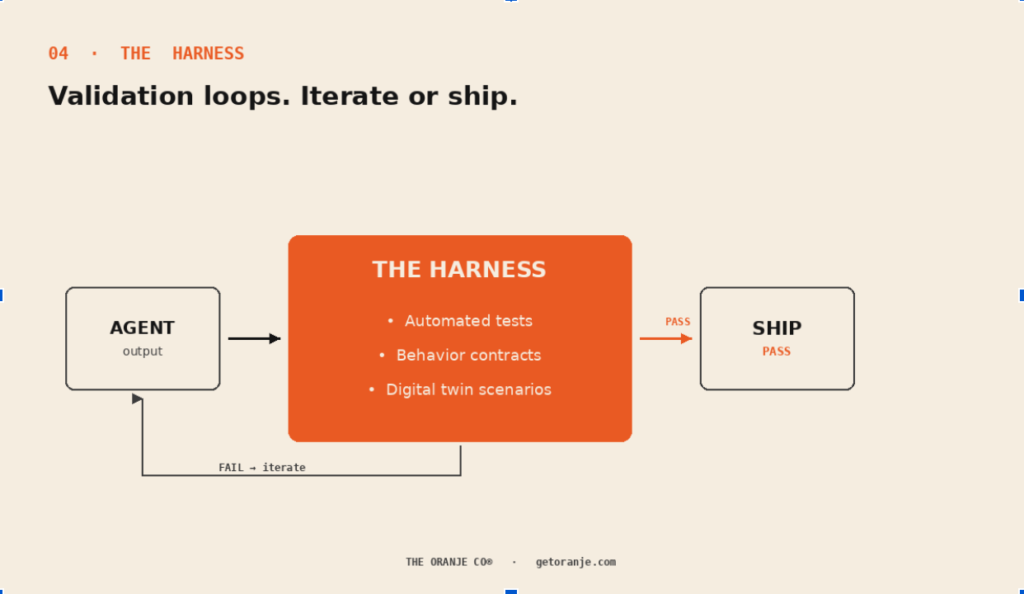
Step 4. The Harness
The harness is the validation loop. It is the difference between “AI wrote code” and “AI shipped code.”
A real harness includes multiple layers. Automated tests. Behavior contracts (typed schemas at every agent handoff). Digital twin environments where agents run through user scenarios before merge. Circuit breakers that shut down agents making the same mistake twice. Observability that catches drift before it compounds.
Schema validation at every handoff is the single practice that eliminates the majority of cascade failures. If agent A hands agent B a malformed output, B should reject it and force A to retry, not accept it and propagate the corruption downstream.
If validation fails, the agent iterates. If it passes twice, it ships.
OpenAI’s Harness Engineering paper reports 1 million lines of code, none of it hand-written, shipped at 10x normal velocity through this pattern. Not the model doing the work. The harness making the model’s work merge-safe.
EPAM ran a controlled experiment in early 2026. A feature that typically takes a developer 2 days shipped in 2 hours of autonomous agent work. 30+ files changed. 90% visual fidelity to the original Figma design. Not perfect. But merge-close, in one-eighth the time.
The harness IS the design. Everything else is execution.
What “properly trained AI” actually means
I have been critical of AI misuse in design. That is still true. What is also true: properly harnessed AI is a step-function improvement over anything humans can do alone at enterprise scale.
The distinction is craft.
Vibe coding is asking an AI to write your feature and hoping for the best. That is the version being sold on Twitter. It works for prototypes. It falls apart at scale.
Harness engineering is designing the constraints. The specs. The validation layers. The digital twins. The circuit breakers. The observability. All the things that let AI work autonomously without shipping broken code into production.
Same tool. Different discipline. The tool is genuinely powerful. The discipline is what makes it enterprise-safe.
Where Oranje fits
This is the layer we are building at Oranje. Harness first. Agent orchestration second. Governed velocity, from brief to production, with a real audit trail
Not vibe coding. Not “prompt then pray.” A production-grade dark factory pattern, deployed inside the client’s own codebase, running inside the client’s own governance rules.
Oranje is in beta right now, with our enterprise launch coming soon. 🍊
Closing thought
The teams that will win the next five years are not the ones with the fastest coding assistants. They are the ones with the best harnesses.
Vibe coding is a party. A dark factory is a business.
The Oranje Co is building infrastructure for the creative economy. Harness-first, agent-orchestrated, governed by design. Currently in beta, with enterprise launch coming soon.getoranje.com
RPS//
Blogs
//Are designers being replaced by AI?? No, their thinking is.
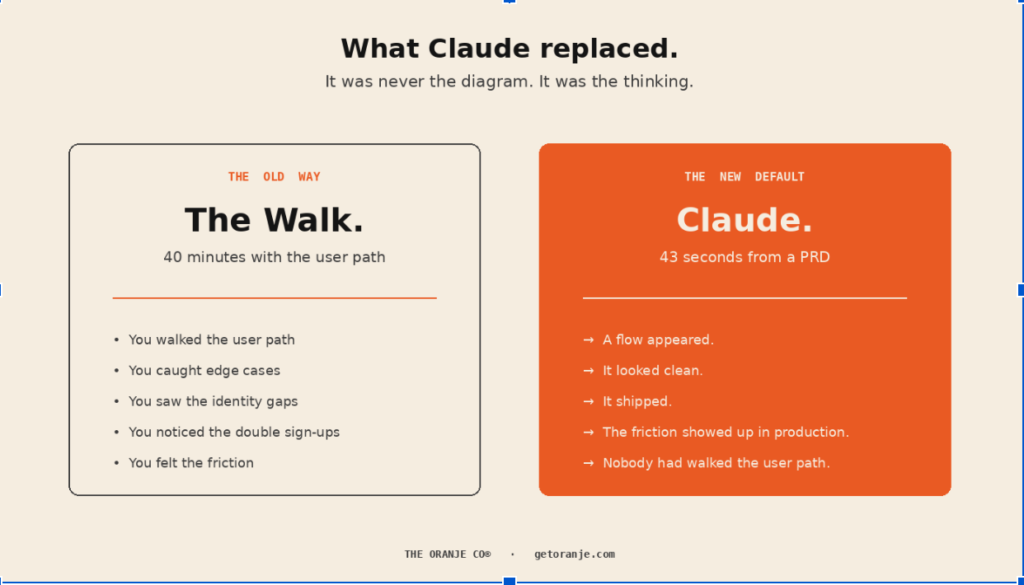
AI can generate a user flow in 43 seconds. The 12 hours it replaced were never really about the diagram. They were about the walk.
Recently I asked my team to build an onboarding flow. Standard task. Nothing fancy.
They went to Claude. Uploaded the PRD. Got a full user flow back in seconds. Handed it to engineering. Frontend built directly against it. Backend wired up. Live in production within a week.
Then real users started signing up.
Someone came in through an Instagram link. Registered with a phone number. Later tried to log in with Google. The product treated them as a new user. Then found a duplicate. Then showed a confusing “already registered” pop-up. Then asked them to pick a method they had already chosen once.
Multiply that by every user who ever signs up through more than one channel.
The flow was clean on the diagram. The users hit walls the diagram never showed. What Claude replaced was never the diagram, it was the thinking.
The stat that captures this shift
A designer recently uploaded a 12-page PRD to Claude with one prompt: “Generate a user flow diagram for the onboarding process.”
43 seconds later, she had an editable flowchart.
Traditional user flow diagrams take 8 to 12 hours to build.
That is not a small speed-up. That is a 1,000x compression. And the industry has already moved.
The industry data
The State of Prototyping Spring 2026 survey covered 1,478 designers. The single most telling finding: the most-used design tool after Figma is now an AI. 50.8% of designers use it every week. Claude Code sits at #4 in the design stack, ahead of every canvas-first tool.
Let that land. An AI coding terminal now outranks the canvas where user flows used to live.
92.3% use AI for secondary research. 84.6% use AI for research synthesis. 76.9% use AI for wireframes. 61.5% use AI for personas.
Only 53.8% actually verify AI output line by line before shipping.
What actually got skipped
The 12-hour user flow was never really about the diagram. It was about the walk.
Sitting with the flow. Asking “what if the user signs up on Instagram and later logs in with Google, who are they?” Catching that a phone number field appears three screens too late. Noticing that “already registered” is a wall, not a redirect. Feeling the friction before shipping it.
That is the walk AI cannot do for you.
Claude will generate the diagram. It will look clean. It will parse your PRD. It will identify the decision points that are literally spelled out in the doc. It will not sit with your user for 40 minutes and ask why an OTP flow at step 4 will drive them away.
The diagram was never the work. The thinking that produced the diagram was.
Why this is happening
Clients want lightning speed. Engineering wants to ship. Founders want to test. The market rewards speed above almost everything else
Nobody rewards the 40-minute walk. Nobody sees it. It never makes it into a demo.
So designers skip it. Not out of laziness. Out of accurate reading of what their teams value.
Closing thought
The flow diagram I asked for was ready in 43 seconds.
The friction it created will cost my team weeks of rework.
The math would have been different if someone had spent 40 minutes walking the user path before the prompt. Not instead of. Before.
AI didn’t skip the thinking. We did. AI just made it easy to skip.
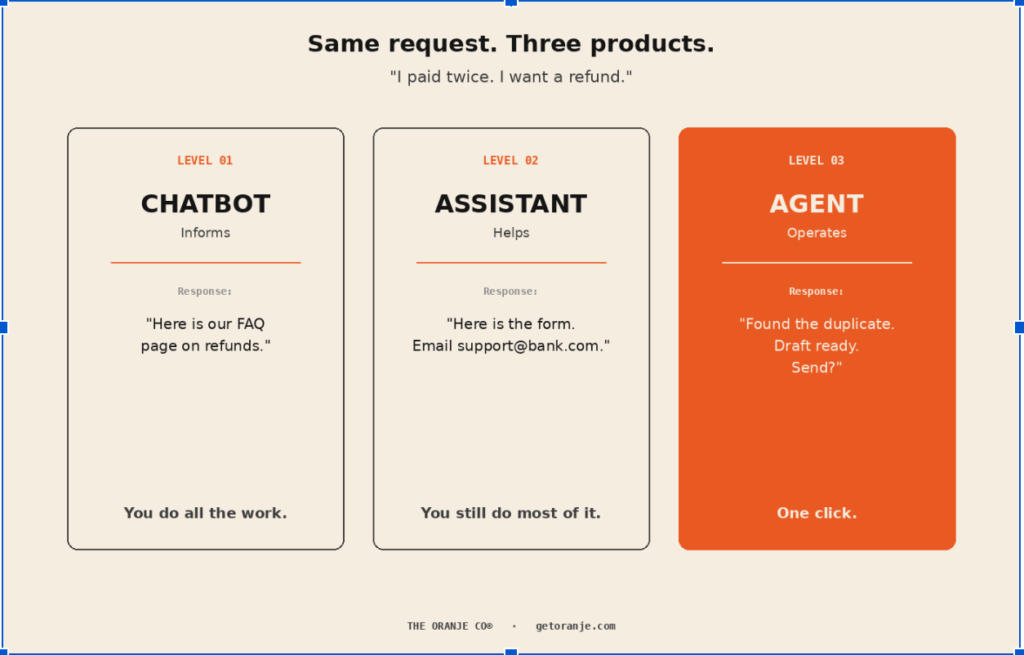
The chatbot informs. The assistant helps. The agent operates. Same user. Three completely different products.
You paid for something twice. You want a refund.
Watch what three different products do with the exact same request.
Product 1. A chatbot. “Here is our FAQ page on refunds.” You leave the chat. You read the FAQ. You start filling something out.
Product 2. An AI assistant. “Here is the refund request form. Fill it out and email it to [email protected].” Better. You are still doing all the work.
Product 3. An AI agent. “I found the duplicate transaction on 15 July for ₹4,999. I have drafted the refund request with the reference number, transaction details, and account info. Do you want to send it?”
That third product is Agentic UX. And the gap between it and the other two is where product design is quietly getting rebuilt.
The shift
Product designers have been trained on one paradigm. The user does the work. The product provides the tools.
Agentic UX inverts that.
The user brings intent. The agent brings execution. The user approves.
Users are already calibrating to the third experience. Whether or not your product has caught up.
What good Agentic UX actually looks like
Four things separate a real agent from a dressed-up chatbot.
It reads context, both ways. The agent knows your transaction history, calendar, previous conversations, active tickets. And what it does flows back to the user in the place they are already working.
It proposes actions, not information. Not “here is the form.” Not “here is what to do.” A pre-filled draft that only needs approval.
It respects a gradient of consent. Low-risk actions can happen automatically. High-stakes actions like sending, paying, deleting, pause for confirmation. Consent granularity is now a core design decision.
It fails recoverably. Every action has an undo. Every decision has a trail. When the agent gets it wrong (and it will), the user is one click from correcting it.
Miss any of these four and you are shipping a chatbot with a shinier label.
Users bounce between the agent and the actual work. The experience feels disjointed. Adoption dies
Agents do not need their own screen. They need better systems to operate in.
The best implementations are almost invisible. The agent shows up inline, in the flow where the work is already happening, at the moment context is thickest.
Closing thought
The bar has moved.
Users used to accept “here is the information you need to complete the task.”
The new bar is “here is the task, drafted, ready for your approval.”
If your product still ships the first version, you are competing against the third. Users are not going to explain the difference. They are just going to leave
A design token is a variable that stores a design value (a color, a spacing amount, a font size, or a corner radius) and is referenced by name everywhere that value is needed, instead of the raw value being typed in directly.
When values are typed in directly, a color like #0B5FFF appears in dozens of files. When the color needs to change, the code contains 40 copies of the same number. Finding all 40 requires a manual audit. Changing th
em requires 40 edits. Missing even one edit means the product now has two “primary action” colors, and which one is active depends on which file loaded first.
When values are named, the same color is stored once as color-action-primary: #0B5FFF, and every file refers to the name. Change the value once, and all 40 usages update automatically. The name is the contract. Everything that uses the name must accept whatever value the name currently holds.
The human parallel explains why names matter: you have an ID number that never changes and a name that stays stable while what it refers to changes. Everyone knows you as your name. When your hair changes, your name does not, and nobody has to update your contact card. A design token is the same structure. #0B5FFF is the ID number: exact and unchanging. color-action-primary is your name: stable, understood by everyone, and free to point at a different value when the time comes.
The scaling problem shows up because code does not naturally enforce names. A designer or engineer can copy #0B5FFF into a new file without asking permission. Nothing breaks. The file works. But the product now has two copies of the same color, and one of them will get out of sync the moment anyone changes a color without knowing about the other copy. At 10 teams, 40 products, or with an AI agent generating designs without human oversight, you go from one problem to dozens simultaneously.
Image note: diagram showing three states. Left: raw values in three files, each with a different color that should be the same. Center: the token system with one value. Right: after a change, the same token applied everywhere. Caption: Why names solve the scaling problem.
What Breaks at Scale Without Tokens
Unnamed values create four specific failure modes as a product grows, and each one costs differently.
1. Consistency drift with multiple teams. Two designers on different squads need the same color for the same semantic reason, but they receive the code as a hex value, not a name. They copy it into their files. Weeks later, someone decides the color needs adjusting for accessibility. They find and change one copy. The other copy is now orphaned, used by screens that look wrong but nobody can explain why. The product now has two “action primary” colors, and which one appears depends on which team built the screen.
2. Geometric multiplication with themes. The moment you add a second theme (dark mode, high contrast, or a client brand), every value needs a double. Without a naming system, you now maintain two separate lists: light colors and dark colors. A contrast change requires finding the pair. An update to a new contrast standard requires auditing both. The maintenance burden multiplies, not adds.
3. Acceleration breaks with AI design tools. A founder recently came to us with a product built partially with Google Gemini generating screens. The problem: Gemini had no constraint system, so every generated screen used different colors for visually identical elements. Three buttons on three screens could be three different shades of blue because nothing enforced that color-action-primary meant the same thing everywhere. The product looked inconsistent and unstable, even though functionally everything worked.
4. Inability to enforce intent. Without names, you cannot tell the difference between “this blue should be the action color” and “someone copied a blue hex value from somewhere.” The code looks the same. The rendering is identical. But one is a decision and one is an accident. That distinction matters the moment you need to change something and can’t tell which instances are intentional.
A token system that scales has three layers, each solving a different problem. This is the structure we built for the founder with the AI-generated design consistency problem.
Level 1: Primitive tokens store raw values with no meaning attached. Examples: blue-600, space-16, radius-4. These are the facts. They change rarely (only when the entire palette shifts) and are stored once for the whole system. Primitives are the foundation, but if a screen uses primitives directly, you still have the consistency problem. Nothing enforces that every blue-600 usage is actually for the same purpose.
Level 2: Semantic tokens attach meaning to primitive values and create a contract about intent. Examples: color-action-primary (what the user does), color-text-error (warning state), color-background-secondary (secondary information). Semantic tokens answer the question: “Why is this value here?” They map to primitives underneath: color-action-primary might currently reference blue-600, but if the action color needs to shift to blue-700 or even purple-500, only the semantic token needs updating. Screens use semantic names, so the change cascades everywhere that token is used.
Level 3: Component tokens are where scalability actually happens. They compose semantic tokens into reusable patterns: button-primary-background, button-primary-border, button-primary-text. A component token says “this is what a primary button looks like,” and it references semantic tokens underneath. When the action color changes, color-action-primary updates once, and every component token that references it updates automatically, and every screen using that component updates automatically. The propagation is automatic.
This three-level structure is what solved the Gemini problem. The founder had no naming system, so the AI saw only raw values and copied them without understanding intent. By adding semantic tokens, every color now had a meaning, and by adding component tokens, every visual pattern was defined once. Now when the AI generates a button or a form, it can reference button-primary and get all three colors correct automatically, because the three-level system enforces the relationship.
Layer
Purpose
Example
Who uses it
Changes when
Primitives
The actual values
blue-600
Semantic tokens reference this
You swap the entire palette (rare)
Semantic
Why you are using this value
color-action-primary
Screens and developers reference this
The design intent changes (sometimes)
Component
Complete patterns for reuse
button-primary
Designers and AI tools reference this
You need a new pattern (often)
The component level is the one that prevents your product from looking chaotic as it scales. It says “a primary button always looks exactly like this,” and that definition sits in one place. Add 10 new designers, bring in an AI agent, or ship to a second team, and they all reference the same component tokens. No more color variation across the same element type.
Image note: three stack diagram showing primitives at the base, semantic tokens referencing them in the middle, and component tokens at the top referencing semantic. One arrow showing how a single primitive change flows up through all three levels.
How to Check Whether Your Product Has Tokens
You can find out without being able to read code, and it takes one conversation plus one test.
Ask your engineering lead three questions:
If we change our brand blue tomorrow, how many files do you touch? One file means you have tokens. “I would need to check” means you do not.
Could we ship dark mode without redesigning screens? If the answer involves redesign, values are not named.
Could a client see this product in their own brand colors without us forking the code? This is the token question that shows up in your sales pipeline.
In the naming analogy, this is the roll call. You call out one name, and whoever does not answer to it was never actually registered.
Image note: two product screenshots side by side. One normal, one with all tokens set to a single flat color, with the remaining unaffected elements circled.
What Tokens Cost, and Where Teams Overdo It
Tokens are not free, and the three-level system makes the cost structure explicit.
Primitives are cheap. Define your color palette, your spacing scale, your type sizes. One to two weeks for a new product. Update them rarely.
Semantics are where the real work sits. You have to decide what color-action-primary means, what color-text-secondary means, and which primitives they reference. For every color you have a primitive for, you may have three semantic tokens. For every semantic decision, you also decide: what happens to this in dark mode? In error states? In disabled states? Atlassian warned that their automated migration only suggested replacements, and humans still had to review. That is what semantic work looks like at scale. For a small product, this is two to three weeks. For an enterprise product, it is two to three months.
Component tokens are optional until they are not. A single product with one designer needs primitives and semantics. The moment you add a second designer, add AI code generation, or scale to multiple teams, you need component tokens, because component tokens are what prevent visual drift. They also require the most maintenance because they have to reflect actual component definitions in your code.
The overbuilding happens when teams build all three layers from day one without knowing whether they will need them. Do not define button-secondary-hover-disabled if you do not have five different button states. Do not create a component token taxonomy larger than your actual component library. The cost is in naming overhead that nobody uses.
Our approach: start with primitives and semantics. Add component tokens when you have real patterns to protect. For the founder with the Gemini problem, we built all three because the problem was uncontrolled visual variation across generated screens. That justified the upfront cost. If your product is one team and one theme, primitives and semantics are enough.
Design tokens are names for the visual values in your product. Instead of a screen containing a raw color code, it refers to a name like color-action-primary, and the name points at the value. Change the value once and everything using that name updates automatically.
Are design tokens only for large companies No, but the payback scales with change. A single product with one brand and no dark mode gets modest benefit. A product with multiple themes, white label clients, or an upcoming rebrand gets most of its value back on the first change request.
Do design tokens require a design system?
No. Tokens stand alone. Start with primitives and semantics for palette consistency and theme management. Add component tokens only once you have patterns worth reusing, which usually arrives when a second designer or AI tool starts generating screens.
How long does it take to adopt design tokens?
For a single product, defining and applying tokens usually takes a few weeks rather than months. The variable is not the naming work, it is how many hardcoded values already sit in the code, and the single color test will tell you that before anyone commits to a timeline.
Is there a standard format for design tokens?
Yes. The Design Tokens Community Group published its first stable specification in October 2025. Tokens can now move between design tools and codebases in a single shared format, rather than needing a custom export built and maintained for each separate tool.
What is the difference between a design token and a variable?
A variable is the mechanism, a token is the agreement. Figma variables and CSS custom properties are places to store a named value. A token is that value plus a naming convention and a decision about where it may be used, which is what makes it useful across teams.
Conclusion
Naming things is the cheapest structural decision available to a product team, and it is the one most often skipped because nothing breaks immediately. What breaks later is your ability to change quickly: a rebrand that should take weeks, a dark mode launch that should be a setting, an enterprise client who wants your product in their colors and cannot be told yes.
If you are unsure where your product stands, you do not need a design audit to find out. Ask your engineering lead how many files change when the brand color changes, and run the single color test on your own product. Both answers arrive the same week, and they tell you whether your visual values have names or just numbers.
Let’s build with intent.
RPS//
Blogs
//Code-First Design System: Why Code Should Be the Source of Truth
A code-first design system keeps the component library in the codebase and treats Figma as an input, not the record. Code should be the source of truth because code is what users actually receive, and everything else is a description of it that goes out of date.
Two sources of truth is the real problem. Design updates Figma, engineering updates the repo, and trust in the system erodes quietly.
The key benefits include no rebuild step, governance that runs in CI, and a library that cannot silently diverge from production.
Token portability became practical once the Design Tokens Community Group published a stable specification in October 2025.
Figma does not disappear. It moves upstream for exploration, and its library can be generated from the code.
Code-first is wrong for teams with no design engineering capacity and no CI discipline. Structure that first.
Introduction
A code-first design system is one where the component library lives in the codebase, and design tools reference it rather than define it. Code should be the source of truth for a simple reason: code is the only version of the system your customers ever use. Everything held elsewhere is a description of the product, and descriptions drift.
That drift is expensive in a way finance teams recognize. Every component maintained in two places gets paid for twice, once when a designer updates it and again when an engineer reimplements it, plus a third time when QA finds the mismatch. This article covers what a code-first design system actually is, what changed in the last year to make it workable, how governance moves into engineering, where designers fit, and the conditions under which this choice would be a mistake.
What Is a Code-First Design System?
A code-first design system is a component library and token set maintained in the codebase as the single record, with design tools consuming that record rather than producing a parallel version of it.
Three things follow from that definition. Tokens live in the repository and get exported outward. Components exist as real code with props, tests, and documentation. The Figma library, if there is one, is generated from the code rather than drawn by hand.
If you are starting from nothing, our easy to use guide to building a UI design system covers the fundamentals this article assumes. The word doing the work is “single.” Most teams already have a design system in code. What they also have is a second one in Figma, maintained separately by different people with different incentives, and no reliable mechanism keeping the two aligned. That is not one system. That is two systems and a hope.
Image note: side by side diagram. Left, two boxes labelled Figma library and code library with a dotted line and a question mark between them. Right, one box labelled code library with an arrow pointing out to a generated Figma library.
Why Two Sources of Truth Costs Money
The cost of a dual system shows up as rework, not as a line item, which is why it survives so long unexamined.
The sequence is familiar to anyone who has shipped a product. A designer updates a component in Figma without telling engineering. An engineer fixes a bug in the same component in code without telling design. Weeks later a product team builds a mockup from the Figma version, a developer implements from the code version, and the two do not match. The failure mode is well documented across design system practice: teams maintain two sources of truth with no reliable sync process, they drift, and every drift chips away at trust until people start attaching caveats like “check with design first.”
Once that caveat culture sets in, the system has stopped paying for itself. Designers stop trusting that what they design gets built. Engineers stop trusting that the Figma file is current. Both groups start working around the system, which is exactly the duplicated effort the system was funded to remove.
Three costs are worth naming for anyone approving the budget:
Double maintenance. Every component change is authored twice, in two tools, by two people on two schedules.
The rebuild step. Handoff and reimplementation are where both time and fidelity are lost, and they exist only because the design record and the shipped record are separate artifacts.
Invisible inconsistency. A Figma component can be detached and overridden without leaving a trace, so visual and accessibility drift enters production unrecorded.
The last one is the argument that persuades engineering leadership. In a Figma library, overriding a component is a private act. In a codebase, it is a pull request.
What Changed in the Last Year
Code-first became practical in 2025 and 2026 because three separate things landed close together.
Token portability got a standard. The Design Tokens Community Group published its first stable specification in October 2025, which turned cross-tool token exchange from a custom integration into a format question. The group operates under the W3C as a community group rather than a standards body, so this is an industry agreement rather than a formal web standard, and that distinction matters less than the adoption behind it. Tokens can now originate in the repository and be consumed by design tools rather than the reverse. The stable release is published as the Design Tokens Format Module 2025.10.
AI agents made code the faster place to start. When an agent can read a component library and assemble a page from real components, the quickest route to a screen stops being a canvas. Figma’s own evaluation of Code Connect found that mapping components to code improved generated code quality by a median of one point on a four point scale, and that the largest factor was coverage: how much of the design was built from mapped system components. Read that finding backward and it makes the code-first case. If the value comes from the code mapping, the code is the asset. We have written separately about where AI belongs in a design process and the same principle applies: the tool is only as good as the structure you point it at.
Figma libraries became generatable. Tools now sync a Figma library from a Storybook or equivalent component catalog, across React, Vue, Angular, Svelte, and plain HTML. This is what makes the argument practical rather than ideological. Designers keep a component library in Figma to work with. It simply arrives from the code instead of being maintained alongside it. Figma has also documented how its MCP server exposes components, styles, and variables to AI agents, which is the same pipe running in the other direction.
Three Models, Compared Honestly
Most teams sit in the middle row of this table, which is the worst of the three.
Figma-First
Dual Maintenance
Code-First
Source of truth
Figma library
Both, in theory
Codebase
Drift risk
High. Code diverges silently
Highest. Both diverge from each other
Low. Divergence is a failed check
Who can change the system
Designers
Everyone, uncoordinated
Anyone who can open a pull request
Governance
Manual review
Manual review, twice
Automated in CI
Handoff cost
Full rebuild every screen
Full rebuild, plus reconciliation
No rebuild step
Precondition
None
None, which is why it happens
Design engineering capacity and CI discipline
Best fit
Early-stage, pre-engineering
Nobody, by design
Multi-squad teams shipping continuously
The middle column is not a strategy. It is what happens when nobody decides.
How a Code-First Design System Works in Practice
The workflow inverts the usual order, and the inversion is the whole point.
Define tokens in the repository. Primitives and semantic tokens as code, exported outward to design tools. The repository becomes where a color decision is made, not where it is copied to.
Build components as code with full state coverage. Props, variants, states, tests, and documentation. The component catalog becomes the specification, because it is executable and cannot be aspirational.
Explore in Figma without committing anything. Concepts, flows, layout studies, stakeholder conversations. Nothing in this step is a source of truth and nothing needs maintaining.
Assemble screens from real components. With an agent reading the component library, a prompt or a wireframe becomes a page built from actual system components with correct tokens, as code a developer can extend the same day.
Generate the Figma library from the code. Designers get a library that reflects production, and it updates when the code updates rather than when someone remembers.
Steps three and five are what make this humane for designers. Exploration stays free, and the library stops being a maintenance chore.
Image note: five step horizontal flow, with step 3 visually branching off to the side to show that exploration does not feed the record directly.
Governance Is the Strongest Part of the Argument
Governance is where code-first stops being a preference and becomes a business case, because rules that live in code get enforced automatically.
Large product organizations already work this way. Shopify uses coverage dashboards and linting to keep work on the Polaris mainline. Uber’s CI checks block merges when system rules are broken and file tickets for the fixes. GitHub runs accessibility and token checks on every pull request. (Documented by Builder.io, named here without a link.)
None of that is possible in a design file. A Figma library cannot block a merge, cannot report coverage, and cannot fail a build. It can only ask nicely. For a regulated business, that difference is the difference between a policy and a control. If your accessibility standard matters legally, it belongs somewhere that can refuse to ship.
Where Designers Fit
Designers gain in a code-first model, but only if the team is honest that their work changes.
What designers stop doing is maintaining a component library by hand and producing specifications for someone else to interpret. What they start doing is defining tokens and component behavior with engineering, reviewing generated output, and spending recovered time on the parts of the job that were always underfunded: research, flows, edge cases, content, and states nobody had time to design.
There is real disagreement here and it deserves stating. One argument holds that design system teams benefit from having designers who do not know what is technically easy, because that ignorance produces proposals a practical team would never make. That is a fair point about early exploration, and design tooling has shifted underneath practitioners before without the craft going anywhere. It is not an argument for maintaining the system in two places, which is why we keep exploration in Figma and the record in code.
When a Code-First Design System Is the Wrong Choice
Code-first fails without preconditions, and the teams publishing success stories are unusually well equipped.
The published case studies share a specific profile: a B2B product where exploration matters more than heavy visual craft, design engineers on staff who can contribute code, an existing collaboration culture between design and engineering, and AI code assistance making the workflow practical at scale. Remove any two of those and the model stalls.
Do not go code-first if your designers cannot open a pull request and you have no design engineer to bridge the gap, if your front end has no CI checks to enforce anything, if your component library in code is thinner than your Figma library, or if design is delivered by an external vendor with no repository access. That last case is common in enterprise and financial services, and it is a contracting problem before it is a tooling problem.
The honest sequence for most enterprise teams is not a switch. It is to fix the token layer first so values are portable, then reduce two sources of truth to one direction of flow, then move the record into code once someone can maintain it there.
FAQ
What is a code-first design system?
A code-first design system keeps components and tokens in the codebase as the single record, with design tools consuming that record instead of maintaining a parallel one. Figma stays useful for exploration and communication. The difference is that it no longer defines what the system is.
Does code-first mean designers stop using Figma?
No. Designers keep using Figma for exploration, flows, and stakeholder conversations. What changes is that the Figma component library gets generated from the code rather than maintained by hand, so it always reflects production. Exploration stays free of maintenance obligations.
How do you keep design and code in sync in a code-first system?
You remove the need for sync by having one record. Tokens export from the repository, and the Figma library regenerates from the component catalog. Instead of two systems reconciled by diligence, you get one system with a downstream copy that refreshes automatically.
Is a code-first design system suitable for enterprise teams?
It depends on whether your design work happens inside the repository. Enterprise teams with external design vendors and no repository access face a contracting problem before a tooling one. Teams with design engineers and CI discipline usually see the largest gains from code-first.
What is the first step toward a code-first design system?
Start with tokens. Move color, spacing, type, and radius definitions into the repository and export them outward, following the Design Tokens Community Group format for portability.
Tokens are the cheapest layer to relocate, the least disruptive to designers, and the one that unlocks every other step downstream.
Do AI coding tools require a code-first design system?
No, but they reward one. Agents produce better output when they can read real components and tokens rather than infer from a picture. Coverage of mapped system components is the largest factor in generated code quality, and coverage is easiest to guarantee in code.
Conclusion
Deciding where your design system lives is a decision about what your organization treats as real. Code is what customers receive, so keeping the record anywhere else guarantees a gap that people spend their weeks closing. Teams that move the record into code lose the rebuild step, gain governance that actually enforces, and stop paying twice for the same component.
That decision does not have to be made all at once. Moving tokens into the repository is a contained piece of work that reduces drift immediately and leaves every other option open. If your team is currently maintaining two libraries and calling it one system, that is the place to start, and it is worth doing before the next redesign rather than during it.
The Design Tokens Community Group specification is now linked to the W3C community announcement (date and stable status) and to the 2025.10 format module. Verified. Note it is a community group report, not a formal W3C standard.
The Shopify, Uber, and GitHub governance practices are documented by Builder.io. They are named without a link because Builder.io operates in a category adjacent to ours. Verify each independently or attribute in text as it stands.
The Figma Code Connect finding is linked to Figma’s own post and was verified against it.
No client results are claimed in this draft. If you want the Bajaj React Native timeline included as proof, it needs client sign-off first, and it belongs in the governance or practice section.
Internal links: six placed, all pointing at live URLs pulled from the site and blog. Two things to check. First, the blog sits on blog.rockpaperscissors.studio, a Blogger subdomain, so links between it and the main domain pass less value than a subfolder would. Worth raising with whoever owns the site. Second, there is no dedicated design system service page to link to, so the case study list is standing in. A service page for design systems would be the highest value page to create for this article and for the topic cluster around it.
External sources are anchored on the source name rather than the claim, per house style.
RPS//
Blogs
//Components are cheap. Patterns are hard.
The next big problem in enterprise design systems almost nobody is talking about.
A client said something to me last week that I haven’t stopped thinking about.
“You’re solving the screen problem, great. But can you help us with our design system patterns? Our dashboards have the same filter behaving three different ways.”
That single sentence captures the part of the design systems story almost nobody is talking about right now.
Every conversation about AI in design is stuck on components. Generate me a button. Build me a screen. Spin up a card. And honestly , that part is mostly solved. Tools like v0, Stitch, Replit, Figma’s own AI features have all made it absurdly easy to produce a UI element that looks polished and works on first glance.
But components are the easy layer.
Patterns are the hard one.
And in 2026, the gap between “we have a beautiful component library” and “we ship a consistent product” has become the most expensive, least-discussed problem in enterprise design.
The filter story
Back to that client conversation.
Their main dashboard had three different sets of filters across three sections of the portal. One slid in from the right as a side panel. One opened as a modal. One expanded inline above the table. Same user task , filter a list of records , and three completely different muscle memories required.
Nobody on their team had designed it this way on purpose.
It happened the way it always happens in enterprises. Different squads. Different sprints. Different “we needed it shipped by Friday” moments. Each filter implementation was perfectly reasonable in isolation. Combined, they made the product feel like three different products.
Their component library was healthy. Their button looked the same everywhere. Their inputs were tokenized correctly. The components were not the problem.
The pattern was.
What’s the difference, actually?
The terms get used interchangeably, and that’s part of why the problem stays invisible. So let’s be precise.
A component is a reusable UI element. A button. An input. A dropdown. It’s a concrete thing, with specific styling and behavior, that you can drop into a screen. As UXPin puts it, “a component library is a collection of reusable, coded UI elements.”
A pattern is one level up. It’s a solution to a recurring problem. Filtering a list. Authenticating a user. Showing an empty state. Validating a form. Patterns describe how components combine to accomplish a task , every time that task shows up in your product.
The U.S. government’s CMS Design System defines it well: “A pattern is more than the sum of its parts. Patterns are solutions, whereas a component can be considered a UI chunk.”
Or to put it the way I find easiest to remember: components are the lego pieces. Patterns are the rules for what you can build with them, and how it should behave.
Why AI made components cheap
The current wave of AI design tools is genuinely impressive at the component layer. You can describe a button and get six variations. You can sketch a screen and get clean React code in seconds. The marginal cost of producing a UI element has collapsed.
Most of the design system industry has noticed. Zeroheight’s 2026 Design Systems Report found that AI adoption among design system practitioners jumped sharply year over year , but with one important caveat: the excitement is highest for “documentation generation and process automation,” not AI-generated design itself. Practitioners are pragmatic. They want AI to handle the repetitive stuff so they can focus on the harder problems.
Which is exactly the point. The repetitive stuff is the component layer.
The harder problems live one layer above.
Why patterns are still hard
So why hasn’t AI cracked patterns the way it cracked components?
Three reasons.
1. Patterns are organizational, not visual. A button is a visual artifact. A filter pattern is a decision , about how filtering should feel across your entire product. That decision involves UX research, product strategy, content tone, accessibility constraints, and an opinion about how your product wants users to feel. No general-purpose AI tool has access to any of that context. It can generate a filter UI. It can’t decide that filtering should always behave the same way across your seven dashboards.
2. Patterns are enforced, not generated. Components live in a library. Patterns live in every screen of your product, forever. That means the work isn’t producing the pattern once , it’s keeping the pattern consistent as the product grows, teams change, and edge cases multiply. As Ryda Rashid wrote in late 2025, “every design system has a silent killer: design drift. Not malicious. Not intentional. Just… human. Different teams move at different speeds. New product squads introduce ‘just one more exception.’ Engineers override styles to hit deadlines.”
That drift accumulates. Slowly. Invisibly.
3. Patterns are expensive to define well. Nathan Curtis, who has thought about this longer than almost anyone in the field, put it bluntly years ago: “Patterns are expensive. Composing patterns takes time and iteration, comparisons and conversations, whittling down to essential truths. That’s not quick and easy to do well.”
It still isn’t.
Pattern debt
Every enterprise product has it. Almost nobody schedules time to fix it.
Call it pattern debt.
It’s the parallel to technical debt , and just as costly. The difference is that technical debt is at least visible to engineers in code reviews. Pattern debt is mostly invisible until a user complains, an audit finds it, or a new designer joins your team and asks “wait, why does this work three different ways?”
Pattern debt accumulates from a thousand small, individually-defensible decisions:
A new squad ships a feature without checking the existing filter pattern
An engineer overrides a component to hit a deadline and never comes back to undo it
A designer interprets the same pattern differently than the last designer did
A token gets duplicated because two teams didn’t realize the other had defined it
An “exception” gets made for one screen and quietly becomes the new precedent
Each individual decision saves an hour. Across two years, the product becomes inconsistent in ways that take quarters of effort to undo.
The kicker: most enterprises don’t even know how much pattern debt they’re carrying, because nobody is measuring it.
What this actually costs
You don’t have to take my word that pattern inconsistency is expensive. The research is clear.
Adrenalin’s analysis of enterprise design systems cites Baymard Institute research showing that consistent interfaces improve conversion by up to 20%, while 68% of users abandon products that feel inconsistent or confusing. McKinsey data in the same piece estimates that streamlined design systems cut 30-40% of development costs through reduced duplication and technical debt.
Other research stacks on top:
Lucidpress found consistent brand presentation across platforms increases revenue by up to 23%
Stanford research has shown that 94% of users’ first impressions of a website are design-related , directly influencing trust
Forrester estimates UX improvements can lift conversion rates by up to 400% in some categories
None of these stats are talking about button styling. They’re talking about the experience of moving through your product. That experience is governed almost entirely by patterns.
The components might be perfect. If the filter pattern shifts between sections, the user doesn’t think “what a great button library.” They think “this product feels confusing.” And they leave.
What enforcing patterns actually requires
Solving pattern debt is harder than solving component debt because patterns sit at the intersection of design, code, and organizational behavior.
To enforce a pattern across an enterprise product, you typically need:
A canonical definition of what the pattern is and when to use it
Reusable assets (components configured to enact the pattern) that designers and engineers actually reach for
Enforcement: something that flags when a pattern is being violated, before it ships
Maintenance: a way to update the pattern as the product evolves, without breaking the surfaces that already use it
Buy-in across teams so the pattern is respected even when it slows a single squad down
Most enterprises do step 1 (sometimes), step 2 (partially), and skip steps 3-5 entirely.
This isn’t a failure of effort. It’s a failure of infrastructure. The tools we use today – Figma, Storybook, Notion docs, the design system Slack channel, were not built to enforce pattern consistency. They were built to make components accessible. Two different jobs.
Where we’re spending real time
This is the layer we’ve been working on at Oranje.
Not just generating screens. Not just producing components. The harder problem: codifying the patterns underneath a product, and keeping them consistent across the product as it grows.
The idea isn’t to replace your design system. It’s to make the system enforce itself, to close the gap between “we have a documented pattern” and “every surface of our product actually uses it.”
Oranje is in beta right now, with our enterprise launch coming soon. 🍊
If you’re a design lead carrying serious pattern debt and you’d like to be part of the early enterprise rollout, we’d love to hear from you.
The honest closing thought
Most design system conversations in 2026 are still happening at the wrong altitude. The industry keeps celebrating faster components when the real cost , the part that actually shapes whether your product feels coherent , is happening one layer above.
If you’re a design lead, here’s the honest question: when did you last audit pattern consistency across your own product? Not components. Not tokens. Patterns.
If the answer is “I’m not sure” or “we don’t really have a process for that,” you’re not alone. Most enterprises don’t.
That’s the gap.
Further reading
If you want to go deeper on the components-vs-patterns distinction and the state of design systems in 2026:
The audit nobody schedules time for, the cleanup nobody volunteers for, and how AI is quietly changing both.
Every enterprise design system eventually develops the same illness.
You ship a few features. Different squads. Different sprints. Different “we just need it live by Friday” moments. Each decision is reasonable in isolation. Two years later you open your token file and find this:
color-blue-500: #2776BA
brand-blue-500: #2776BA
Same hex. Different names. Used inconsistently across the product.
You also have hardcoded values in components that nobody got around to tokenising, three subtly-different spacing scales, four ways to write a button hover state, and a design system Slack channel where someone asked “is –text-primary the same as color-text-base?” eight months ago. Nobody ever answered
This is the unglamorous middle of every design system’s life. And it’s where the bill comes due , usually at the worst possible moment, when you’re trying to ship a rebrand, build dark mode, or migrate to a new front-end framework.
The good news: there’s a method to this work. The other good news, finally arriving in 2026, is that AI can take a meaningful chunk of the tedium off your plate , if you set it up correctly.
Here’s the practical playbook we’ve been running internally and with clients at The Oranje Co.
Before you start: signs you need a refactor
Don’t refactor a healthy system. But do refactor if you’re seeing any of these:
The same value lives under multiple token names
Designers and developers are arguing about which token to use
Hardcoded hex/px values are creeping back into components
A new joiner can’t tell which patterns are canonical
You’re about to do a rebrand, dark mode launch, or framework migration
Visual inconsistencies are showing up across product surfaces
Your component library exists but adoption is patchy
If you nodded at three or more, you have what we’ve been calling pattern debt , and a refactor is overdue.
A note on the prompts below. Each step ends with a copy-paste prompt you can drop into Claude Code, Cursor, GitHub Copilot, or any agent that can read your codebase. They’re written to be strict , explicit scope, hard stops, no autonomous decisions where a human needs to be in the loop. Adjust the bracketed sections to your stack and conventions before running. Use them as starting points; refine for your team.
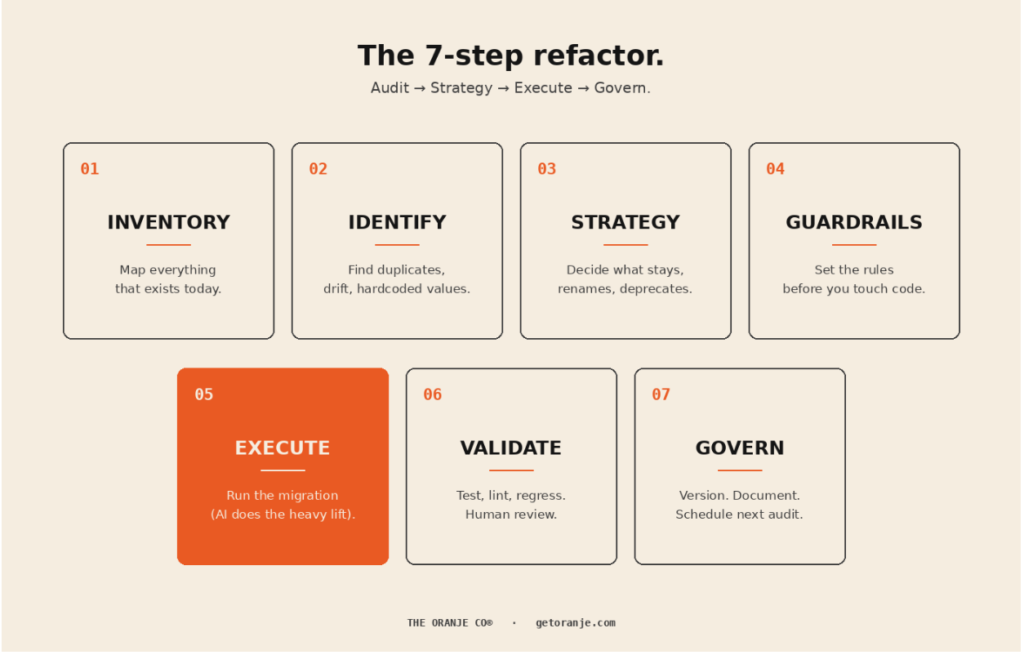
Step 1 , Inventory: map everything that exists today
Before you decide what the system should be, document what it is.
This step is almost always skipped, and it’s the reason most refactors fail. You can’t fix what you haven’t measured.
A complete inventory captures:
Every place the codebase diverges from the design files
Every defined token (name, value, type, file location)
Every hardcoded value in components (yes, every one)
Every component variant currently in production
Every place a token is referenced across the codebase
Lucas Rappart puts it well: “Before you decide what the system should be, spend a week mapping what already exists. Open every page of the product.” A full inventory of an enterprise product can take a week of focused work. Don’t skip this.
Where AI helps here: crawling the codebase for token usage, hardcoded values, and component instances is exactly what modern code agents do well. Claude Opus 4.8’s 1M-token context window is on by default, meaning the model can hold an entire large codebase in working memory while executing. What used to take a week of grep-and-spreadsheet work now takes hours.
What you produce: one master inventory spreadsheet or database. Every token, every reference, every hardcoded value. This becomes the source of truth for the entire refactor.
📋 Prompt to copy-paste:
You are auditing a design system codebase. Crawl the entire repository at the path I provide and produce a complete inventory as a CSV with these columns:
– usage_count (how many times this token is referenced across the codebase)
– usage_files (top 10 files where it is used)
Then produce a second CSV listing every hardcoded value found inside component files (raw hex, raw px, raw font-size declarations) with:
– hardcoded_value
– value_type
– file
– line
– component_or_context
Do not modify any files. This is a read-only audit. Output: two CSVs and a one-paragraph summary of total tokens, total hardcoded values, and top 5 most-used tokens.
Step 2 , Identify: find duplicates, drift, and hardcoded values
Now you analyse the inventory. You’re looking for three categories of mess:
Duplicates. Same value, different names. color-blue-500 and brand-blue-500 both at #2776BA. The classic enterprise inheritance.
Drift. Near-duplicates that should be the same. #2776BA and #2876BC , close enough that no user would tell them apart, but they exist as separate tokens because two designers tokenised them independently.
Hardcoded values. Raw hex codes, raw pixel values, raw font sizes living directly in components. These are tokens that should exist but don’t.
A UX Planet piece on design tokens names the root cause directly: “Over time, different teams start using different names for the same color, leading to confusion and duplicate tokens. When the brand color changes, updating these scattered tokens becomes an overwhelming task.”
That’s exactly the pattern.
Where AI helps here: AI is genuinely excellent at this kind of structured analysis. Feed it your inventory, ask it to flag duplicates and near-duplicates with a similarity threshold, and you’ll have a clean exception report in minutes. Token extraction and analysis tooling can reduce manual labour by up to 50%.
What you produce: a clean list of every duplicate token, every drift instance, and every hardcoded value, with locations.
📋 Prompt to copy-paste:
Using the inventory CSVs from Step 1, identify three categories of issues:
1. EXACT DUPLICATES , tokens with identical values but different names. Group by value. For each group, list every token name, file location, and total usage count.
2. NEAR-DUPLICATES , tokens with values within a 2% similarity threshold for colors (use Delta E ≤ 3 for color values) or within 2px for spacing. Group by similarity cluster.
3. TOKEN CANDIDATES , hardcoded values that appear 3 or more times across the codebase and should be tokenised. Group by value and propose a token name following BEM-style naming (e.g., color-blue-500, space-md, font-size-lg).
Output a single report in markdown with three sections, one per category. For each item include: locations, usage count, and a one-line note on suspected cause (e.g., “likely independent tokenisation by separate squads”). Do not propose fixes yet. This is diagnostic only.
Step 3 , Strategy: decide what stays, renames, and deprecates
This is where humans take back the wheel.
For every duplicate or near-duplicate you found, you need an explicit decision:
Keep , this token is canonical, leave it alone
Rename , same value, better name (preserve the value, alias the old reference)
Merge , multiple tokens collapse into one
Deprecate , this token is being removed, mark for migration
Add , a new token needs to exist (often a new generic scale)
The reason this stays human: the value is mechanical, but the naming convention is strategic. Are your tokens organised by colour family (blue-500), by brand (brand-primary), or by semantic role (color-action-primary)? Different choices serve different scaling needs. Get this wrong and you’ll refactor again in eighteen months.
Atlassian’s migrate to tokens guide explicitly emphasises this: their codemods generate suggestions, but “manual review is required.” Strategy doesn’t automate.
What you produce: a token-by-token migration map. Status column. Impact column. Proposed solution column. (If you’ve seen the spreadsheet floating around the design ops community for this kind of work, you know what we mean.)
📋 Prompt to copy-paste:
Using the duplicates and near-duplicates report from Step 2, generate a token migration map as a CSV with these columns:
– impact (one-line description of what changes in the codebase)
– proposed_solution (the exact action: e.g., “rename color-blue-* to color-brand-blue-* and add alias”, “merge into single token”, “deprecate with 6-month sunset”)
– breaking_change (yes/no)
– affected_files_count
I will provide the naming convention to follow. Apply these rules:
– Brand-critical tokens MUST be preserved (do not change values, only rename)
– Generic scales should follow [INSERT YOUR CONVENTION e.g., “Tailwind”] naming
– Deprecated tokens get a comment marker explaining the migration path
– No autonomous decisions on tokens flagged as “ambiguous” , list those separately for human review
Output: the CSV migration map + a separate “needs human decision” list.
Step 4 , Guardrails: set the rules before you touch code
Before any code changes happen, lock down:
Naming convention. Document it. Publish it. Make it impossible to add a token that violates it.
What’s reversible. Which changes you can ship behind a feature flag, which need full deployment.
Who approves what. Single source of truth on who signs off on the migration plan, and who signs off on each merged PR.
What “done” means. Concrete acceptance criteria. Visual regression passing? Zero hardcoded values? Adoption metric above X%?
Mike Cvet, who has written some of the sharpest material on migrations at scale, points out: “Will Larson says migrations are the sole scalable fix to tech debt. This makes sense if you think of migrations as refactoring at scale.” The implication: treat your refactor as a real migration project, not a cleanup sprint. That means real guardrails.
What you produce: a one-page document anyone on the team can read in 5 minutes that answers “what are the rules of this refactor.”
📋 Prompt to copy-paste:
I am about to run a design system refactor. Help me draft a one-page “rules of engagement” document covering:
1. NAMING CONVENTION , the exact rules for new token names (prefix, separator, scale, semantic vs literal). Include 5 examples of valid names and 5 examples of invalid names with reasons.
2. UNTOUCHABLE LIST , tokens that cannot change under any circumstances during this refactor. (I will provide the list.)
3. REVERSIBILITY MATRIX , for each category of change (rename / merge / deprecate / value change), state whether it can ship behind a feature flag, requires full deployment, or needs a coordinated release.
4. APPROVAL CHAIN , who signs off on the migration map, who reviews each PR, who owns final merge. (I will provide names/roles.)
Output as a clean markdown document suitable for pasting into our team wiki.
Step 5 , Execute: run the migration (AI does the heavy lift)
This is the step everyone wants to skip to. With proper Steps 1–4 in place, it’s also the step that’s changed the most in the last 18 months.
For each token in your migration map, the AI agent’s job is mechanical:
Find every reference to the old token across the codebase
Replace it with the new token (or alias) per the migration map
Generate the changes as a reviewable PR
Flag any usage that doesn’t fit the migration rules for human attention
Claude scores 82.1% on SWE-bench Verified , the industry-standard benchmark for resolving real GitHub issues in large codebases. As of February 2026, Claude Code was authoring roughly 4% of all public GitHub commits , about 135,000 commits a day, with a single-day peak of 326,000. Codebase-scale refactoring with AI is no longer experimental. It’s production reality.
That said: do NOT let the AI execute autonomously across thousands of files.
The right pattern is scoped, reviewable batches. Migrate one token family at a time. Open a PR for each. Run tests on each. Merge each only after a human reviews the diff. Yes, this is slower than a single grand migration. It’s also the difference between a clean refactor and a production incident.
What you produce: a series of small, reviewable PRs that incrementally migrate the codebase, with full test coverage on each.
📋 Prompt to copy-paste:
You are executing a design system migration based on the approved migration map I am providing. Follow these strict rules:
1. SCOPE , process ONE token family per execution (e.g., all color-blue-* tokens together, then stop). Do not bundle multiple families in a single PR.
2. FOR EACH TOKEN IN SCOPE:
– Find every reference across the codebase
– Apply the migration action from the map (rename / alias / merge / deprecate)
– Update the token definition file
– Update any documentation that references the token
– Run the existing test suite locally to confirm no regressions
3. OUTPUT , produce a single Pull Request with:
– A clear PR title in this format: “refactor(tokens): migrate [family] per migration map row [X-Y]”
– A PR description listing every file changed, every token migrated, and any edge cases encountered
– Commit history broken into logical commits (definition changes / usage updates / docs)
4. HARD STOPS , refuse to proceed and ask for human input if:
– A token in scope has more than 200 usages (flag for batched migration)
– Migration would touch any file in the UNTOUCHABLE LIST
– The action would create a circular alias
– You encounter a usage pattern not covered by the migration map
5. REPORT , at the end, output a summary of what shipped, what was deferred, and what needs human review.
Begin with the first token family in the migration map and stop after producing the PR. Wait for human review before continuing to the next family.
Step 6 , Validate: test, lint, regress, and have a human review
For every PR, run the full validation stack:
Visual regression tests. Compare every screen pre- and post-migration. Flag any pixel-level differences. Tools like Applitools, Chromatic, and Percy do this well.
Linting. New token usage should pass your naming convention rules. Hardcoded values should fail the lint.
Type checking. Particularly important for TypeScript codebases with typed token references.
Smoke tests. Critical user flows should pass automated end-to-end testing.
Human visual QC. A designer who knows the system should look at every changed surface. AI cannot tell you that something “feels” wrong.
The recent piece on automating design system audits suggests prompts like: “Audit my prototype to find hardcoded values (colors, spacing, typography) that should use design tokens from our system.” That same approach works for validation , point the agent at the post-refactor codebase and ask it to flag anything that violates the rules.
What you produce: a clean test pass for every PR before merge, and a designer’s sign-off on visual changes.
📋 Prompt to copy-paste:
Validate the PR I am providing for a design system token migration. Run these checks and produce a structured validation report:
1. CONVENTION CHECK , every new or modified token name must match our naming convention. Flag any that don’t with file/line.
2. HARDCODED VALUE CHECK , scan the diff for any hardcoded hex codes, raw px values, or raw font sizes that were added (not just untouched). Flag each one as a regression.
3. ALIAS LOOP CHECK , confirm no token aliases to itself (directly or indirectly through another alias).
4. USAGE COMPLETENESS CHECK , for every renamed token in this PR, confirm zero remaining references to the OLD name anywhere in the codebase (outside of explicit deprecation comments).
5. BREAKING CHANGE SURFACE , list every component, screen, or route whose visual output could change because of these token changes. This becomes the visual QC checklist for the human reviewer.
6. ACCESSIBILITY SPOT CHECK , for color token changes, recalculate WCAG contrast ratios for the most common foreground/background pairings. Flag any pair that drops below AA.
Output: a markdown report with one section per check. Pass/fail for each. List of human-review items at the end.
Step 7 , Govern: version, document, and schedule the next audit
The refactor isn’t done when the migration ships. It’s done when you’ve built the infrastructure to prevent the same drift from accumulating again.
That means:
Semantic versioning on your token library (major, minor, patch). Every change ships with release notes. Parallel HQ recommends introducing this explicitly: “Deprecate old components gradually and provide migration paths… most teams don’t version tokens; adopting versioning prevents breaking changes.”
Updated documentation. Every new token, naming convention, and pattern decision is captured in your design system docs. Not in a Notion someone forgets about. In the same repo as the tokens themselves.
Linting in CI/CD. Hardcoded values should fail the build. Non-conformant token names should fail the build. The system enforces itself going forward.
A scheduled re-audit. Put it on the calendar. Every six months. Token sprawl is not a one-time problem.
Clear ownership. A named person or small team owns the system. They review proposed additions before they merge.
What you produce: a maintained, versioned, governed design system , and a calendar invite for the next audit.
📋 Prompt to copy-paste:
Help me set up governance infrastructure for our design system so the drift we just refactored doesn’t accumulate again. Generate the following:
1. SEMANTIC VERSION LOG TEMPLATE , a markdown template for tracking token library releases (major / minor / patch) with sections for: what changed, why, migration notes, deprecation timeline.
2. CONTRIBUTION GUIDELINES , a one-page doc covering: how to propose a new token, the review process, who approves additions, and the criteria for rejection (with examples).
3. CI/CD LINT RULES , generate the lint configuration (for Stylelint or ESLint, my preference) that:
– Fails the build on hardcoded color, spacing, or font-size values
– Flags use of deprecated tokens
– Enforces our naming convention on any newly added tokens
Warns on tokens that have not been used in the last 90 days (drift indicator)
4. RE-AUDIT SCHEDULE , a recurring 6-month audit checklist that I can paste into our team calendar, including: what to inventory, what to flag, who runs it, and what the output looks like.
5. OWNERSHIP DOC , a short doc naming the design system owner(s), their responsibilities, escalation path, and how external contributors interact with them.
Output all five as separate markdown documents I can paste directly into our team wiki and repo.
What AI can and can’t do (honest answer)
After running this playbook a few times, here’s the honest division of labour:
AI is great at:
Crawling and inventorying the codebase
Identifying duplicates and near-duplicates
Generating migration maps from explicit rules
Executing mechanical code transformations across files
Producing reviewable PRs with proper commit hygiene
Running automated validation passes
AI is not great at:
Deciding the naming convention in the first place
Making strategic calls about which token is canonical
Understanding brand context that isn’t documented anywhere
Catching that something “feels” off visually
Owning the system longer-term
The pattern is clear. AI takes the mechanical pain off the human’s plate so the human can focus on judgment. That’s the whole game.
The Praxen piece on design tokens meeting agents puts the AI risk well: “Agents are powerful, but they’re also extremely confident liars if you let them be.” The fix is constraint , give the AI explicit rules, a whitelisted set of tokens it can use, and a strict review boundary it cannot cross unilaterally.
This is what we call governed velocity. Speed and an audit trail. Not vibe coding.
Common pitfalls
Three traps to avoid:
1. Refactoring without inventorying first. You’ll discover edge cases mid-migration that force you to start over. Always inventory first.
2. Letting the AI execute autonomously across thousands of files. Yes, it’s tempting. No, it’s not how production refactors work safely. Small batches, reviewable PRs, every time.
3. Skipping the governance step. Every refactor that doesn’t end with versioning + linting + scheduled re-audits will regenerate the same mess within 18 months. The refactor isn’t complete without it.
Where Oranje fits
We built The Oranje Co for the exact scenario this playbook describes design systems that need to evolve faster than enterprise governance traditionally allows.
The bet isn’t that AI replaces the refactor. It’s that AI, properly guard-railed, removes 60-70% of the manual tedium so design system teams can spend their time on the decisions that matter: strategy, naming, and judgment.
We’ve been running variants of this playbook on real client codebases. Token-by-token migration maps. AI-generated PRs landing inside the client’s own folder structure. Human QC built into the loop. Results that merge instead of triggering a refactoring tax.
Oranje is in beta now, with our enterprise launch coming soon. 🍊
If you’re a design lead or engineering lead carrying serious pattern debt and you’d like to be part of the early enterprise rollout, we’d love to hear from you.
Closing thought
Most design system content focuses on building a system from scratch. Almost nobody writes about the much messier reality: refactoring a system that’s already in production, has thousands of usages, and absolutely cannot break customer flows during the transition.
That’s where most enterprise teams actually live. And it’s the work that quietly determines whether your design system survives its third year.
The playbook above isn’t novel. The methodology has existed in pieces for years. What’s new in 2026 is that AI can finally take the mechanical 60% off your team’s plate, so the judgment-heavy 40% can get the attention it deserves.
Pattern debt isn’t permanent. It just needs a process. And maybe an accomplice.
Further reading
A curated list of the best resources to go deeper on each part of the playbook.
Praxen , When Design Tokens Meet Agents , sharp essay on combining design tokens with AI agents, including how to prevent agents from hallucinating token names.
Zeroheight , 2026 Design Systems Report , the most current data on what design system teams are actually struggling with. Adoption remains the #1 challenge for the fifth year running.
The Oranje Co is building infrastructure for the creative economy , closing the gap between design, system, and production code. Currently in beta, with enterprise launch coming soon. getoranje.com
The Rule of 100, and why testing late costs 100x more.
Walked into my society today. Two men mopping the corridor. Water everywhere. Foam. Real effort.
Made me stop for a second.
The building is already up. People already live here. Cars parked. Kids playing. And now someone is trying to clean the floors while everyone uses them.
Half the work goes back into itself. You mop, someone walks, you mop again. Water spreads. The job feels endless.
Then it hit me.
This is exactly what product design without proper QA looks like.
Ship, then discover
You build the product. Squads code the features. Designers hand over Figma files. Engineers translate them. Everything shows up on staging. Someone clicks “ship.”
Users arrive
Now the bugs start showing up.
A filter that behaves differently on mobile. A form that fails in Safari. A payment flow that breaks with two cards on file. Little things, sometimes big things, almost always things that could have been caught earlier.
The team scrambles. Hotfixes. Emergency deploys. Support tickets. Everyone who was building next quarter’s roadmap is suddenly cleaning up last quarter’s shipping decisions.
Mopping while everyone walks over it.
The Rule of 100
There is a documented rule for this. It comes from IBM’s Systems Sciences Institute and it is called the Rule of 100.
The math is brutal:
Bug caught at design: about $100
Same bug in development: about $1,000
Same bug in QA testing: about $1,500
Same bug in production: $10,000+
Same bug. Same fix. Different phase. 100x the cost.
You are not paying for the fix. You are paying for the timing.
What good teams do differently
The teams that ship clean don’t test more. They test earlier.
Three things they seem to share.
QA reads user stories before development begins. Ambiguity gets flagged during sprint planning, not on release day. Cheapest possible catch.
Design decisions get quality review before they harden into architecture. A pattern that looks fine on one screen might break on twelve. Catch it at the pattern stage, not after twelve components already exist.
They measure Defect Removal Efficiency, not just bug count. DRE is the percentage of defects caught before release. The US average is 85%. Best-in-class teams hit 99%+. That gap is where most enterprise pain lives.
None of this is new. What has changed is that AI-assisted development lets teams ship faster than ever. If your QA still happens after code, you are just multiplying the cost per bug
Where Oranje fits
We built The Oranje Co around this specific gap.
Quality control should not be a phase at the end. It should be a layer of the system, running from design decisions through to production code. Governed velocity: speed with an audit trail.
We have been running this with clients. Patterns codified before implementation. Component decisions reviewed against the system. PRs landing in the client’s own folder structure with QC built into the loop. Bugs caught at design get fixed for effectively $0. Almost none reach production.
Oranje is in beta now, with our enterprise launch coming soon. 🍊
The Oranje Co is building infrastructure for the creative economy, closing the gap between design, system, and production code. Currently in beta, with enterprise launch coming soon.getoranje.com