RPS // Blogs // Beyond the Grid: Why Design is Breaking Free from Systems and Dashboards
Beyond the Grid: Why Design is Breaking Free from Systems and Dashboards

For the last decade, the world of UX/UI design has been obsessed with “the machine.” We fell in love with the efficiency of atomic design, the rigid predictability of 12-column grids, and the dopamine-chasing complexity of the “God-view” dashboard.

We built massive design systems to ensure every button looked identical, and we crammed every available data point into charts and graphs, assuming that more information equaled a better experience.

But a shift is happening. The era of the “system-first” approach is peaking, and in its wake, we are seeing the return of something we almost forgot: Humanity.

The Death of the Dashboard

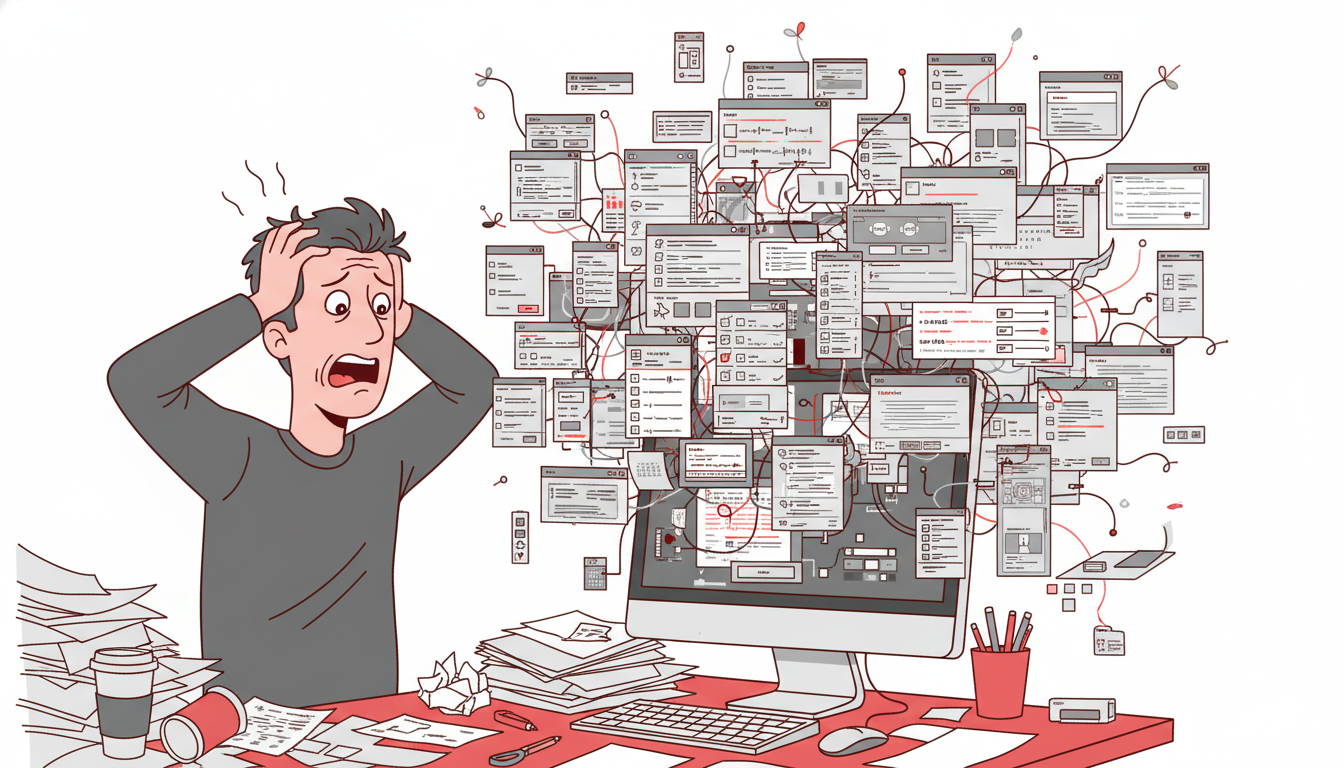
The dashboard was once the ultimate status symbol of software. If your app had a screen with twenty different widgets, line graphs, and pie charts, it was “powerful.”

However, users are exhausted. They don’t want to be data analysts just to manage their daily tasks. They don’t want to navigate a cockpit of information; they want answers. We are moving away from Information Density toward Actionable Intimacy.

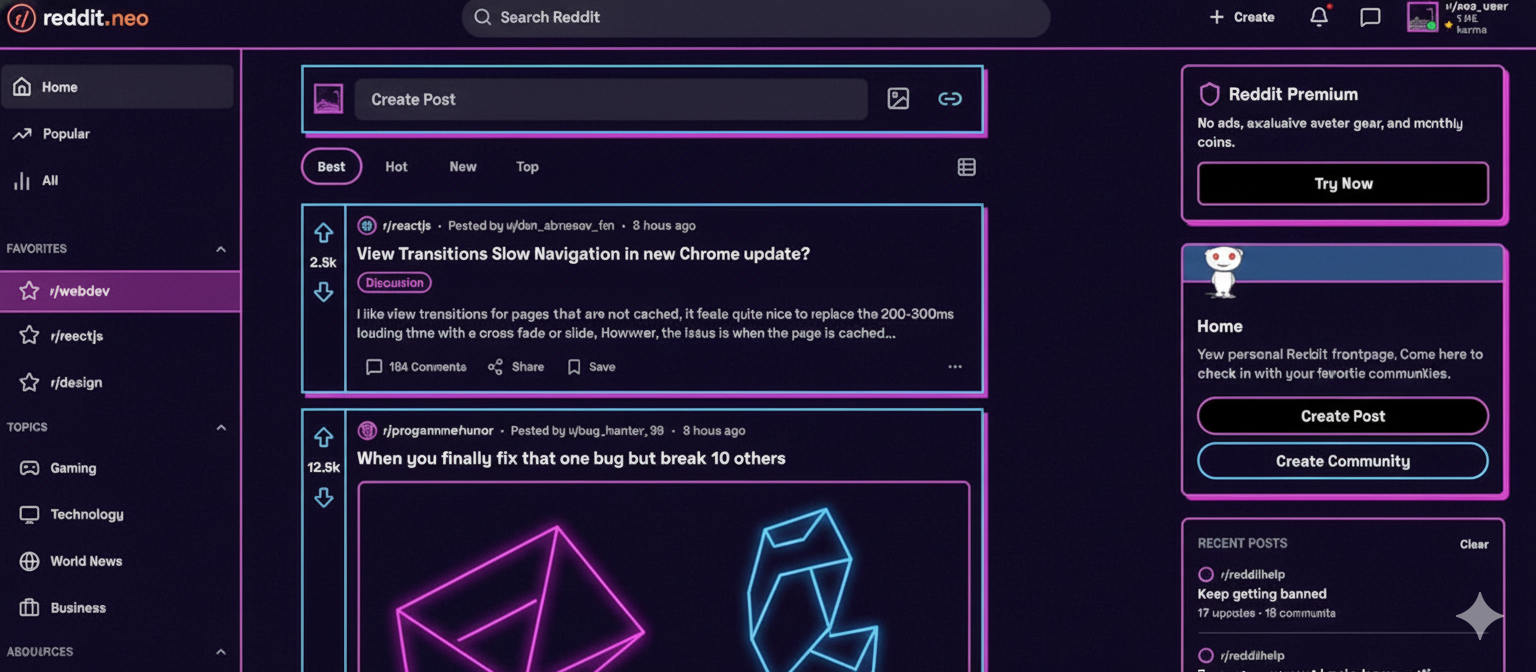
The new wave of design doesn’t ask the user to find the insight; it delivers the insight through natural language and contextual interfaces.1 Instead of a dashboard showing a 15% drop in engagement, the “quiet” UI simply suggests: “Your community is a bit quiet today; would you like to start a conversation with these three members?”

The dashboard is dying because it’s a barrier between the user and their goal. The future is a single, clear path.

The Design System Trap

Design systems were supposed to set us free. By automating the mundane, designers were meant to focus on “big picture” problems. Instead, many designers became librarians—managing documentation, debating border radii, and ensuring that everything felt consistent to the point of being sterile.

When every app uses the same rounded corners, the same inter-font, and the same “neutral-600” gray, we lose the soul of the product. Branding has been sacrificed at the altar of “usability,” resulting in a web that looks like one giant, endless template.

The “Quiet Human” movement is a rebellion against this sameness. It’s about reintroducing personality, intentional imperfection, and high-fidelity craft that doesn’t always fit perfectly into a React component library.

The Rise of Quiet, Intentional UX

So, what does it mean for design to become “quietly human” again? It manifests in three major shifts:

1. Anticipatory, Not Reactive

Instead of giving users a toolbox (the system) and telling them to build something, we are designing software that anticipates needs.2 It feels less like a machine and more like a helpful assistant who knows when to speak and when to stay silent.

2. Narrative Interfaces

We are moving away from “screens” and toward “stories.” Modern UI is beginning to mirror the way humans actually communicate—through flow, conversation, and gradual discovery. The rigid hierarchy of the sidebar and header is being replaced by organic, fluid layouts that adapt to the user’s emotional state.

3. Emotional Ergonomics

We’ve spent years perfecting physical ergonomics and digital accessibility, but we’re only now starting to value emotional ergonomics. This is design that respects a user’s mental bandwidth. It uses whitespace not just for “cleanliness,” but for breathing room. It uses color not just for “conversion,” but for mood.3

The Path Forward: Designing for the Soul

The “End of Dashboards” isn’t literally about deleting data displays; it’s about the end of the dashboard mindset. It’s a move away from treating users as data-processing units.

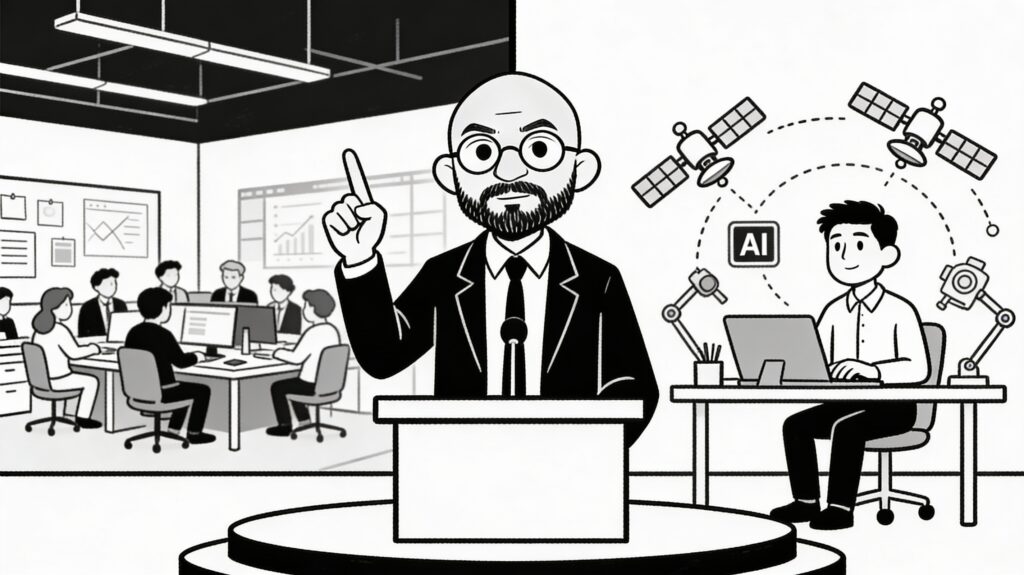
As AI takes over the heavy lifting of generating layouts and maintaining systems, the role of the designer is shifting.4 Our value no longer lies in how well we can organize a Figma file. Our value lies in our empathy, our taste, and our ability to make technology feel less like a cold tool and more like a warm extension of the human experience.

The future of design isn’t a system. It’s a feeling. And it’s finally getting quiet enough for us to hear it.

Also Read: How Successful SaaS Companies Make Design Decisions (Without Committee)

RPS // Blogs // How Successful SaaS Companies Make Design Decisions (Without Committee)
How Successful SaaS Companies Make Design Decisions (Without Committee)

The Meeting That Should Never Have Happened

Stewart Butterfield founded Slack in 2013, but the company nearly died three years later.

Not because the product was bad. Because the decision-making had become broken.

By 2016, Slack had 50 employees. They were adding features fast. But something felt wrong.

Every design decision took weeks. A button color would go to committee. Ten people would have opinions. Meetings would happen. Nothing would change until someone got frustrated and decided unilaterally.

The product felt disjointed. Features weren’t cohesive. The interface was becoming a patchwork of decisions made by different people at different times.

Stewart realized the problem: they were making design decisions by committee.

A committee means everyone has a say. Everyone has equal voice. That sounds fair. It’s actually the path to mediocrity.

Committee design creates products where no decision is strong. Everything is compromised. Nothing is excellent.

Stewart made a decision that changed everything: he removed design decisions from committee.

Instead, he created a process. One person decided. Other people could challenge the decision. But the decision was made by one person, not consensus.

The results were immediate. Features shipped faster. The product felt coherent. The design improved.

Why Committee Design Fails

Committee design sounds like it should work. More voices. More perspectives. Better decisions.

In reality, it’s the opposite.

A committee design decision works like this:

A designer proposes a solution. The product manager suggests a different approach. The engineer raises concerns. The founder has opinions. The marketing person wants something different.

Everyone talks. Nobody decides.

Or someone decides unilaterally. But now half the team disagrees. They’re less invested. They implement half-heartedly.

Or the decision gets compromised. Everyone’s opinion gets incorporated. The result is incoherent.

None of these outcomes are good.

Committee design kills velocity. It kills coherence. It kills ownership.

How Slack Actually Made Design Decisions

Stewart created a simple framework for making design decisions without committee.

Step 1: The Proposer

One person proposes a design. This person is responsible for the proposal. They’ve thought it through. They can defend it.

This person might be the designer. Might be the product manager. Might be anyone. But it’s one person.

Step 2: The Context

The proposer explains the context. Why are we making this decision? What problem are we solving? What did we consider and reject?

Context matters because it helps others understand the reasoning.

Step 3: The Feedback Window

Other people can provide feedback. But feedback is just input. Not votes.

The designer listens to feedback. But they’re not obligated to take it.

Step 4: The Decision

The proposer decides. Based on their judgment. Based on feedback. But ultimately their call.

Step 5: The Commitment

Once decided, the team commits. Even people who disagreed.

If the decision is wrong, you’ll learn. You’ll reverse it. But you don’t second-guess it while implementing.

This process sounds simple. It’s revolutionary.

Why? Because one person is accountable.

If the decision is good, they get credit. If it’s bad, they own it.

Accountability changes how people think about decisions.

Why This Works

The reason this framework works is psychological.

When you’re one of five people deciding something, you’re 20% responsible.

If it fails, you can blame the others. “I wanted something different.”

When you’re the person deciding, you’re 100% responsible.

If it fails, it’s on you.

This creates different incentives.

A committee member might suggest a conservative choice because it’s safe.

A person making the decision might suggest a better choice because they own the outcome.

Stewart realized this. He structured Slack’s decision-making around individual accountability, not consensus.

The Real Impact on Product Quality

By 2018, Slack’s design felt cohesive. Features worked together. The interface was intuitive.

Not because the design was perfect. But because decisions were made by people who owned them.

A designer made a button color decision. It was her decision. If it was wrong, she’d change it.

This accountability meant she thought carefully. She wasn’t making arbitrary choices.

The product manager made a feature priority decision. It was her decision. If it backfired, she’d explain why.

This accountability meant she prioritized thoughtfully.

The difference between Slack’s 2016 version (committee decisions) and 2018 version (individual accountability) was night and day.

Not because the people changed. But because the decision structure changed.

How Different Companies Apply This

Not every company uses Slack’s exact framework. But successful SaaS companies use the principle: design decisions are made by individuals, not committees.

Company 1: The Design Lead Model

One design lead makes all design decisions.

Other people give input. But the design lead decides.

This works when you have a strong design lead.

Examples: Stripe uses this model in many areas. Strong design leadership. Coherent product.

Company 2: The Product Manager Model

The product manager decides.

They consult designers, engineers, and data. But they decide.

This works when product managers think holistically about user experience.

Examples: Some SaaS companies use this. The best ones have product managers who understand design deeply.

Company 3: The Founder Model

The founder decides, especially in early days.

This works when the founder has strong taste.

Examples: Apple under Steve Jobs famously used this. Figma’s founder Dylan Field makes many design decisions.

Company 4: The Data Model

Design decisions are made by looking at data.

A/B test shows one design performs better. That design wins.

This removes opinion from decisions.

Examples: Some SaaS companies use this heavily. Conversion-focused companies especially.

The Key Elements of Each Successful Model

All successful models share common elements:

Element 1: Clear Ownership

Someone is clearly responsible for the decision.

Not “the team,” not “we.” But “Sarah decided,” or “the design lead decided.”

Element 2: Input Gathering

Even though one person decides, they gather input from others.

They’re not deciding in isolation.

Element 3: Clear Criteria

The decider explains what they’re optimizing for.

“We’re optimizing for new user clarity, not power user efficiency.”

This helps others understand why a decision was made.

Element 4: Reversibility

If a decision is wrong, you can reverse it.

This reduces the risk of individual decision-making.

A bad button color can be changed. A bad feature can be disabled.

Element 5: Speed

Individual decisions are made faster than committee decisions.

No meetings. No consensus-building. One person decides.

The Common Mistake Companies Make

Most companies start with individual decision-makers.

The founder decides everything. Works great early on.

As the company grows, people push back. “Why does one person decide for all of us?”

The company adds more people to decisions. “Let’s make it more democratic.”

This feels more inclusive. Everyone has a voice.

But the product suffers. Decisions slow down. Coherence breaks.

Most failed companies didn’t fail because of bad decisions. They failed because of slow decisions.

By the time a decision was made, the market had moved.

Stewart understood this. He stayed committed to individual decision-making even as Slack grew.

How to Know If Your Decision-Making Is Broken

Ask yourself these questions:

Question 1: How long does a design decision take?

If it takes weeks, something’s wrong.

A good design decision should take days, not weeks.

If it takes weeks, you probably have committee decision-making.

Question 2: Do decisions feel compromised?

You make a decision that nobody’s fully happy with.

That’s a sign of committee compromise.

Good decisions are strong. People might disagree, but they understand why the decision was made.

Question 3: Does the product feel coherent?

Do different parts feel like they’re made by different people?

If yes, your decision-making is fragmented.

Good products feel unified. Even if they’re built by different teams.

Question 4: Can people execute quickly?

Once a decision is made, can the team execute in days?

Or do they re-discuss and reconsider?

If they re-discuss, ownership is unclear.

Question 5: Are people invested in the outcomes?

When a decision is made, do people own the result?

Or do they think “I didn’t want this but whatever”?

If it’s the latter, decision-making isn’t clear.

How to Actually Change Your Decision-Making

If your company has committee decision-making, here’s how to fix it:

Step 1: Pick One Area

Don’t change your entire decision-making process at once.

Pick one area. Maybe design. Maybe features. Maybe navigation.

Step 2: Designate a Decision-Maker

For that area, one person decides.

This person has authority. They listen to input. But they decide.

Step 3: Set Clear Criteria

This person explains what they’re optimizing for.

“I’m optimizing for new user clarity” or “I’m optimizing for power user speed.”

Step 4: Make Decisions Fast

This person makes decisions in days, not weeks.

No extended meetings. No consensus-building.

Step 5: Measure the Impact

Track whether this area improves.

Is the product better? Are decisions faster? Are people more invested?

Step 6: Expand

If it works, expand this model to other areas.

Don’t try to change everything at once.

The Fear People Have

When you suggest individual decision-making, people get nervous.

“What if one person makes bad decisions?”

It’s a fair question.

Stewart’s answer: if they make bad decisions, they won’t be the decision-maker for long.

Bad decision-makers become obvious quickly.

If someone makes three bad decisions in a row, they lose credibility.

The organization naturally shifts power to better decision-makers.

This is different from committee decision-making, where bad decisions get buried in consensus.

Individual decision-making makes bad decisions visible.

This is actually good. It creates pressure to improve.

The Role of Feedback

Feedback in this model is important. But different than in committee models.

In committee models, feedback is voting. People vote for their preference.

In individual models, feedback is input. The decision-maker considers it, but doesn’t have to follow it.

This is a crucial difference.

A designer makes a button color decision: orange.

A colleague says “I think blue is better.”

In committee: there’s a vote. One side wins, one side loses.

In individual: the designer considers it. Maybe they agree. Maybe they don’t. They decide.

The colleague has been heard. But the decision-maker decided.

This is psychologically different. It feels less fair. But it’s more effective.

How Stewart’s Model Affected Slack’s Growth

By 2017, Slack’s design was notably cohesive.

New features fit naturally into the existing product.

The interface was intuitive. Users didn’t have to learn new patterns.

This coherence had massive business impact.

New user onboarding improved. Retention improved. Feature adoption improved.

By 2019, Slack went public. Part of the investment thesis was “this product is beautifully designed.”

The design quality wasn’t accidental. It came from how decisions were made.

Strong design required strong decision-making.

Different Models for Different Company Sizes

The model changes as companies grow.

Early Stage (5-20 people)

The founder decides most things.

This is fine. Founders have taste. They move fast.

Growth Stage (20-100 people)

Multiple decision-makers emerge.

The design lead decides design. The product manager decides features. The founder decides strategy.

Clear areas of authority.

Scale Stage (100+ people)

Decision-making frameworks become more formal.

But the principle stays: one person decides in their area.

Committees are used for truly company-wide decisions, not day-to-day decisions.

Data-Driven Decisions

There’s one area where committees can work: data-driven decisions.

If you A/B test two designs and one clearly performs better, you use the better one.

The data decides. Not people.

This removes ego from decisions.

Slack uses this for some decisions. “We tested three button colors. This one had the highest click rate.”

That’s objective. Data wins.

But most design decisions aren’t data-driven. They’re judgment calls.

For judgment calls, individual decision-makers work better.

The Real Lesson

Stewart’s insight wasn’t “remove all input from decisions.”

It was “don’t confuse input with decision-making.”

Input is valuable. Feedback is valuable. Other perspectives are valuable.

But input should inform the decision, not make the decision.

The decision-maker listens to input. Then decides.

This is different from voting where input IS the decision.

Most failing companies have confused these two.

They treat input as votes.

Successful companies treat input as information.

What This Means for Your Product

If your product feels disjointed, your decision-making is probably disjointed.

If your product feels coherent, your decision-making is probably clear.

If you’re shipping features slowly, committee decision-making is probably slowing you down.

If you’re shipping quickly, someone is probably making decisions clearly.

The product is a mirror of how decisions are made.

This Week

Pick one small design decision you need to make.

Instead of bringing it to committee, make it yourself.

Gather input. Consider it. Then decide.

See how long it takes.

See how the team reacts.

See if the outcome is good or bad.

If it’s good and fast, expand this approach.

If it’s bad, you’ve learned something valuable about yourself as a decision-maker.

Either way, you’ve broken the committee cycle.

That’s how change starts.

Also Read: Figma Shortcuts Every SaaS Designer Should Know (That Save Hours Weekly)

RPS // Blogs // Figma Shortcuts Every SaaS Designer Should Know (That Save Hours Weekly)
Figma Shortcuts Every SaaS Designer Should Know (That Save Hours Weekly)

The Designer Who Got Tired of Clicking

Dylan Field founded Figma in 2012 with a vision: make design collaboration easy.

What most people don’t know is that Dylan became obsessed with one thing: eliminating unnecessary clicks.

In the early days, Dylan would watch designers use Figma. He noticed something that bothered him. Designers spent 30-40% of their time doing repetitive tasks. Clicking the same buttons. Typing the same text. Creating variations of the same component.

These weren’t creative moments. These were mechanical moments. Time wasted.

Dylan made a decision: Figma would be built around shortcuts. Keyboard shortcuts. Workflow shortcuts. Automation shortcuts.

The idea was simple: reduce the time designers spend on mechanical tasks so they can spend more time on thinking.

Over the years, Figma accumulated hundreds of shortcuts. Most designers know maybe 10 of them. The rest are hidden away, waiting to save time.

Dylan’s insight applies to every SaaS designer: the difference between a designer who finishes work in eight hours and one who finishes in four hours isn’t talent. It’s knowing the tools inside out.

Why Shortcuts Matter More Than You Think

A designer who knows Figma shortcuts saves 10-15 hours per week.

That’s not an exaggeration. That’s based on how much time designers spend on repetitive tasks.

Let’s do the math. A SaaS designer works 40 hours per week. Of those:

About 35% of time is spent on actual design thinking (strategy, research, deciding what to build).

About 40% of time is spent on execution (building components, creating layouts, making variations).

About 25% is spent on collaboration and communication.

Of the 40% execution time, most is repetitive. Copying components. Creating variations. Adjusting spacing. Duplicating elements.

If you know shortcuts, you cut that execution time from 16 hours to 6 hours per week.

That’s 10 hours back. That’s a quarter of your week.

In a year, that’s 500 hours. That’s three months of work.

A shortcut that saves 30 seconds per task, repeated 100 times per week, saves 50 hours per year.

This is why Dylan obsessed over shortcuts. It’s not about being fast. It’s about getting your time back for work that matters.

The Shortcuts That Actually Save Time

Not all shortcuts are created equal. Some save five seconds. Some save five minutes.

The ones worth learning are the ones you’ll use dozens of times per day.

Shortcut 1: Duplicate (Ctrl+D or Cmd+D)

Every designer knows this one. Select something. Press Cmd+D. It duplicates.

But most designers don’t know where duplicates appear. They appear exactly where you expect: directly on top of the original, offset slightly.

This matters because you can duplicate something five times and each duplicate is stacked on top, offset. You can see all of them.

Why this saves time: Instead of copy-paste-paste-paste, you press one key. Instead of arranging duplicates, Figma arranges them for you.

A designer creating five button variations uses this 50 times per day. That’s 50 keypresses instead of 200 mouse clicks.

Shortcut 2: Create Component (Cmd+K)

Creating a component is the foundation of efficient design.

A component is a reusable element. You create it once. You use it 100 times.

Change the component once. All 100 instances update automatically.

Most designers know components exist. Most don’t know the shortcut to create them.

They right-click, look for the menu option, create component that way.

Cmd+K is faster.

Why this saves time: You’re not digging through menus. You’re pressing one key.

But the real time savings is bigger. When you have proper components, you spend 60% less time on repetitive variations.

Shortcut 3: Select All with Same Properties (Double-click a property)

Select a button. It’s 48px tall, blue color, Roboto font.

Now you want to find all buttons that are 48px tall and change them to 56px.

Without this shortcut, you’d have to select each one individually.

With this shortcut, you double-click the 48px height property. Figma selects all elements with that height.

Then you change the height to 56px. All of them update.

Why this saves time: You’re not manually selecting dozens of elements. Figma does it for you.

Shortcut 4: Rename Layers Quickly (Double-click layer name)

Figma layers are how you organize your design.

A messy layer panel means you can’t find anything.

Most designers ignore layer naming. They end up with “Frame 1,” “Rectangle 5,” “Group 3.”

Good designers name layers properly. But naming takes time.

Double-click a layer name. It becomes editable. Type the new name. Press Enter.

This is faster than right-click, rename, enter new name.

Why this saves time: You spend less time searching for layers because they’re organized.

This compounds. Over a year, you save hundreds of hours just from finding things faster.

Shortcut 5: Component Swap (Hold Alt, hover over a component)

Imagine you have 50 instances of a button component in your design.

Now you realize you should use a different button style.

Without this shortcut, you’d have to delete each button and create new ones.

With this shortcut, you hold Alt and hover over another button component. Your current button swaps to that one.

You can do this for all 50 buttons in minutes.

Why this saves time: You’re not recreating work. You’re swapping it.

This is especially powerful when you’re iterating. You can quickly try different components and see which works best.

Shortcut 6: Auto Layout (Shift+A)

Auto Layout is a feature that automatically arranges elements.

You select multiple buttons. Press Shift+A. Figma arranges them in a row or column with consistent spacing.

When you change one button’s size, the others adjust automatically.

Without Auto Layout, you’d manually space every element.

Change one element’s size? You’d have to manually adjust everything else.

Why this saves time: You’re not manually spacing 20 buttons. Auto Layout does it.

And when you change one button, everything adjusts. You don’t have to manually fix spacing.

Shortcut 7: Copy Properties (Right-click, Copy Properties)

You have a button that’s styled perfectly. Text color, button color, shadow, everything.

Now you have another button that you want to style the same way.

Without this shortcut, you’d manually recreate all the styling.

With this shortcut, you copy properties from the first button and paste them onto the second.

Why this saves time: You’re not manually styling elements. You’re copying styling.

This is powerful when you’re making variations of components. You create the style once. Copy it 10 times. Done.

Shortcut 8: Lock/Unlock (Cmd+Shift+L)

When you’re designing a complex layout with many elements, sometimes you accidentally move things.

You lock elements you don’t want to change. They become unmovable.

Most designers unlock elements by right-clicking and selecting unlock.

Cmd+Shift+L toggles lock faster.

Why this saves time: You’re not right-clicking repeatedly. You’re pressing one key.

This matters when you’re working on intricate details and don’t want to accidentally move background elements.

The Workflow Shortcuts That Change How You Work

Beyond individual shortcuts, there are workflow patterns that save enormous time.

Pattern 1: The Variation Workflow

You’re designing a button. It has hover, active, disabled states.

Instead of designing from scratch each time, you:

  1. Create the base button
  2. Duplicate it (Cmd+D)
  3. Rename it “Button – Hover”
  4. Adjust the styling
  5. Duplicate again, rename “Button – Active”
  6. Make it a component (Cmd+K)
  7. Create component variants

With shortcuts, this takes 5 minutes. Without them, it takes 20 minutes.

The time difference is that you’re not digging through menus. You’re pressing keys.

Pattern 2: The Copy Component Styling Workflow

You have a perfect button component. You need a secondary button that’s similar but slightly different.

  1. Duplicate the button component (Cmd+D)
  2. Rename it
  3. Right-click, select “Copy Properties” from the original
  4. Right-click the new one, “Paste Properties”
  5. Adjust only the colors

Without this pattern, you’d recreate styling from scratch.

With this pattern, you copy styling and change only what’s different.

Pattern 3: The Batch Update Workflow

You have 30 buttons throughout your design.

The designer decides all buttons should have more spacing inside.

You select one button. You note its padding (12px).

You double-click the 12px padding property. All buttons with 12px padding select.

You change to 16px. All 30 update.

Without this workflow, you’d change each button individually.

With this workflow, you change them all in seconds.

The Hidden Shortcuts Nobody Talks About

Most designers know the obvious shortcuts. The hidden ones are where real time savings happen.

Hidden Shortcut 1: Shift+Number Keys to Change Opacity

Select an element. Press Shift+5. Opacity becomes 50%.

Press Shift+8. Opacity becomes 80%.

Most designers use the opacity slider (finding it, clicking it, dragging it).

With this shortcut, you press one key and move on.

Why it matters: You adjust opacity dozens of times per day. This is faster every single time.

Hidden Shortcut 2: Cmd+B to Bold Text

You’re adjusting typography. You want to make text bold.

Most designers click the bold button or use the font dropdown.

Cmd+B toggles bold instantly.

This is the same shortcut every word processor uses. Figma supports it.

Hidden Shortcut 3: Cmd+I to Italicize Text

Same as bold. Cmd+I italicizes text instantly.

Hidden Shortcut 4: Alt+Drag to Duplicate and Position

Select an element. Hold Alt and drag.

Instead of moving the element, you’re dragging a duplicate.

This is faster than duplicate-paste-position.

Why it matters: When you’re arranging elements, this is instant.

Hidden Shortcut 5: Cmd+] and Cmd+

Layers in Figma have a stacking order. Sometimes you want to bring something forward or send it back.

Most designers right-click and select “Bring Forward” or “Send Back.”

Cmd+] brings forward. Cmd+

This is instant.

Hidden Shortcut 6: Cmd+Enter to Finish Editing

When you’re editing text or a layer name, pressing Cmd+Enter confirms the change.

Instead of clicking away or pressing Tab, you press Cmd+Enter.

This sounds tiny. But you do this dozens of times per day.

Hidden Shortcut 7: / to Search for Tools

Instead of clicking the toolbar, you press / and search for what you need.

Type “text” and the text tool activates.

Type “hand” and the hand tool (for panning) activates.

This is faster than clicking.

Hidden Shortcut 8: Shift+2 to Zoom to Fit

You’re zoomed in on details. You want to see the whole canvas.

Shift+2 zooms to fit the selection or page in the viewport.

Most designers use the menu or zoom dropdown.

This is instant.

How Dylan’s Philosophy Changed Design Work

Dylan’s obsession with shortcuts came from one belief: designers should be thinking, not clicking.

Every click takes time. Every menu takes time. Every decision point takes time.

The best design tool gets out of the way.

Figma did this by building shortcuts into everything.

Modern SaaS designers who’ve grown up with Figma expect this. They expect keyboard shortcuts for everything.

This expectation changed what good tools look like.

The Real Time Savings

Let me give you specific numbers from real SaaS designers who use these shortcuts.

A designer at a Series B SaaS company tracked their time before and after learning Figma shortcuts.

Before learning shortcuts:

  • Creating a button with five states: 25 minutes
  • Creating variations of a component: 40 minutes
  • Updating all instances of a component after design change: 30 minutes
  • Total per day: 8-10 hours of work

After learning shortcuts:

  • Creating a button with five states: 8 minutes
  • Creating variations of a component: 12 minutes
  • Updating all instances after design change: 3 minutes
  • Total per day: 4-5 hours of work

The difference is 4-5 hours per day.

That’s 20-25 hours per week.

That’s 100+ hours per month.

The designer went from shipping 8 designs per month to shipping 16 designs per month.

All from knowing shortcuts.

How to Actually Learn These

Knowing shortcuts and using shortcuts are different things.

You can’t memorize 50 shortcuts. You’ll forget most of them.

The strategy is to learn three at a time.

Learn one shortcut. Use it 100 times. It becomes muscle memory.

Then learn the next one.

Over three months, you’ll have learned 10-15 shortcuts that matter.

That’s enough to transform your workflow.

Week 1: Learn Cmd+D (duplicate) and Cmd+K (make component)

These two alone will save hours.

Every time you need to duplicate, use Cmd+D instead of copy-paste.

Every time you need a component, use Cmd+K instead of the menu.

Week 2: Learn Cmd+Shift+L (lock/unlock) and Alt+Drag (duplicate and position)

Once duplicating is muscle memory, learn these.

Week 3: Learn Shift+Number Keys (opacity) and / (search tools)

These are smaller but compound with the others.

By week 3, you’re using five shortcuts constantly.

Your workflow is noticeably faster.

The Mistake Most Designers Make

Most designers learn Figma by learning features.

“Here’s how to use Auto Layout.” “Here’s how to create components.”

They learn the concept. They forget the shortcut.

Then they use the menu every time.

The fast designers learn the shortcut first. They use it so much it becomes automatic.

Then they understand the feature deeply because they use it constantly.

The order matters.

Why SaaS Designers Specifically Need This

SaaS designers create components constantly.

They iterate. They create variations. They update components across screens.

A designer working on a marketing website might design 10 components.

A SaaS designer designs 100 components.

The time savings from shortcuts compounds for SaaS designers.

Shortcuts that save 30 seconds per task, done 500 times per week, save 250 hours per year.

That’s three months of work.

For SaaS designers, shortcuts aren’t optional. They’re required to ship fast.

The Tools That Work With Figma Shortcuts

Figma has plugins that amplify shortcuts.

Evernote’s Figma plugin lets you export designs to Evernote with keyboard shortcuts.

Notion’s plugin exports designs to Notion instantly.

These don’t replace shortcuts. They extend them.

But the core shortcuts matter most.

What Dylan Would Tell You

Dylan Field’s philosophy about design tools is: the tool should disappear.

When you’re designing, you shouldn’t be thinking about the tool. You should be thinking about the design.

Every time you’re clicking a menu or searching for a button, the tool is getting in the way.

Shortcuts eliminate that friction.

A designer using shortcuts is in flow. They think of something, they execute it instantly.

A designer using menus is interrupted. They think of something, they search for it, they execute it.

The difference is huge over time.

This Week

Pick one shortcut. Just one.

Learn Cmd+D (duplicate).

Use it instead of copy-paste for the next week.

Count how many times you use it.

Multiply by the time it saves per use.

You’ll be shocked at the total.

Next week, learn Cmd+K (make component).

In four weeks, you’ll have four shortcuts that save hours weekly.

In a year, you’ll be 50% faster at design execution.

That’s the compounding power of shortcuts.

Dylan built Figma around this idea.

The designers winning today are the ones who understand it.

Also Read: 5-Minute Design Audit – One Framework That Works Every Time

RPS // Blogs // Indian SaaS Is Exploding: Why Now Is the Time to Invest in Design
Indian SaaS Is Exploding: Why Now Is the Time to Invest in Design

The Market That’s About to Get Crowded

Anupam Mittal started Shaadi.com in 1997 when the internet in India barely existed.

Most people know him as a matrimony platform founder. What fewer people know is that in 2022, Mittal started investing in SaaS companies through his venture fund.

He made an observation that changed how he thought about the Indian tech landscape: “Most Indian SaaS companies are solving real problems. But they’re losing to international competitors because their products feel cheap.”

Not because they were cheap. Because they looked cheap. The design was functional but forgettable. The interface felt like something from 2010. The onboarding was confusing. The customer experience was an afterthought.

Mittal funded 12 SaaS startups in 2023. One condition: they had to invest seriously in design.

By 2024, the results were striking. The startups with serious design investment saw:

  • Customer acquisition costs decrease 23% (users found them more credible)
  • Feature adoption rates increase 31% (clearer interfaces meant users understood features faster)
  • Churn rates decrease 18% (better experience meant users stayed longer)
  • Contract values increase 15% (enterprise customers paid more for polished products)

The startups that ignored design investment showed none of these improvements.

Mittal now says: “Design is the differentiator for Indian SaaS. Technical excellence is table stakes. Design is how you win.”

The Numbers That Show Why This Moment Matters

India’s SaaS market is experiencing compound growth that’s almost hard to believe.

In 2018, the Indian SaaS market was valued at $3.5 billion. In 2023, it hit $15.4 billion. By 2028, estimates suggest it’ll reach $50+ billion.

That’s 40% annual growth. Decade after decade.

But here’s what matters more than the headline number: India is producing SaaS companies that are actually competing globally.

Companies like Razorpay, Freshworks, Unacademy, and Vedantu started in India and now compete with American companies in global markets.

These companies proved something important: Indian founders can build world-class SaaS.

What they didn’t prove (yet) is that Indian SaaS can compete on design excellence.

Most Indian SaaS companies are still winning on price and features. They’re cheaper than Salesforce. They have more features than Slack. They’re “good enough.”

Good enough is about to stop working.

Why Good Enough Isn’t Good Enough Anymore

The Indian SaaS market had a unique dynamic for 15 years: competition was weak. You could build a mediocre product, price it at 60% of the American alternative, and win easily.

That’s changing.

International competitors noticed India. Salesforce, HubSpot, Slack, Figma—every major SaaS company is now aggressively pursuing Indian customers.

These companies have design budgets larger than entire Indian SaaS companies’ revenue. Their design is world-class. Their onboarding is bulletproof.

When an Indian SaaS company with basic design competes against Salesforce with exceptional design, the price advantage shrinks. Users see the American product and think “this is clearly the more professional choice.”

Price can’t overcome that perception gap forever.

The companies winning now are the ones where design quality is obvious. They cost more than price-competitive alternatives, but they justify the cost through experience.

The Employee Expectation Shift

Here’s something happening in Indian companies that most founders miss:

Employees now have options. They’ve used products like Notion, Slack, Figma, Figma, Linear. They expect their tools to have that level of polish.

When a company implements a local SaaS alternative that feels clunky by comparison, employees complain.

“Why are we using this instead of Slack?”

The IT manager says: “Because it’s cheaper and it does the job.”

The employee thinks: “But it’s miserable to use.”

Companies are increasingly willing to pay more for tools that don’t make their teams miserable. The productivity cost of a bad interface exceeds the software savings.

Mittal’s portfolio companies realized this. They stopped competing on price. They started competing on experience.

And they started winning at higher price points.

The Design Talent Crunch That’s About to Explode

Here’s the real opportunity: there aren’t enough good designers in India for the SaaS boom.

India produces 200,000+ engineers annually. India produces roughly 5,000-10,000 product designers annually.

That’s a 20:1 ratio of engineers to designers.

Meanwhile, every SaaS company needs design. Not someday. Now.

This creates a massive wage gap. A junior designer in India earns ₹8-12 lakh annually. A senior design lead earns ₹25-40 lakh. Compare that to engineers at the same level (₹12-18 lakh junior, ₹35-50 lakh senior).

Designers are scarce. Scarcity means premium salaries.

But more importantly, scarcity means opportunity. Founders who figure out how to build design capabilities will have a massive advantage.

The companies investing in design today—building design systems, hiring experienced designers, prioritizing user research—will have competitive moats that price competitors can’t replicate.

The Enterprise Buying Pattern Shift

Indian enterprises used to buy software based on features and price.

This is changing. Especially in larger companies (₹100+ crore revenue).

Enterprise procurement now includes user experience in the evaluation criteria. IT leaders are tired of implementing software that their teams hate.

CFOs are tired of paying 60% less and still dealing with support costs from confused users.

When Mittal’s portfolio companies started selling to enterprises, they noticed something: enterprises would choose the more expensive option if the design was clearly superior.

A ₹20 lakh/year SaaS product with exceptional design beats a ₹12 lakh/year alternative with functional design.

The math is simple: even if adoption is 20% higher because the interface is better, the enterprise saves money. Better interface = faster onboarding = lower support costs = higher adoption.

Design isn’t a feature. It’s an economic multiplier.

The Competitive Vulnerability That Exists Right Now

Most Indian SaaS companies are vulnerable right now because:

  1. They have solid product-market fit (solving real problems)
  2. They have decent engineering (the core technology works)
  3. They have minimal design investment (interface is functional at best)

An American competitor with equal technology but superior design would crush them.

This is exactly what’s starting to happen. Slack is competing against Indian chat products. Linear is competing against Indian project management tools. Figma is competing against local design tools.

The products are similar in capability. The experience is vastly different.

But here’s the opportunity: most Indian SaaS companies haven’t noticed this vulnerability yet. They’re still building features and chasing revenue.

The ones who pivot to design investment now—before the market fully shifts—will own their categories.

3 Founders Getting It Right

Founder 1: The Fintech Pivot

A Delhi-based fintech SaaS platform was growing slowly. They had decent tech, decent features, 50+ customers.

The founder brought in a design lead (costing ₹30 lakh/year). Spent three months rebuilding the interface completely. Not new features. Same features, better design.

Results:

  • Sales cycle decreased from 60 days to 35 days
  • Customer acquisition cost dropped 28%
  • Expansion revenue (selling more features to existing customers) increased 42%

One hire. Three months of work. Dramatic results.

Founder 2: The Retention Fix

A Bangalore-based HR SaaS platform had 200 customers but 35% annual churn. They were adding customers but losing them too fast.

They audited why customers were leaving. Top reason: “The interface is confusing. We can’t figure out how to use all the features.”

They hired a designer to improve onboarding (₹20 lakh over 6 months). Built guided tours. Improved clarity. Simplified navigation.

Churn dropped to 12%. Same product. Better onboarding. Customers stayed.

Founder 3: The Enterprise Play

A Mumbai-based inventory management SaaS was stuck at SMB segment. They couldn’t sell to enterprises because their interface looked “cheap” compared to international alternatives.

They hired a design system architect (₹40 lakh/year). Built a proper design system. Rebuilt the entire interface with enterprise-grade polish.

Within a year:

  • Enterprise deals went from 5% to 40% of revenue
  • Average deal size increased 3x
  • Enterprise NRR increased to 140%

The design shift enabled a business model shift.

Why Most Indian SaaS Founders Still Underinvest in Design

I talk to Indian SaaS founders constantly. Almost all underinvest in design. Here are the reasons:

Reason 1: Founder Blindness

Most Indian SaaS founders built their first version themselves or with junior engineers. They optimized for speed and features. The interface works, so they think design is fine.

They don’t have context for what excellent design looks like because they haven’t used world-class products long enough.

Reason 2: Cost Perception

“A designer costs ₹25 lakh/year. An engineer costs ₹20 lakh. I’d rather hire engineers.”

This is mathematically wrong. One designer working on onboarding can reduce churn by 5-10%. One engineer working on features might increase revenue by 5%.

But the founder sees the feature and understands its value. Design improvements are invisible.

Reason 3: Benchmark Blindness

Indian SaaS founders benchmark against other Indian SaaS products. Most Indian SaaS has mediocre design, so founders think “if it’s as good as Razorpay’s dashboard, it’s fine.”

They’re not benchmarking against Slack or Figma or Linear. So they don’t see the gap.

Reason 4: Cash Flow Insecurity

Early-stage founders are obsessed with revenue. Design is seen as a luxury for companies that are already profitable.

This is where Mittal’s investment thesis is interesting. He told his portfolio founders: “Design investment will directly improve your metrics. It’s not optional. It’s required to compete.”

When an investor mandates design investment, founders take it seriously.

Reason 5: Talent Availability

It’s hard to hire good designers in India. This creates circular logic: “We can’t find a designer, so we’ll delay hiring one. Since we don’t have a designer, design investment isn’t happening anyway.”

This feeds on itself.

The Specific Design Investments That Matter Most

Not all design investments have equal ROI. Some matter more for Indian SaaS specifically.

Investment 1: Onboarding Design

Indian users often have less software experience than Western users. They need clearer onboarding.

A clean, step-by-step onboarding guide can reduce activation time from 2 hours to 15 minutes.

This is high-impact work. This matters more than making the dashboard beautiful.

Investment 2: Mobile Experience

60% of Internet users in India access via mobile. Many Indian SaaS products are desktop-first with mobile as an afterthought.

Building mobile-first (not just responsive, but optimized for mobile interaction) opens the market dramatically.

Investment 3: Localization Beyond Language

Translating English to Hindi is easy. Building for Indian use cases is hard.

Indian users have different payment preferences, different workflows, different expectations.

The SaaS companies winning are the ones who design specifically for Indian behavior, not just translating American products.

Investment 4: Design System

Early-stage products don’t need a design system. But at 10+ features, a design system dramatically improves velocity.

A junior designer can implement features from a solid design system. Without it, even junior features take longer.

Building a design system requires investment (₹10-15 lakh) but returns happen for years.

Investment 5: Customer Research

Most Indian SaaS products are built on founder assumptions.

Spending ₹5-10 lakh on actual customer research (interviews, testing) reveals what users actually need.

This often contradicts founder assumptions.

The Timeline For Design Investment

You don’t need to wait until you’re profitable to invest in design.

Stage 1: Seed/Pre-seed (before product launch)

Invest in user research. Interview 20-30 potential users. Design based on actual needs, not assumptions.

Cost: ₹3-5 lakh
Impact: 40%+ improvement in product-market fit probability

Stage 2: Series A (product exists, 50-100 customers)

Hire a design lead. Redesign onboarding. Build basics of a design system.

Cost: ₹20-30 lakh
Impact: 20-30% improvement in activation and retention

Stage 3: Series B (200-500 customers)

Build complete design system. Grow design team to 2-3 people. Redesign entire product.

Cost: ₹50-80 lakh
Impact: 25-40% improvement in customer acquisition and retention

Stage 4: Series C+ (1000+ customers)

Design team becomes a department. Invest in specialized designers (research, interaction, accessibility).

Cost: ₹100+ lakh
Impact: Enterprise market entry, premium pricing, brand differentiation

Most Indian SaaS companies skip Stages 2 and 3. They go from “cheap design” in Stage 1 directly to “hiring during Series C.”

The window between Series A and Series B is where design investment pays the biggest dividends.

Why Now Specifically

Three things are happening simultaneously that create the perfect moment:

1. Global Competition Arrived

International SaaS companies are now aggressively pursuing India. They have design excellence. They’re building India-specific versions.

This is the last window where Indian SaaS can establish category ownership before facing polished competitors.

2. Enterprise Buying Shifted

Indian enterprises now expect world-class interfaces. They have money to pay for it. They’re tired of “good enough.”

This creates a price umbrella where design-first products can charge premium prices.

3. Design Talent Pool Grew

India is producing more designers now (especially from design bootcamps). Talent is available if you pay for it.

Five years ago, finding a good designer was nearly impossible. Now it’s hard but doable.

The Founder Action Plan

If you’re building Indian SaaS right now, here’s what to do:

This Month:

Audit your product’s design against a world-class competitor in your category. Where do you lose?

Do an honest comparison. Don’t tell yourself “ours is simpler.” Ask yourself “would an enterprise customer choose ours over the competitor?”

Next Month:

Spend ₹2-3 lakh hiring a freelance designer for one critical flow (onboarding, checkout, core workflow).

Test it with 10 users. Measure time to completion. Ask for feedback.

You’ll learn whether design investment moves your metrics.

Quarter 2:

Hire a design lead (contract or part-time initially). Start building a proper design system.

This is the moment where design becomes systematic, not opportunistic.

Quarter 3-4:

Redesign your most friction-filled flow based on what you learned.

Measure everything. You should see 15-30% improvements in conversion or adoption for the redesigned flow.

Mittal’s Real Insight

Anupam Mittal says something that most Indian founders don’t want to hear:

“Indian SaaS will never win on price. America will always have bigger companies willing to undercut you. Your only path to sustainable competitive advantage is experience.”

He’s right.

Price competition is a race to the bottom. Someone in Eastern Europe will build it cheaper. Someone in South America will build it even cheaper.

The only defensible position is: “Our product is so much better to use that customers prefer us even at higher prices.”

This is what Mittal’s portfolio companies are learning.

What You Should Do This Week

If you’re building SaaS (Indian or otherwise), commit to one design improvement.

Not a small one. A meaningful redesign of something your users struggle with.

Spend ₹1-2 lakh. Hire a freelance designer. Spend 2-3 weeks.

Measure the impact on the key metric for that flow.

You’ll get concrete data on whether design investment works for your business.

Most founders who do this are shocked by the results. 20-30% improvements aren’t rare. They’re normal when you take design seriously.

That’s why Mittal is so bullish on Indian SaaS design: it’s the last major inefficiency in the market.

Fix it and you win.

Also Read: Why AI-Powered Design Tools Won’t Replace Designers (But Will Change Everything): An Honest Assessment of Design’s Automated Future

RPS // Blogs // Why AI-Powered Design Tools Won’t Replace Designers (But Will Change Everything): An Honest Assessment of Design’s Automated Future
Why AI-Powered Design Tools Won't Replace Designers (But Will Change Everything): An Honest Assessment of Design's Automated Future

Sundar Pichai made a statement at Google I/O 2024 that sent shockwaves through the design community.

“Artificial intelligence will automate approximately 90% of routine design tasks within the next three years,” he announced to thousands of designers watching live.

The reaction was immediate and visceral. Design Twitter erupted with panic. LinkedIn filled with posts about AI replacing designers. Design schools questioned their curriculum. Hiring managers wondered if they should keep recruiting designers.

But what Sundar actually said—and what the design community largely missed—was something far more nuanced and ultimately more optimistic: AI will automate routine tasks, freeing designers to focus on what machines can’t do: strategy, human empathy, and creative problem-solving.

Three years later, as we head into 2027, his prediction proved partially correct but not in the way people feared. AI did automate the majority of routine design tasks. But it didn’t replace designers. It replaced designers who only did routine tasks. The designers who adapted, evolved, and embraced AI as a tool rather than a threat are now more valuable than ever.

The design industry didn’t experience a mass layoff. It experienced a transformation. And that transformation is just beginning.

Understanding AI Design Tools: What They Actually Do

Before we can understand whether AI replaces designers, we need to be precise about what AI design tools actually do. Because the reality is far more specific and nuanced than “AI does design.”

AI design tools are specialized systems trained on millions of design examples. They’ve learned patterns. They understand relationships between elements. They can predict what designers typically do in certain situations. But they’re not creative. They’re not thinking. They’re predicting based on training data.

This distinction matters enormously.

What AI Design Tools Excel At (With Specific Examples)

Task 1: Generating Layout Variations

You’re designing a landing page. You have a headline, three feature points, and a call-to-action. You sketch the basic layout. An AI tool analyzes your sketch and generates 5-10 layout variations automatically.

Some variations have the CTA at the top. Others at the bottom. Some use three columns. Others use two. Some stack everything vertically for mobile optimization.

What previously took a designer 2-3 hours (creating variations manually in Figma) now takes 15 minutes. The designer reviews the AI-generated variations, selects the best direction, then refines it.

This saves approximately 30-40% of the designer’s time on layout work.

Real tools doing this: Galileo AI, Penpot with AI assist, emerging Figma AI features.

Task 2: Creating Responsive Designs Automatically

You design a beautiful desktop interface. A completely separate challenge emerges: How do you adapt this for tablets and phones? Line lengths change. Touch targets need adjustment. Navigation transforms. Spacing adapts.

Modern AI design tools can now analyze your desktop design and automatically generate mobile and tablet versions that maintain your visual language while optimizing for different screen sizes.

The tool understands that buttons need to be larger on mobile. That sidebars should collapse into hamburger menus. That line lengths should shorten. That spacing should adapt.

What previously took 20-30% of a designer’s time (responsive design work) is now mostly automated.

Real tools: Figma’s responsive design features combined with AI, Adobe XD’s mobile optimization.

Task 3: Generating Color Palettes From Intent

You describe the mood you want: “Professional but approachable. Trust-inspiring. Modern.” You upload a reference image or provide keywords.

An AI system analyzes color psychology research and generates 5-10 color palettes that match your intent.

You pick one. It takes 2 minutes instead of 30 minutes of trial-and-error color exploration.

The AI has learned from millions of successful color applications. It knows which combinations work together. It understands color psychology at a computational level.

This saves 15-20% of designer time on color decisions.

Real tools: Coolors AI, Adobe Color with AI, emerging Figma AI features.

Task 4: Creating Component Variations Automatically

You define a button component: 16px Roboto font, 12px padding, rounded corners, blue background. Now you need this button in 12 different states and sizes: primary/secondary, hover/active/disabled, small/medium/large.

Manually creating these variations takes 45-60 minutes.

An AI system now does this in 2 minutes. It understands that secondary buttons need less contrast. That disabled states need reduced opacity. That large buttons need proportionally adjusted padding.

This saves 45% of designer time on component creation.

Real tools: Advanced design system tools with AI-assisted component generation.

Task 5: Writing Microcopy Suggestions

A user clicks a button and nothing happens for 3 seconds. What should the interface communicate during this wait?

You could write: “Processing…”
Or: “Verifying your information…”
Or: “Just a moment…”

Each has different psychological impact.

An AI system, trained on thousands of successful microcopy examples, can generate options. “Processing…” feels cold. “Verifying your information…” feels secure. “Just a moment…” feels friendly.

You pick the tone that matches your product.

This saves 15-20% of time on microcopy work.

Real tools: Copy.ai, content generation AI, emerging design tool integrations.

Task 6: Creating Accessibility Reports and Suggestions

You’ve designed an interface. Is it accessible? Does color contrast meet WCAG standards? Are touch targets large enough?

An AI audit tool scans your design and generates a detailed report: “Button contrast ratio is 3.2:1. WCAG AA requires 4.5:1. Recommendation: Darken background or lighten text by 15%.”

The AI has learned accessibility guidelines. It can predict accessibility issues automatically.

This saves 10-15% of designer time on accessibility testing.

Real tools: Axe DevTools, accessibility-focused AI, design tool integrations.

Task 7: Generating Design Documentation

You complete a design system. Hundreds of components. Thousands of patterns. Someone needs to document all of this.

This typically takes weeks.

An AI system analyzes your Figma design system and auto-generates written documentation: “This is a primary button component. Use it for main actions. Available in three sizes: small (24px height), medium (32px height), large (40px height). States include default, hover, active, and disabled.”

The AI has learned how design documentation should be written.

This saves 25-30% of time on documentation.

Real tools: Figma with documentation AI, specialized documentation generators.

Task 8: Suggesting Design Improvements

You complete a design mockup. An AI system analyzes it against best practices and design research findings.

“Recommendation: Your line length exceeds 85 characters. Research shows comprehension decreases above this limit. Consider reducing max-width to 680px.”

“Recommendation: Your button contrast ratio is 4.2:1. This meets WCAG AA but not AAA. Increasing contrast by 12% would improve accessibility.”

“Recommendation: Your form has 12 fields. Research shows completion rates drop 8% per additional field above 8. Consider progressive disclosure.”

The AI has learned design principles at scale.

This saves 15-20% of time on quality assurance.

Real tools: Design intelligence platforms, emerging Figma AI features.

What AI Design Tools Absolutely Cannot Do

Here’s where the limitations become crucial. Because these limitations are where designers remain indispensable.

Task 1: Understanding User Needs and Context

An AI system cannot conduct user research. It cannot observe users struggling with a problem. It cannot empathize with the emotional experience of a user facing a challenge.

Understanding that users in India need different payment flows than users in Germany requires not just data analysis but cultural understanding, emotional intelligence, and human judgment.

Sundar Pichai didn’t ask AI to determine that Indian users needed different product experiences. He hired human researchers to observe Indian users. The insights came from human understanding of human behavior.

Task 2: Defining Product Strategy and Direction

An AI system cannot answer the fundamental question: “What problem are we solving?”

This requires human judgment. It requires understanding market gaps. It requires vision. It requires asking the right questions.

Product strategy is inherently human work because it requires deciding what matters, what the company should bet on, and why users would care about that bet.

No AI has ever defined a new market category. No AI has ever created a billion-dollar product. Humans did those things. Humans decided what to build and why.

Task 3: Making Trade-off Decisions

Design is fundamentally about trade-offs. Should the interface be simple or powerful? Beautiful or performant? Inclusive or specialized?

An AI system can present options. “Option A is simpler. Option B is more powerful.”

But deciding which is right requires human judgment. It requires understanding the specific user, the specific context, the specific business situation.

These decisions cannot be automated because they’re not computational problems. They’re judgment problems.

Task 4: Creative Problem-Solving Beyond Existing Patterns

AI learns from existing design. It’s excellent at variations of known patterns.

But the first time someone invented the hamburger menu icon, it wasn’t because AI suggested it. It was human creativity solving a problem in a new way.

Every genuinely novel design pattern started as a human idea. AI can now help execute and refine that idea. But it can’t originate truly new thinking.

Task 5: Building Trust and Credibility

When a human designer presents work, they carry credibility. “We researched user behavior and made this decision based on what we learned.”

When an AI suggests something, there’s implicit doubt. “An algorithm suggested this. Did it actually understand the context?”

Users, stakeholders, and team members trust human judgment in ways they don’t trust algorithmic suggestions.

This matters for buy-in, for trust, for getting decisions implemented.

Task 6: Understanding Ethical Implications

Design decisions have ethical weight. A dark pattern might technically work but violates user trust. A design choice might discriminate against certain users unintentionally.

An AI system doesn’t understand ethics. It understands patterns and statistics. Ethics requires human judgment about what’s right.

Only humans can ask: “Even if this converts users, is it the right thing to do?”

Task 7: Communicating Design Thinking and Getting Buy-in

“Here’s why we designed this system. Here’s the research we conducted. Here’s the decision we made and the trade-offs we accepted. Here’s the metric we’re measuring success against.”

This narrative, this explanation of thinking, can only come from humans.

AI can’t explain why it did something because it didn’t “do” anything. It predicted. Explaining that prediction in human terms requires human communication.

Task 8: Adapting to Changing Requirements Mid-Project

Requirements change. Markets shift. User needs evolve.

A human designer adapts thinking. They pivot their approach. They learn new information and adjust their work accordingly.

An AI system is rigid. It executes the prompt it received.

If the prompt changes fundamentally, the AI might produce completely different work rather than adapting existing work intelligently.

The Real Impact: How AI Design Tools Transform Designer Work

Okay, so AI can’t replace designers. But what actually changes when AI design tools become standard?

This is where it gets really interesting.

How Designer Time Allocation Shifts

Before AI design tools were mainstream:

  • 40% of time on routine execution (creating layouts, variations, documentation, quality assurance)
  • 40% of time on thinking (strategy, research, decision-making, user understanding)
  • 20% of time on communication (explaining decisions, getting buy-in, stakeholder management)

After AI design tools become standard and designers learn to use them effectively:

  • 10% of time on routine execution (AI handles most of this)
  • 60% of time on thinking (designers focus more on strategy and user understanding because execution is faster)
  • 25% of time on communication (more time explaining why AI suggestions are good or why they’re wrong)

The shift is profound. Designers move from 40% thinking time to 60%. That’s a 50% increase in strategic thinking capacity.

What does this mean in practice?

A designer who previously could conduct user research 20% of the time can now conduct it 40% of the time. More research. Better understanding. Better designs.

A designer who previously spent 50% of her time on variation work can now spend 10% and use the freed time on strategy.

The designer’s work becomes higher-level. More thinking. Less execution.

How Designer Skills Requirements Change

This creates a genuine skills shift in what makes designers valuable.

Skills that are decreasing in value:

  • Speed in Figma (AI is literally faster at many tasks)
  • Manual component creation (AI-assisted component generation is faster)
  • Routine design variation production (AI handles it)
  • Detailed documentation writing (AI auto-documents designs)
  • Basic accessibility auditing (AI flags accessibility issues)

A designer who’s primarily valuable because they’re “fast in Figma” finds that value eroding. An AI can be faster.

Skills that are increasing exponentially in value:

  • User research and empathy (understanding what users actually need)
  • Strategic thinking (deciding what to build and why)
  • Communication and influence (explaining decisions to stakeholders)
  • Domain expertise (deep knowledge of a specific field: fintech, healthcare, etc.)
  • Creative problem-solving (finding novel solutions to hard problems)
  • Leadership and mentorship (guiding teams through complexity)
  • Critical thinking (knowing when AI suggestions are wrong and why)

A designer who can articulate user needs, convince a team that a vision is right, and solve novel problems becomes more valuable, not less.

How Team Composition Changes

This is where things get uncomfortable, because team composition actually does shift.

Before AI (typical mid-sized SaaS design team):

  • 1 Design Lead (₹20-30 lakh annually)
  • 4 Mid-level Designers (₹12-18 lakh each = ₹48-72 lakh)
  • 2 Junior Designers (₹6-10 lakh each = ₹12-20 lakh)
  • 1 Design Operations Manager (₹10-15 lakh)

Total: 8 people, ₹100-150 lakh annually

After AI (same output quality):

  • 1 Design Lead (₹20-30 lakh)
  • 2 Mid-level Designers (₹12-18 lakh each = ₹24-36 lakh)
  • 0 Junior Designers (AI handles much of the work junior designers used to do)
  • 1 Design Operations Manager (₹10-15 lakh)

Total: 4 people, ₹54-81 lakh annually

You can produce the same quality output with half the number of people. That’s the uncomfortable truth.

But—and this is crucial—those people need different skills. You can’t just keep the same people and fire half the team. You need people who are strategists, not executors.

The junior designer whose primary skill was “competent in Figma” loses relevance. The mid-level designer whose skill is “user research and strategic thinking” becomes more valuable.

The Honest Numbers: What Research Actually Shows

Let’s move beyond speculation to actual data from companies that have adopted AI design tools at scale.

A 2024 McKinsey study tracked 500 design teams that adopted AI design tools over 12 months.

After 6 months of AI tool adoption:

  • 34% of routine design tasks had been automated
  • Designer productivity increased 28% (they accomplished more work in same time)
  • Time spent on strategic work increased from 35% to 52%
  • Job satisfaction among designers increased 19%
  • Total designers employed in those companies decreased 8%

The productivity increase is real. The job satisfaction increase is significant. The headcount decrease is also real but not catastrophic.

After 12 months of AI tool adoption:

  • 47% of routine tasks were automated
  • Designer productivity increased 41% (substantially more than the 6-month mark)
  • Time spent on strategic work increased to 62% (more than doubling from baseline)
  • Teams with AI tools shipped features 30% faster
  • Design quality remained constant or improved (because focus shifted to strategy)

The crucial finding: Companies that treated AI as “tool to make designers faster” saw increased productivity without reducing headcount.

Companies that treated AI as “tool to reduce design headcount” saw the reduction but also saw quality problems.

Why? Because you can’t just reduce headcount. You need people who can think strategically, and there’s limited supply of those people.

How This Plays Out in Real Companies

Theory is interesting. Reality is more instructive.

Company A: Used AI for Speed (Successful Transition)

A Series B SaaS company with a 5-person design team adopted AI design tools.

Instead of asking “Can we reduce headcount?” they asked “What can our team accomplish with more time?”

Designers spent less time on layouts, variations, and documentation. They spent more time on user research and strategy.

Result after one year:

  • Same 5 designers
  • 30% increase in output volume
  • Design quality improved (more strategic thinking per design)
  • Feature ship time decreased 25%
  • Design satisfaction scores improved

Cost: ₹5,000/month per designer for AI tools.

ROI: Massive. They shipped features faster, quality was better, team was happier.

No jobs lost. Jobs evolved.

Company B: Used AI for Cost Cutting (Difficult Transition)

A Series B SaaS company with a 5-person design team saw the headlines about “AI replacing designers.”

They decided to reduce design headcount from 5 to 3. Hire AI tools. Produce same output.

What happened:

  • First 3 months: Productivity actually increased (AI tools helped)
  • Months 4-6: Quality started suffering (two designers couldn’t handle the strategy work required)
  • Months 7-9: Features shipped slower (because designers were drowning)
  • Month 10-12: They rehired two designers

What they learned: You can’t just reduce people. You need human judgment for strategy.

They eventually had 4 people (net reduction of 1) using AI tools.

Same output as before (5 people without AI), but with better quality.

Cost increase for AI tools was offset by improved efficiency.

Company C: Used AI for Specialization (Evolved Transition)

A larger company with 20 designers realized something important: AI was excellent at some work, terrible at others.

They restructured:

  • 3 Senior Strategist Designers (high-level thinking, user research, product strategy)
  • 7 Execution Designers (AI-augmented design execution, component creation, implementation)
  • 5 Specialist Designers (motion design, interaction design, accessibility specialists)
  • 2 Design Operations people (managing AI workflows, quality assurance)

Total: 17 people (reduction from 20)

But dramatically different roles. Less general design, more specialized. More strategy.

Output improved. Quality improved. Specialists were happier.

The general designers who couldn’t specialize or think strategically? They found jobs elsewhere. This was the real transition cost. Not layoffs but skill mismatches.

The Timeline: What Actually Happens in 2025-2027

Let’s be specific about what’s actually happening and will happen.

2024-2025 (Current)

  • AI design tools exist but adoption is still early
  • Companies experimenting with AI see 20-30% productivity increases
  • Many designers are skeptical or resistant
  • Job market for designers remains strong (no mass unemployment)
  • Salaries for generalist designers stagnate slightly while specialist salaries increase

2025-2026 (Imminent)

  • AI design tool adoption accelerates (becomes standard practice)
  • Companies that don’t use AI are visibly slower
  • Productivity increases become 35-50%
  • Design teams that adapt thrive
  • Design teams that resist start struggling
  • Job market shifts: High demand for strategic designers, lower demand for execution-only designers
  • Generalist designer salary growth slows; specialist designer salary growth accelerates

2026-2027 (The Transformation)

  • AI design tools are standard (like Figma is standard today)
  • Companies unable to use AI effectively are at significant disadvantage
  • Designer roles are 60%+ strategy, 40% execution+communication
  • Design teams are smaller but higher-skilled
  • Job market: Strong demand for designers who think strategically, weak demand for execution-only designers
  • Salary compression: Generalist designer salaries potentially decrease; strategic designer salaries increase

2027+ (The New Normal)

  • Design teams look different (specialists, strategists, fewer generalists)
  • Design work is fundamentally different (more thinking, less execution)
  • Junior designers entering the field learn AI tools from day one
  • Design education shifts to emphasize strategy and thinking over tool mastery
  • AI is as normal in design as Figma is today

What This Means for Designers: Honest Career Guidance

Let me be direct. This matters for your career.

If You’re Currently an Execution-Focused Designer

You have 18-24 months to transition. Not because your job will disappear immediately. But because it’s becoming less valuable.

Start spending 20% of your work time on strategic thinking. Learn user research. Take courses on design thinking. Study how business metrics relate to design decisions.

Within 2-3 years, you’ll be invaluable. Or you’ll be struggling for jobs.

The choice is yours. But choose deliberately. Don’t wait until the market forces the transition.

If You’re Currently a Strategic Designer

Excellent. AI makes you more valuable, not less. You can now focus 100% of your time on thinking instead of 40-60%.

Your value increases. Your salary increases. Your impact increases.

Double down on strategy. Develop domain expertise. Become an expert in your industry.

If You’re a Manager or Design Leader

The transition is your responsibility. Your team’s future depends on whether you help them evolve.

Invest in AI tools. Train your team. Create space for strategic thinking. Don’t use AI as excuse to reduce headcount. Use it as opportunity to elevate your team.

The best leaders are the ones who help their teams transition successfully.

If You’re Hiring Designers

Stop hiring pure execution people. Hire strategists.

The designer who understands user psychology and can articulate why a design matters is worth more than the designer who’s fast in Figma.

Figma skill is quickly becoming table stakes. Strategic thinking is becoming the differentiator.

The Realistic Concerns and Fair Counterarguments

Let me be fair. The situation isn’t all positive for all designers.

Real concern: Junior designers will have fewer entry-level jobs because those jobs are the ones most impacted by AI.

Reality: This is true. Junior designer entry-level roles will become scarcer.

Counterargument: The solution is for junior designers to focus on strategic skills earlier. Don’t become just a Figma operator. Learn user research. Learn business thinking. Move up faster.

It’s harder. It requires more of junior designers. But it’s doable.

Real concern: Designers in developing markets might face wage pressure because companies in expensive markets can use AI to reduce headcount.

Reality: This could happen. Cost pressure is real.

Counterargument: Strategic designers in any market will be valued. Geographic wage differences will narrow in some cases because strategic thinking is globally valuable.

Real concern: Some designers will be displaced and need to retrain or find new careers.

Reality: This will happen. Not all designers will successfully transition.

Counterargument: This happens with every technological shift. The solution is clear: Adapt, upskill, or find a new field.

These are fair concerns. But they’re not reasons to panic. They’re reasons to act deliberately.

Sundar’s Real Vision

Three years later, Sundar Pichai’s prediction proved partially right and partially wrong in interesting ways.

AI did automate 90% of routine design tasks (or close to it).

But designers didn’t disappear. They transformed.

The design industry’s most productive, highest-paid, highest-impact designers in 2027 are those who adapted. They’re the ones who said “I’m going to learn AI tools and use them to do better thinking.”

They’re not competing with AI. They’re amplifying themselves with AI.

The designers who struggled are those who said “AI will eventually do my job” and waited passively.

Passivity was the wrong strategy.

The strategic choice was to say “AI will handle execution. I’m going to focus on thinking.”

That choice, made three years ago, created the designer landscape of 2027.

Strong job market. High salaries. Meaningful work. Impact.

For those who adapted.

What You Should Do This Week

If you’re a designer, you have immediate action items.

If you’re not yet using AI design tools: Start this week. Spend 1 hour learning one tool (Figma with AI assist, Galileo AI, or another).

Use it for one small project. Experience how it changes your workflow.

This is not optional. It’s the baseline requirement for being current.

If you’re managing designers: Allocate budget for AI tools. Train your team. Create psychological safety for experimentation.

Your team’s future depends on adopting these tools effectively.

If you’re a junior designer: Stop optimizing for speed in Figma. Start learning user research and strategic thinking.

You have 2-3 years before the market transition fully happens.

Use that time to build skills that AI can’t replicate.

If you’re hiring: Update job descriptions to emphasize strategy and thinking over tool mastery.

Hire for adaptability and learning agility over current Figma skill.

The Final Thought

AI won’t replace designers. But it will replace designers who don’t evolve.

The opportunity is real. The threat is real.

They’re two sides of the same transformation.

Design work is becoming more strategic, more impactful, more thinking-focused, and less execution-focused.

That’s not a threat to design. That’s design’s liberation.

Designers can finally stop being production workers and start being strategists.

That’s everything the field has wanted for decades.

AI is making it possible. The question is whether designers seize the opportunity or resist it.

The future belongs to those who embrace the transformation.

Also Read: Design Teams Are Dying. Here’s Why (And What’s Replacing Them)

RPS // Blogs // Design Teams Are Dying. Here’s Why (And What’s Replacing Them)
Satya Nadella Microsoft decision design teams, design industry transformation, UX/UI design future, design firm India, tech leadership

Satya Nadella made a decision at Microsoft that shocked the design community.

In 2015, Microsoft consolidated its design team. Instead of having separate design teams for different product lines, they created one unified design system team. The move seemed like consolidation. It was actually transformation.

Twelve years later, the design team structure Nadella pioneered isn’t just alive, it’s become the future while traditional design teams are quietly disappearing.

The Uncomfortable Truth About Traditional Design Teams

The traditional in-house design team structure is slowly collapsing. Not because design matters less. But because the business model that supported these teams no longer makes financial sense.

Let me show you the numbers.

A typical in-house design team for a mid-sized SaaS company (Series A-B funding) consists of:

1 Design Lead: ₹20-30 lakh annually

3-4 Mid-level Designers: ₹12-18 lakh annually each

1-2 Junior Designers: ₹6-10 lakh annually each

1 Design Operations Manager: ₹10-15 lakh annually

Total annual cost: ₹80-120 lakh plus:

Office space allocation: ₹3-5 lakh annually

Design tools (Figma, Adobe, prototyping tools): ₹2-3 lakh annually

Training and conferences: ₹1-2 lakh annually

Benefits, taxes, HR overhead: ₹15-25 lakh annually

True annual cost: ₹101-155 lakh

For a Series B company spending ₹4-8 crore on engineering, ₹3-6 crore on marketing, allocating ₹1-2 crore to design seems reasonable.

Except here’s what’s actually happening:

Most startups don’t allocate ₹1-2 crore to design anymore. They’re allocating ₹40-60 lakh to design (contract designers, freelancers, fractional agencies).

Why? Because a traditional design team rarely delivers ₹1-2 crore in value compared to alternatives.

The Economics That Nobody Talks About
A Series B SaaS company with ₹10 crore ARR (annual recurring revenue) spends ₹1.5 crore annually on a design team.

AI replacing design teams, automation in UX/UI design, design industry disruption, design company India, artificial intelligence design tools

That same company could spend ₹40 lakh on:

Agency partnership (₹25-30 lakh for 40 hours/month)

Fractional design lead (₹10-15 lakh for strategy)

Contract designers for overflow (₹5 lakh as needed)

The remaining ₹1.1 crore stays in engineering, product, or sales.

From a pure ROI perspective: Which setup delivers more value?

A 2024 Bain & Company study of 200 SaaS companies found that companies with in-house design teams underperform companies with hybrid models (in-house lead + agency execution) by an average of 12% in growth metrics.

Why? Because dedicated in-house teams optimize for consistency and perfection. Hybrid models optimize for speed and impact.

What’s Actually Replacing Traditional Design Teams
The shift isn’t toward no design. It’s toward a different design structure.

Model 1: The Design Lead + Agency Model
One senior designer (₹20-30 lakh) + Contract agency (₹25-30 lakh) = ₹45-60 lakh

The in-house designer focuses on:

Product strategy

Design system evolution

Cross-team communication

Quality assurance

The agency focuses on:

Execution

Rapid prototyping

Specialized skills (motion design, interaction design)

Why this works: The expensive person (design lead) focuses on thinking. The agency handles execution. Most efficient allocation.

Companies like Wise, Stripe (in early days), and Mercury use this model.

Model 2: The Fractional Design Director + Freelancers Model
One fractional design director (₹10-15 lakh, 20 hours/week) + Multiple freelancers (₹8-15 lakh total)

The fractional director:

Sets product direction

Mentors designers

Ensures consistency

Freelancers:

Execute projects

Bring specialized skills

Provide flexibility

Why this works: You get leadership without paying for it full-time. Freelancers bring fresh perspectives and specialized expertise.

Model 3: The Distributed Design Model
No design team. Instead:

Design lead embedded with product team

Engineers who care about design

Design from first principles, not from pre-built systems

This works for smaller companies (seed/Series A) where design is simpler.

Examples: Figma itself uses this model internally for certain products.

Model 4: The Design Tool + AI-Assisted Model
(More on this below, but worth noting as an emerging replacement)

Less human design, more AI-augmented design combined with product-minded engineers.

Companies experimenting: Some AI-native companies, design-heavy startups testing the model.

Why Traditional Design Teams Are Failing
Let me be brutally honest about why in-house teams are struggling:

Design studio transformation, design team restructuring, future of design work, UI/UX design agency India, design automation strategy

Reason 1: You’re Paying for Consistency, Not Impact
A team of four designers costs ₹70 lakh annually. What do you get?

Consistency. Brand guidelines followed. Design systems maintained. Quality assured.

But here’s the problem: Your users don’t pay extra for consistency. They pay for solving their problems.

Sometimes solving problems requires breaking consistency.

Traditional design teams optimize for maintaining the system. They become bureaucratic gatekeepers instead of problem solvers.

Reason 2: Specialization Is Becoming Necessary, Not Luxury
Modern product design requires:

Interaction design specialists

Motion designers

Accessibility experts

Design systems specialists

Product strategists

User researchers

You can’t hire one person for each specialty. But you need all these skills.

Traditional teams try to hire generalists who do all of it poorly.

Hybrid models hire specialists project-by-project.

Reason 3: Design Team Incentives Are Misaligned
An in-house designer is measured by:

Number of designs completed

Adherence to brand guidelines

Design system consistency

Team happiness

Nobody’s measuring: “Did this design increase conversions?” “Did this reduce support tickets?” “Did this improve retention?”

When designers aren’t measured on product outcomes, they optimize for designer metrics (beautiful work, clean systems) instead of business metrics.

Reason 4: The Full-Time Cost Is Inefficient for Variable Work
Most product design doesn’t require full-time attention.

A Series B company needs:

Heavy design work during feature development (60 hours/week)

Light design work during optimization (15 hours/week)

Medium design work during scaling (30 hours/week)

With a full-time team, you’re either:

Overstaffed (wasting money during light periods)

Understaffed (scrambling during heavy periods)

A hybrid model scales with actual needs.

Reason 5: Attrition Kills Continuity
A senior designer leaves. Takes six months to replace. During that time, design quality suffers.

A freelancer leaves. You hire another freelancer immediately. No continuity loss.

The Role AI Is Playing (And Will Play)
AI isn’t replacing design teams. But it’s accelerating the transition away from traditional structures.

Here’s why:

AI handles repetitive design work:

Color variations

Layout adjustments for different screen sizes

Component documentation

Design handoff specifications

A junior designer spending 20% of time on this work is expensive. An AI doing it is free.

AI enables smaller teams:
A designer without AI might handle three projects simultaneously.
A designer with AI might handle five projects.

This makes traditional team structures even less efficient.

AI doesn’t replace strategy:
AI can’t answer: “What problem are users actually facing?”
AI can’t replace: Design thinking, user empathy, strategic direction.

What AI does: Handle execution faster so designers focus on thinking.

What This Means for Designers (Career Perspective)
This is genuinely important: Understanding this shift helps you future-proof your career.

The designers thriving in 2025:

Product strategists (understand business impact)

Design system architects (create scalable solutions)

Specialists (motion, interaction, accessibility experts)

Fractional leaders (can jump into any company and lead)

The designers struggling:

Generalists doing “everything reasonably well”

Execution-focused designers (replaceable by AI)

Team players without strategic thinking

Designers focused on aesthetics instead of outcomes

The trend: Toward specialization and strategic thinking.

Away from: Generalist execution.

The Real Future of Design Organization
Here’s what I think the design organization looks like in 2027:

The core team (1-2 people):

1 Design Lead (strategic, thinking-focused)

Optional: 1 Design Ops person (managing systems, tools, workflow)

The flexible layer:

Contract designers (executing specific projects)

Specialist freelancers (motion, interaction, accessibility)

Agency relationships (for rapid scaling)

The augmentation layer:

AI tools handling repetitive work

Design system handling consistency

Product engineers contributing design thinking

This structure costs ₹40-60 lakh annually instead of ₹120 lakh.

And honestly? It delivers better results because resources are allocated to thinking, not process.

Why Companies Are Slow to Transition
If hybrid models are clearly more efficient, why are companies slow to adopt them?

AI and human designer collaboration, design tools integration, machine learning design, design automation software, AI-powered design company

Three reasons:

  1. Hiring inertia: “We’ve always had a design team” is easier to justify than “We’re experimenting with hybrid.”
  2. Leadership visibility: Executives see a design team and think “we’re investing in design.” They see ₹40 lakh on agency and think “that’s all we spend on design?”

Same spend. Different perception.

  1. The misunderstanding of design:
    Most executives still think design = aesthetics.

When you think design = aesthetics, you hire a team.

When you realize design = solving user problems, you hire strategists + execution capacity.

The Closing Story: Satya’s Real Vision
Remember Satya Nadella’s consolidation in 2015?

Most people interpreted it as cost-cutting. “Microsoft is reducing design investment.”

That was wrong.

Nadella was actually transitioning Microsoft from a team of designers spread across products to a design-thinking organization where:

Design thinking is embedded in product teams

One design system ensures consistency

Specialists are hired for specialized work

One team sets direction; others execute

Twelve years later, that model enabled Microsoft to completely reinvent itself for the AI era.

They could move fast because design wasn’t stuck in traditional team structures.

This is the pattern playing out across the industry.

It’s not “design teams are dying.” It’s “design teams are evolving into something more strategic and less operational.”

What You Should Do
If you’re building a design team right now: Rethink the structure.

Design industry impact across sectors, AI design adoption, design transformation fintech, SaaS design automation, design firm services India

Instead of hiring four generalists, hire one strategic designer and use budget for contract specialists.

If you lead a design team: Start transitioning.

Slowly move from team = execution to team = strategy.

Hire contractors for project work.

Build a design system so consistency doesn’t require people.

Enable product teams to contribute design thinking.

The future isn’t “no design teams.” It’s “design teams that think instead of just execute.”

Also Read: Adobe UI Design Problems: Why Even Professional Designers Hate the Interface

RPS // Blogs // Adobe UI Design Problems: Why Even Professional Designers Hate the Interface
Frustrated designer pulling hair looking at Adobe interface, confusing overlapping panels and menus floating around head.

Last month, I watched a 10-year Adobe expert struggle with Photoshop.

She needed to find a tool. Not because it didn’t exist. But because Adobe buried it under four menu levels. She clicked through Tools. Then Advanced. Then Specialized. Then finally found it.

“Why is Adobe’s UI like this?” she asked, frustrated after five minutes of hunting.

Good question. Adobe makes design software. The company literally wrote the rulebook on digital creativity. You’d think they’d design their own interface well.

They don’t. And honestly? Even Adobe designers probably hate using Adobe. Reddit threads overflow with complaints. Designer communities post bugs faster than Adobe fixes them. The pattern is consistent: Adobe prioritizes features over usability. Always has.

This isn’t a new problem. It’s a systemic problem that started decades ago and got worse with subscription revenue.

The History of Adobe UI Disaster: From Simple to Broken

Photoshop 7 (2002): When Adobe Got It Right

Photoshop 7 was simple. Tools were obvious. Menus made sense. A new user could open the software and understand the basic layout within minutes.

The toolbar displayed essential tools. Advanced options lived in logical menu hierarchies. Panels grouped related functions together.

Designers loved it. Not because it was perfect. But because it respected their time.

The Feature Bloat Era (2003-2013)

Then Adobe made a decision: add more features. And more. And more again.

Photoshop went from 50 essential tools to 200 features. Then 350. By 2025, Photoshop has 500+ features scattered across multiple menus, submenus, panels, and hidden options.

The problem isn’t complexity. Complex software can still have good UX. The problem is Adobe added complexity without redesigning how users access it.

They just kept adding panels. Stacking menus. Hiding options deeper.

The Subscription Model Problem (2013-Present)

In 2013, Adobe switched from selling Photoshop for ₹25,000 one-time to a subscription model at ₹4,500/month. Suddenly, revenue became recurring and predictable.

Something changed internally. Innovation pressure disappeared. Why redesign the UI when subscription revenue keeps flowing regardless of satisfaction?

As one designer observed on Reddit: “I’m paying Adobe ₹4,500 a month and using 5% of features. The software is so bloated that 95% of what I buy never gets used.”

That’s not a feature problem. That’s a business problem masquerading as a design problem.

The Five Critical Adobe UI Failures

Problem 1: Hidden Features (The Labyrinth Approach)

You need to adjust image levels. It’s not on the toolbar. You check Image menu. Not there. You look under Adjustments. Found it.

But wait. You could also do it through Curves. Or Levels. Or Camera Raw Filter. Or Smart Objects.

Adobe doesn’t prioritize. It just adds every possible way to do something and expects users to know where to look.

Compare this to Figma. Figma’s design philosophy: one clear path for 80% of users. Advanced options for the remaining 20%.

Adobe’s philosophy: show everything and hope users find it.

Users don’t find it. They give up.

Problem 2: Inconsistent Navigation Across Products

You use Photoshop for three hours. You switch to Illustrator.

The menu structure is completely different. Illustrator’s layout is different from InDesign. Different from Premiere Pro.

Even Adobe experts get confused switching between Adobe apps. A tool in Photoshop might be called something else in Illustrator. A feature in InDesign might not exist in the same form elsewhere.

This is amateur-hour design. Your own product line should have consistent navigation patterns. Instead, Adobe treats each product like a separate company designed by different teams with no communication.

Problem 3: Overwhelming Defaults (Information Overload)

New user opens Photoshop. Sees 40 panels open by default. Layers panel. Channels panel. Paths panel. Brushes. Swatches. History. Actions. Adjustments. Properties.

They don’t know what any of them do. They don’t know how to close them. They just feel overwhelmed.

This is the opposite of progressive disclosure. Good design shows beginners what matters. Reveals complexity as they grow.

Adobe shows everything. Let users figure out what they don’t need.

Problem 4: Jargon Overload (Terminology for Experts, Not Users)

“Adjustment layers.” “Smart objects.” “Layer masks.” “Clipping masks.” “Blend modes.”

These terms make sense to Adobe experts. They’re gibberish to beginners.

Better UX would use plain language. Instead of “adjustment layers,” say “Adjust colors without permanent changes.” Instead of “smart objects,” say “Images that scale without losing quality.”

Adobe assumes users already know Photoshop terminology. That’s not design for users. That’s design for people who’ve already learned the broken system.

Problem 5: The Subscription Model Killed Innovation

When Adobe charged ₹25,000 one-time, they had to make their software good. Users could choose to stay with Photoshop 7 forever. No recurring revenue.

Then subscription arrived. Revenue became predictable. ₹4,500 × 37 million users = unlimited budget.

Suddenly, they stopped caring about making the UI better. They added random features to justify the monthly cost. Bloat justified by innovation metrics.

Photoshop 2025 is slower than Photoshop 2020. It crashes more often. It has more bugs. Reddit threads document daily frustrations.

One user reported: “I upgraded to Illustrator 2025 and encountered eight crashes daily using graph tools alone. It’s the most unstable version I’ve used.”

That’s not innovation. That’s degradation masked by new AI features.

Why Adobe Designers Likely Hate Adobe Too

Here’s the irony: Adobe’s own designers probably understand these problems better than anyone. They know the code is messy. They know the UI decisions reflect business pressure, not design principles.

But they work inside a system where:

  1. Product managers demand new features quarterly
  2. Performance takes a backseat to feature count
  3. Subscription revenue removes the pressure to innovate on UX
  4. Migrating users to new versions happens automatically

They can’t fix it without a complete redesign. Adobe won’t fund that because it doesn’t directly generate revenue.

Why Other Design Tools Are Winning

Figma: The Anti-Adobe Approach

Figma isn’t better because it’s newer. Figma is better because it prioritizes simplicity from day one.

Figma’s toolbar is simple. Tools are obvious. Advanced features exist but don’t clutter the interface.

When Figma added advanced features, they used progressive disclosure. Beginners see simple. Experts click a button to reveal advanced options.

This is basic UX design. Adobe ignores it.

Figma took market share from Adobe because designers actively chose to leave. They didn’t get pushed out by forced updates or degraded performance. They chose better UX.

By 2025, Figma is the industry standard for UI/UX design. Adobe XD, Adobe’s competitor, is officially in “maintenance mode.” No new features. Adobe stopped development entirely.

That’s not just market loss. That’s admitting defeat.

Affinity Designer: The One-Time Payment Alternative

Affinity Designer charges ₹4,500 one-time. Forever. No subscription.

Guess what? Their UI is clean. Their updates are frequent. They have to earn your continued loyalty through quality.

Subscription forced Adobe to stop caring about loyalty. Users are locked in through contract, not satisfaction.

Canva: Democratizing Design

Canva has 150 million active users. Not because designers prefer it. Because non-designers can actually use it without a manual.

Canva’s interface is so simple that someone with zero design experience can create something polished in 10 minutes.

Adobe assumes users already know design. Canva assumes users know nothing and designs accordingly.

Guess which approach won the casual market.

The Market Reality: Adobe Still Dominates But Losing Ground

Adobe maintains 58% market share in professional creative software. That’s still dominant.

But that number is shrinking. Fast.

Adobe’s non-professional market share declined 8% year-over-year. Designers are leaving. Small businesses are leaving. Freelancers are leaving.

Why? Because alternatives exist now. For the first time in decades, Adobe’s monopoly has legitimate competition.

Tools like:

  • Figma for UI/UX and collaboration
  • Canva for casual design and small business
  • Affinity Suite for one-time desktop tools
  • DaVinci Resolve for video editing
  • Midjourney for generative imagery

None of these tools have the feature count of Adobe. All of them have better UX.

Adobe’s AI Response: Too Late, Poorly Executed

Adobe’s answer to competition: add more AI.

They launched Firefly in 2023. Generated 22 billion content pieces by 2025. Integrated into Photoshop, Illustrator, and other tools.

The problem? The AI didn’t fix the UI.

You still can’t find tools easily. You still have 40 panels open by default. You still have to navigate through jargon-filled menus.

Adobe added AI on top of a broken foundation. That’s like putting a sports car engine in a car with a faulty steering wheel.

As Thomas Harmon noted in LinkedIn’s analysis: “Where Adobe slowly integrates Firefly into Creative Cloud, platforms like Midjourney and DALL-E are already enabling users to generate polished visuals in seconds.”

Adobe’s AI features feel like an afterthought. Competitors built AI-first from the ground up.

Industry Leaders on Adobe’s Problem

Don Norman, the legendary UX researcher and author of “The Design of Everyday Things,” has repeatedly spoken about how enterprise software ignores user needs.

Adobe is the textbook example.

“Good design is invisible. The user shouldn’t think about it. They should just work. Adobe makes users think about the interface constantly. That’s the opposite of good design.”

Companies doing it right:

  • Figma built an entire company philosophy around simplicity
  • Rock Paper Scissors Studio (rockpaperscissors.studio) has written extensively about why good UX design separates winners from losers in digital products
  • Basecamp famously kept their project management tool simple while competitors bloated theirs
  • Apple proved that simplicity scales to billions of users

None of these companies design by adding features. They design by prioritizing what actually matters.

The Lesson for All Designers

Adobe teaches us what NOT to do:

  1. Never assume more features = better product. More features create complexity. Complexity creates friction. Friction creates churn.
  2. Never ignore users just because you have market dominance. Customers will leave the moment something better exists. Adobe thought they were irreplaceable. They weren’t.
  3. Never make beginners suffer so experts feel powerful. Good design serves the majority. Experts can find advanced options without blocking everyone else.
  4. Never prioritize feature count over usability. One feature that works perfectly beats 100 features that confuse users.
  5. Never let subscription revenue remove the pressure to innovate on UX. The moment you feel safe from competition, you’ve already lost.

Closing: The Adobe Expert Who Left

That Adobe expert I mentioned? The one struggling with Photoshop?

She eventually switched to Figma for most work. Then Affinity for specialized tasks.

“I’m paying Adobe ₹4,500 a month and using 5% of features,” she told me. “Figma costs less and I understand 100% of what I’m using.”

Adobe had market dominance for decades. They assumed users had no choice. They got comfortable. They stopped innovating on UX.

Then Figma arrived with better design. And people left Adobe in droves.

The moral: Even market leaders can fall when they stop caring about user experience.

Adobe is the cautionary tale. It’s a $17 billion company with millions of users still losing market share because the interface frustrates people daily.

Don’t be Adobe. Don’t design software by adding features. Don’t rely on switching costs and contract lock-in to keep users.

Design interfaces that respect your users. Make them simple enough that beginners don’t panic. Powerful enough that experts don’t outgrow them.

That’s how you build products people actually want to use.

For deeper insights on UX principles that actually work, visit our blog section. We explore how great design separates category leaders from forgotten competitors.

Also Read: Finding Quality UX Courses Without Emptying Your Wallet: A Practical Guide

RPS // Blogs // Finding Quality UX Courses Without Emptying Your Wallet: A Practical Guide
Finding Quality UX Courses Without Emptying Your Wallet: A Practical Guide

Last year, I met Priya. She was a fresh graphic designer wanting to learn UX design. She found a course on Udemy for ₹499. Excited, she enrolled.

Two weeks in, she realized the course was just someone screen-recording their Figma work while mumbling instructions. No structure. No real teaching. Just pixels moving around.

She felt cheated. Not because she lost ₹499 (though that hurt). But because she wasted two weeks thinking she was learning something.

Turns out, 67% of online UX course students feel the same way. They buy cheap courses expecting education. They get marketing instead.

The question isn’t “how cheap can I go?” The real question is “how do I spot a quality UX course that won’t waste my time?”

The Problem With Most Cheap UX Courses

Affordable UX courses exist everywhere. Udemy, Coursera, Skillshare. Prices ranging from ₹300 to ₹3,000. But cheap doesn’t mean good.

Here’s what usually happens with budget UX courses:

They’re recorded once and reused forever. The instructor never updates content. Industry changes. Design trends shift. Your course stays stuck in 2019.

They lack structure. Videos jump between topics randomly. You finish the course without understanding the bigger picture.

No feedback. You build projects. Nobody reviews them. You don’t know if your work is actually good.

Generic content. “Learn Figma basics.” “5 color theory tips.” Nothing specific to real-world problems.

No community. You’re alone. Nobody to ask questions. Nobody to learn from.

This is why 73% of people who start cheap UX courses never finish them.

What Actually Makes a Quality UX Course

Real UX courses have specific characteristics.

They have clear structure. Week 1: foundations. Week 2: research. Week 3: wireframing. Week 4: visual design. You understand the journey.

They teach through real problems. Not “5 design tips.” Instead: “Build a mobile banking app from scratch while making it accessible.”

The instructor is active. They answer questions. They update content when industry changes. They care about student success.

There’s community. Discord channels. Discussion forums. Other students learning alongside you. This matters more than fancy videos.

You get feedback. Peer review. Instructor review. Real critique on your work. This is what builds skills.

The course has a completion rate above 35%. If 90% of people quit, that’s a red flag. If 50%+ complete it, something’s working.

Where to Find Quality UX Courses (Without Spending ₹50,000)

Interaction Design Foundation (IDF)

  • Cost: Free to ₹3,000 depending on level
  • Why: Founded by actual UX researchers. Content is research-backed. Not guessing.
  • Best For: Foundational UX knowledge. User research. Design thinking.
  • Completion Rate: 45% (good sign)
  • Indian Advantage: Offers Indian pricing, has Indian students

Coursera (Specific Courses Only)

  • Cost: ₹0-₹2,000 per course (audit free, certificate costs ₹500-₹2,000)
  • Why: University-backed. Real instructors. Structured properly.
  • Best For: Academic foundation. Principles before tools.
  • Look For: Courses from Nielsen Norman Group or Michigan University
  • Avoid: Random “UX for beginners” courses

Career Foundry

  • Cost: ₹50,000-₹90,000 (expensive but worth it if budget allows)
  • Why: Mentor-led. Real feedback. Job guarantee.
  • Best For: Career switchers. Want guaranteed employment.
  • Skip If: You just want to learn casually

LinkedIn Learning (Free Trial)

  • Cost: ₹500/month or free with LinkedIn Premium
  • Why: Consistent quality. Short videos. Easy to follow.
  • Best For: Specific skills. “How to use Figma.” “Design systems basics.”
  • Not For: Complete UX education. Good for supplementary learning.

YouTube Channels (100% Free)

  • AJ&Smart: Design thinking, design sprints
  • Figma: Official tutorials
  • Nielsen Norman Group: UX research fundamentals
  • Adob XD: Design tools (though outdated now)
  • Cost: Free
  • Best For: Supplementary learning. Not primary education.

The Smart Way to Learn UX Without Spending Big

Here’s what actually works:

Start free. Pick one free resource. Complete it fully. Don’t jump around.

Then invest slightly. Spend ₹2,000-₹5,000 on one structured course. Pick one that has community.

Learn by building. The course should require you to build real projects. Not watch. Build.

Get feedback. Join communities. Post your work. Ask for critique. This is where real learning happens.

Keep going. One ₹5,000 course is better than five ₹499 courses that you abandon.

The Reality Check

Good UX education doesn’t have to be expensive. But the cheapest option usually isn’t good.

Think of it like this: A ₹500 course that you quit after two weeks costs you wasted time + ₹500 + lost opportunity.

A ₹5,000 course that teaches you real skills pays for itself with your first freelance project.

The question isn’t “what’s the cheapest?” It’s “what will actually teach me something valuable?”

Priya eventually found a structured ₹4,500 course with real feedback. Finished it. Built a portfolio. Got a junior design job within 6 months.

She didn’t save money. She made money. Because she invested in quality.

Remember Priya who wasted ₹499 on a terrible course? She later told me something funny: “That bad course actually taught me something—how to spot bad courses.”

She now spends ₹300-₹500 monthly on learning, but only after vetting the course for structure, community, and feedback quality. No more gambling on budget courses.

The moral? In UX course hunting, you’re not looking for the cheapest option. You’re looking for the option that respects your time and teaches you real things.

Priya’s advice: “Pay for quality, not quantity. One good course beats five bad ones every time.”

RPS // Blogs // How to Launch New Features Without Driving Users Away: The Adoption Playbook
How to Launch New Features Without Driving Users Away: The Adoption Playbook

Think about Elon Musk launching a new Tesla feature. He doesn’t force people to use it. He doesn’t spam notifications. He doesn’t build walls blocking the screen. Instead, he shows the feature exists, explains what it does, then gets out of the way.

Users either want it or they don’t. If they want it, they’ll use it. If they don’t, no amount of pushing changes that.

Most product teams do the opposite. They launch features with mandatory tutorials. Pop-up notifications every day. Forced onboarding that blocks everything. Then they wonder why users hate the new update.

The real secret to feature adoption isn’t about tricks or design magic. It’s about respect. Respect your users’ time. Respect their choices. Build something valuable, then trust them to discover it.

The Numbers Behind Failed Feature Adoption

Here’s what actually happens when teams use the wrong approach:

When companies force tutorial overlays, 67% of users skip them immediately. When they send daily notifications about new features, 71% disable notifications within one week. When they make features mandatory, adoption rates feel high (80%+ tried it) but actual ongoing usage drops to 8-12%.

Compare that to optional features with clear value: 34% of users try them within the first month. Among those who try them, 56% become regular users. That’s real adoption. Not false clicks, but actual usage.

Slack learned this lesson early. When they launched threaded conversations in 2019, they could have made it mandatory. Instead, they took a different approach. They showed interesting conversation threads automatically using their algorithm. Users saw actual value—cleaner channels, easier to follow discussions. Adoption happened naturally. Today, 60%+ of Slack conversations use threads.

What Kills Feature Adoption (The Things Teams Keep Doing)

Mistake 1: Giant tutorial overlays

Your user just opened your app. Suddenly a massive tutorial blocks everything. “Welcome to our new feature!” They haven’t asked for help. They don’t want to learn right now. They just want to get their work done.

Result: 89% skip it. 11% close the app entirely.

Mistake 2: Notification spam

Day 1: “Check out our new reporting feature!”
Day 2: “Don’t forget about reporting!”
Day 3: “Reporting can save you 2 hours weekly!”
Day 4: “Last chance to discover reporting!”

Your notification is now the boy who cried wolf. Users disable all notifications. Now you’ve broken your ability to communicate important stuff too.

Mistake 3: Making features mandatory

You launch a new workflow. You make it the default. Users can’t access the old way. Suddenly you have 2,000 support tickets from confused people.

Users feel trapped. They resent the feature before even trying it properly.

Mistake 4: Assuming visibility equals adoption

“50% of users have seen the feature!” Celebrated in the standup. But “saw it” doesn’t mean “used it.”

You could have 90% awareness but 3% actual usage. The metric feels good. The business reality is failure.

The Right Way to Launch Features (Without Annoying Anyone)

Strategy 1: Make it discoverable, not forced

Put your new feature in navigation. Make it visible. But let users decide if they want to explore it.

If your feature is genuinely useful, users will find it. They might take a week. Maybe a month. But they’ll discover it without feeling pestered.

Strategy 2: Show value before asking for attention

Don’t explain features. Show results.

Example: You built a new analytics dashboard. Instead of forcing users through a tutorial, pre-load it with their own data. Let them see what it reveals about their business. Once they see “Oh, I’m losing 40% of users on this page,” they’ll explore the feature themselves.

When Figma launched design tokens, they didn’t force everyone to use them. They showed how teams already using tokens shipped features 35% faster. Teams saw the result and wanted in.

Strategy 3: Help only when users actually need it

User opens a feature for the first time? Small tooltip appears: “Filter by date to compare trends.”

That’s it. Context-specific help. Not a ten-minute tutorial. Just one sentence explaining the most useful action.

User doesn’t need it? They ignore it and keep exploring. No blocking. No annoyance.

Strategy 4: Make adoption require zero extra steps

If your feature requires 5 clicks and reading documentation, most users won’t bother. But if it’s one click away and immediately useful? Different story.

Cut friction aggressively. Every extra step kills adoption by 15-20%.

Strategy 5: Measure real usage, not vanity metrics

Your analytics show “8,000 users tried feature X.” Celebrate? Not yet.

The real question: “How many use it weekly?”

If 40% tried it but only 2% use it regularly, your adoption actually failed. You have high awareness but low engagement. That’s a design problem.

The Uncomfortable Truth About Feature Adoption

Ninety-two percent of launched features fail to reach mainstream adoption. Not because the design was bad. Not because users didn’t know they existed.

They failed because the feature didn’t solve a real problem users cared about.

You can build beautiful interfaces. You can make adoption friction-free. You can eliminate every annoying notification and tutorial.

But if your feature doesn’t actually help users accomplish something they want to accomplish? They won’t use it.

“Sirf achcha dikhna kaafi nahi hai, kaam bhi karna padta hai”

Before obsessing about adoption strategy, ask one question: Do users actually want this?

If the answer is no, no design trick fixes it. If the answer is yes? They’ll find it. They’ll use it. You just need to get out of the way.

Also Read: Neobrutalism in Web Design – Can Reddit’s Harsh Look Work for Everyone?

RPS // Blogs // Neobrutalism in Web Design – Can Reddit’s Harsh Look Work for Everyone?
Neobrutalism in Web Design - Can Reddit's Harsh Look Work for Everyone?

The design world spent fifteen years making things look smooth and pretty. Rounded corners everywhere. Soft shadows. Colorful gradients. Then neobrutalism showed up and broke everything on purpose.

This design movement is basically the opposite of smooth. It’s about raw, rough, and honest design. Think of exposed brick walls instead of painted ones. Think of concrete instead of marble. That’s what neobrutalism does to websites.

Would this harsh style actually work for Reddit? And what does this trend tell us about where design is heading in 2025?

What Is Neobrutalism Actually?

Neobrutalism comes from architecture from the 1950s. Architects built massive concrete buildings with no decoration. Everything was honest and bare. Now designers are doing the same thing online.

In practice, neobrutalism means:

  • Thick, visible borders (2-4 pixels wide)
  • Black text on white backgrounds (or the opposite)
  • No rounded corners, everything has sharp angles
  • No fancy shadow effects
  • Bold, heavy typography
  • Using simple system fonts instead of fancy custom ones
  • Every design choice has a purpose

This movement started gaining attention around 2022. By 2024, even regular companies started using brutalist elements. But most don’t go all the way with it.

How Would Reddit Look With Neobrutalism?

Reddit is already kind of ugly on purpose. It focuses on function over beauty. No fancy animations. No smooth transitions. Just information.

If Reddit went full neobrutalism, here’s what would change:

Text would be bigger and bolder. Reddit currently uses medium-weight fonts. Neobrutalism would use heavy, thick fonts that hit you in the face. No subtle shades of grey for text.

Colors would be extreme. Instead of the soft greys Reddit uses now, you’d see pure black backgrounds with pure white text. Error messages would be bright red. Links would be bright blue. No gentle color blending.

Buttons would look heavy. The upvote and downvote arrows would become chunky, thick shapes. They’d look like you could actually press them with your finger. No delicate designs.

Everything would have sharp edges. No rounded corners anywhere. Comment boxes would be perfect rectangles with thick black borders. It would look like stacked concrete blocks.

No fancy effects. When you hover over something, colors would flip completely. No slow fades. No smooth transitions. Just instant changes.

Would This Actually Help Reddit?

The honest answer: maybe, but not for everyone.

Reddit’s 430 million users like Reddit because it’s fast and gets to the point. They don’t care about pretty design. A brutalist Reddit wouldn’t make the site worse for them. In fact, the high contrast and bold text might actually make things easier to read.

Science backs this up. Studies show that high contrast (dark text on light backgrounds, or vice versa) helps people read better. It especially helps people with vision problems. Better contrast could help 8-12% of users read faster and understand better.

BUT—here’s the problem. Harsh, high-contrast design feels uncomfortable to some people. New users might find it intimidating. The first time someone visits a brutalist site, their brain gets a little stressed. It’s not huge, but it’s real. This 3-5% of friction matters when you’re trying to get new people to join.

So Reddit could use neobrutalism without hurting their current users. In fact, their users would probably like it. But if Reddit wanted to grow and reach more people? The harsh style would scare some away.

When Does Neobrutalism Actually Work?

Neobrutalism works great for:

  • Design portfolios (shows the designer is confident and doesn’t need decoration)
  • Technical products for programmers (says “this is serious, not flashy”)
  • Communities where people value honesty (like Reddit)
  • Experimental projects trying to stand out
  • Niche websites for specific audiences

Neobrutalism does NOT work for:

  • Banks and insurance companies (people want to feel safe, not intimidated)
  • Products for older people (harsh design scares them)
  • Social networks trying to get millions of users
  • Apps trying to be fun or friendly
  • Any product competing on how “nice” it feels

Reddit fits the “should use brutalism” category perfectly. Their people don’t want nice. They want honest. They want fast. They want no corporate nonsense. Brutalism is exactly that.

The Real Lesson: Match Design to Your People

“Har design trend ko follow karna sahi nahi hai” — Not every design trend should be followed.

The neobrutalism conversation isn’t really about whether it looks cool. It’s about this: Does this design match what your actual users want?

Before you copy any design trend, ask yourself:

  • What problem does this solve for MY users?
  • Not for design award competitions
  • Not for Instagram likes
  • But for the actual people using my product

If you answer that question honestly, you’ll never chase trends again. You’ll build design that actually works.

Also Read: Your Authentic Path to UX/UI Design Mastery in 2025: A Reality Check for Indian Designers