RPS // Blogs // The Component Priority List: What to Build First in a Design System
Component priority list: what to build first in a design system

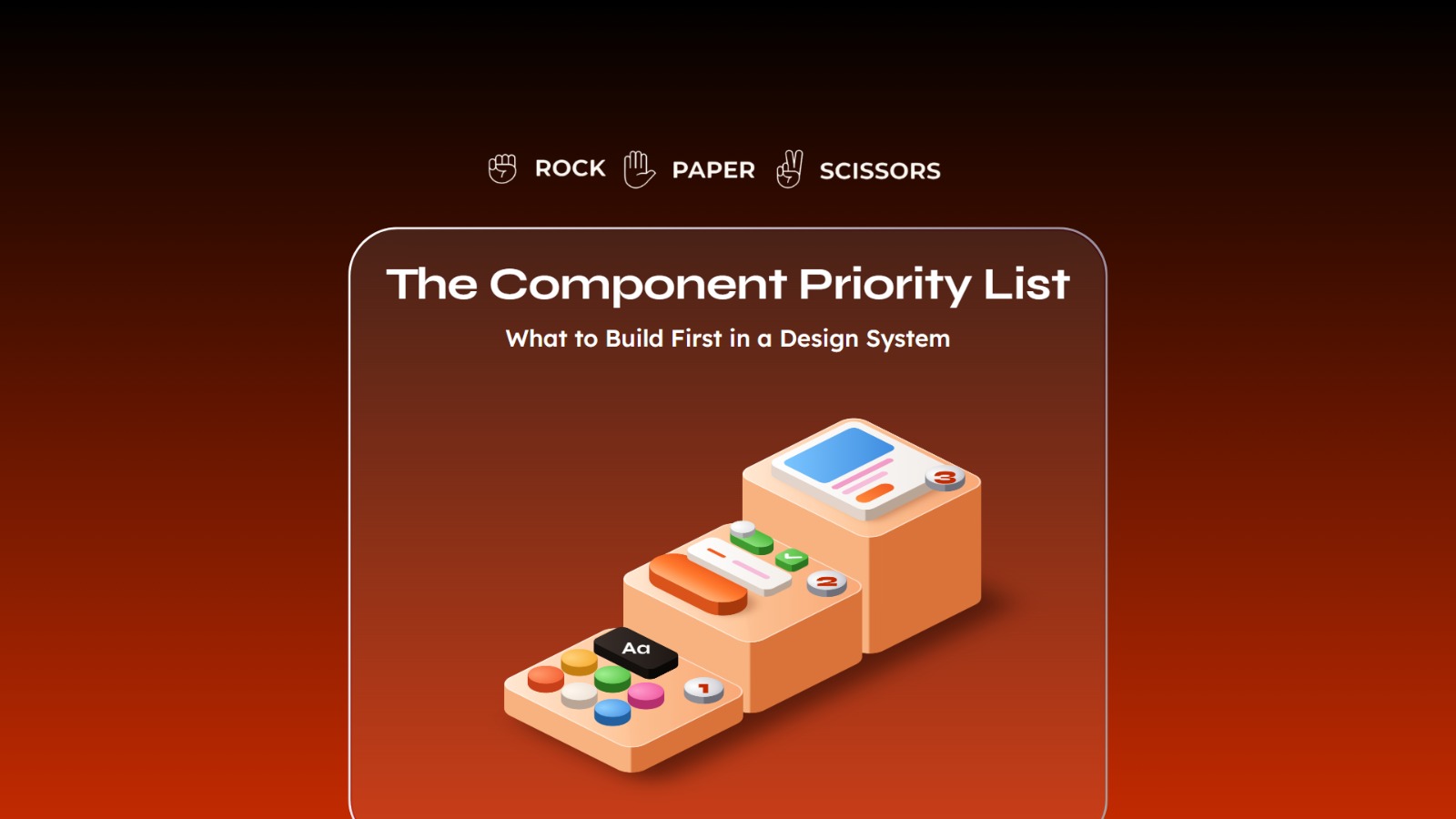
Build a design system in this order: tokens, then the components that appear on every screen, then the patterns that combine them. Teams that build in the wrong order spend months producing components nobody uses while shipping no faster than before.

Start with tokens. Color, type, spacing, and radius defined once, before anyone draws a button.

Then build the atoms that appear everywhere: buttons, inputs, and icons, with every state defined.

Payback depends on how much of your team’s time goes to repeat interface work, not on team size alone.

Aim for the fifth of components that cover most use cases. Full coverage is where budgets go to die.

Two sources of truth is not a design system. If Figma and the code disagree, you have a suggestion.

Introduction

Build your design system in this order: design tokens first, then high traffic atoms, then patterns, and stop well short of full coverage. That order matters because the common failure is not building a bad system, it is building the right components in the wrong sequence and shipping nothing faster for a quarter.

A design system is an internal product, and like any internal product it has a scope, an owner, and a return that can be calculated before you commit. This article covers the build order, how to decide what comes next when your team asks for a new component, what the return actually looks like, and a calculator for running the numbers on your own team.

What a Design System Is, in Business Terms

A design system is a shared library of values, components, and patterns that design and engineering both build from, so that a decision made once is applied everywhere instead of being remade on every screen.

The Lego comparison holds if you push it further than most people do. Anyone can buy a set of bricks. What makes Lego work is that every brick locks to every other brick, because the stud spacing was decided once, in 1958, and never changed. That decision is worth more than the bricks. Your token layer is the stud spacing.

That is also why the build order matters. Producing 40 components before you have agreed on spacing and color is producing 40 bricks that do not lock together.

When to Build One, and When to Wait

Build a design system when the same interface decision is being made more than once by more than one person. Before that point, you are building infrastructure for traffic you do not have.

Four signals mean the time has come. Any two together are usually enough.

More than one team ships interface work

A single team holds consistency in shared memory. Two teams cannot, and the divergence starts in the first quarter.

You have a second theme or brand coming

Dark mode, a white label deal, or a second product. Each doubles the values you maintain, and doing that without a system multiplies the work rather than adding to it.

Onboarding a designer or front end engineer takes weeks

If new joiners spend their first month asking which component to use, the answer exists in people rather than in a system, and it leaves when they do.

Your team is generating interface work with AI tools

Generated screens without a defined system produce a different blue on every screen, because nothing constrains the output.

Wait if you are one designer on one product with no theming requirement and a roadmap that is still changing shape monthly. Tokens and a tidy component file give you most of the benefit at a fraction of the upkeep, and the components you would build today are the ones your product will stop using next quarter.

There is a middle case worth naming, because it catches most companies. You are past the point where a component file is enough and short of the point where you can staff a system. The answer there is to build the foundations only, tokens and the five components on every screen, and stop deliberately. That is a two to three week commitment rather than a two quarter one, and it buys you time without accumulating maintenance you cannot service.

The failure this section is trying to prevent is not building too late. Late is recoverable. It is building a full system at seed stage because a competitor announced one, then abandoning it half finished, which leaves the product worse off than never starting.

Phase One: The Foundations, Before Anyone Draws a Button

Tokens, type scale, and spacing come first because everything built afterward inherits them, and anything built before them has to be rebuilt.

Design tokens

Named references for your values, so color-action-primary is defined once instead of a hex code being typed into 40 files. This is what makes a rebrand or a dark mode a configuration change rather than an audit. Without it, every later phase compounds the problem.

Type scale

A fixed set of sizes and weights with defined use. The saving is not the typography, it is the end of the conversation about whether this heading should be 22 or 24 pixels, which recurs weekly and is never worth the time it consumes.

Spacing and grid

A rigid scale, commonly based on multiples of four or eight. This one is unglamorous and produces the most visible consistency improvement per hour spent, because uneven spacing is what makes a product look unfinished even when every component is correct.

Foundations are cheap and fast, usually a week or two for a single product. They are also the only phase where skipping ahead is genuinely expensive, because everything downstream inherits the mistake.

Phase Two: The Atoms That Earn Their Place
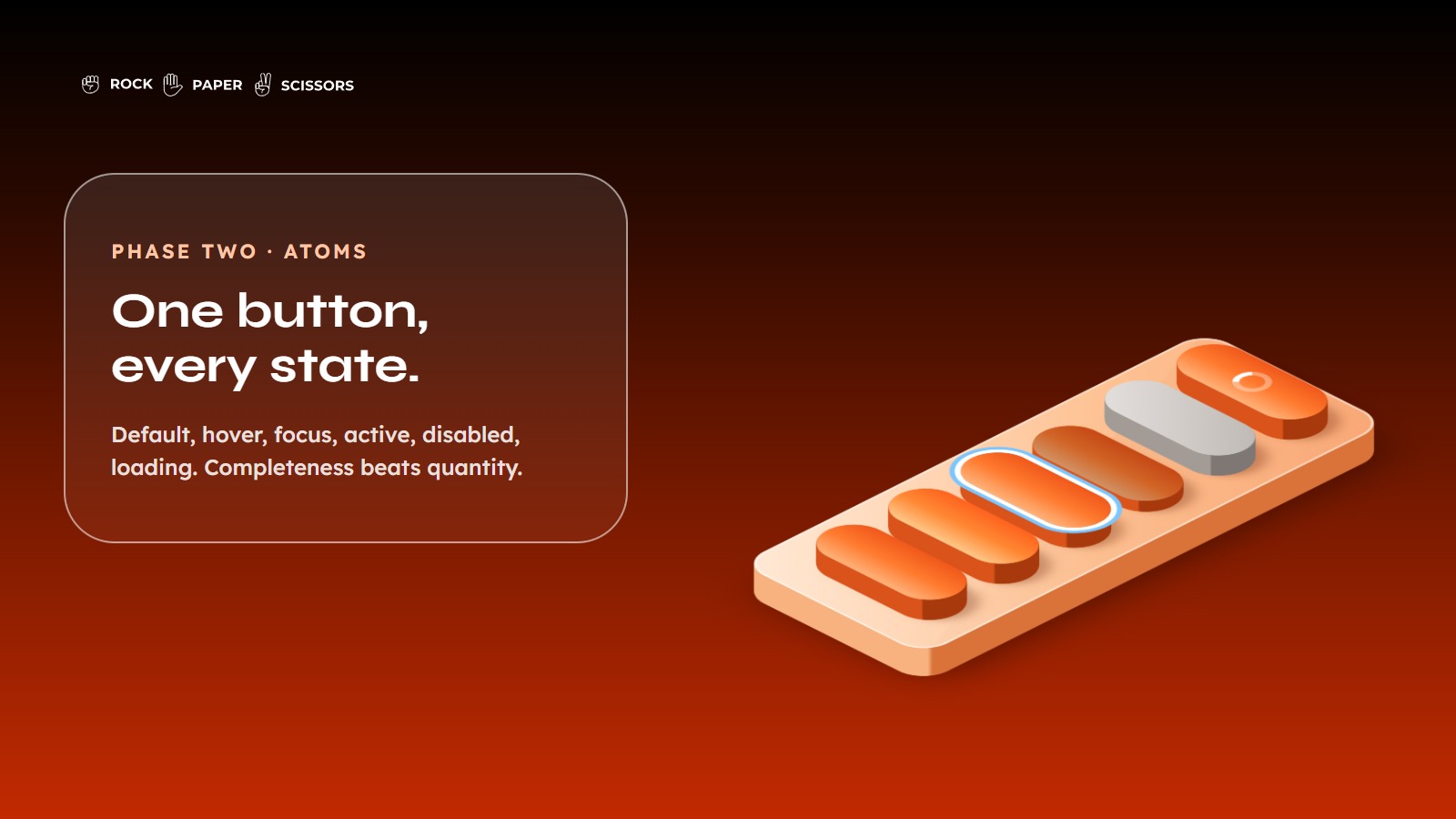
Button component states: default, hover, focus, active, disabled, loading

Build the components that appear on nearly every screen, and build them completely rather than building more of them.

Buttons, with primary, secondary, and tertiary variants, and every state: default, hover, focus, active, disabled, loading

Buttons are where users take the actions your business depends on, and a missing loading state is how double submissions reach production.

Inputs and form fields, including text fields, selects, checkboxes, and radios, with error, focus, filled, and disabled states

Forms are where conversion is won and lost, and inconsistent validation behavior across forms is one of the most reliable sources of support tickets.

Icons, as one unified set at one grid size

Mixed icon sets are the visual tell that a product was built by several teams who never spoke.

Completeness beats quantity here. A button with seven properly defined states is worth more than seven half defined components, because the states are what engineers otherwise invent screen by screen.

Phase Three: The Molecules

Combine atoms into the modules that repeat across your product, once the atoms are stable.

Navigation and app bars come first, because they are the most viewed components in any product and the most damaging when inconsistent. Cards follow, as the container for most list and dashboard content. Modals and dialogs come next, and they are worth defining strictly, since a confirmation dialog that behaves differently in three places is how users learn not to trust confirmations.

Resist building this phase in parallel with phase two. A molecule built on unstable atoms gets rebuilt when the atoms change, which is the most common source of wasted effort in a system build.

How to Decide What Comes Next
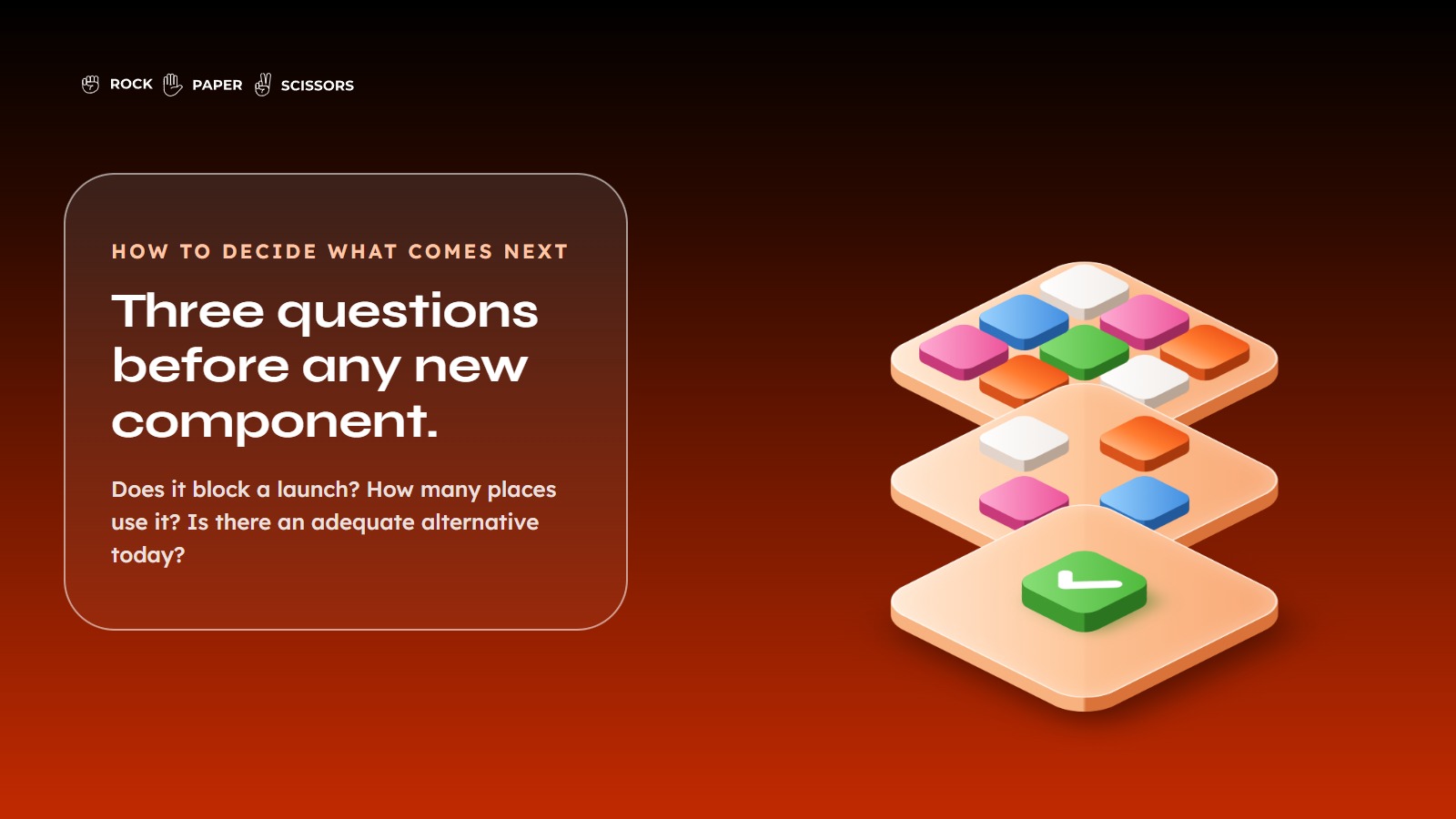
Three questions to ask before building a new design system component

When someone requests a new component, score it on three questions before agreeing.

Does this block a launch?

A component holding up a committed release outranks everything else, regardless of how elegant the alternative would be.

How many places will use it?

A component used in five features is infrastructure. A component used in one dashboard is a feature, and it belongs in that feature’s codebase, not in the system.

Is there an adequate alternative today?

A standard select instead of a custom date picker often costs three days instead of three weeks, and the difference is rarely visible to users.

The third question is the one that saves the most money and gets asked the least. Most component requests are solvable with something that already exists, and the request is really a preference rather than a requirement.

What the Return Actually Looks Like

The published evidence on design system return is real but comes with a conflict of interest worth naming.

Forrester, in a study commissioned by Figma, found that teams using prebuilt components saved more than half their design time in the ideate and create phase, and put the efficiency gain for that phase at 60%. A separate Forrester study, also commissioned by Figma, estimated a 20% to 30% increase in developer output and more than 90 minutes saved per developer per week using Dev Mode, with a modelled ROI of 351% over three years.

Both studies were paid for by the vendor whose product they assess. That does not make them wrong, and Forrester’s methodology is disclosed and reasonable, but it does mean they represent an optimistic ceiling rather than a neutral expectation. Treat those figures as the best case and model your own numbers lower.

The variable that decides your outcome is not team size, it is how much of your team’s time goes to repeat interface work. A team of 20 building one screen a quarter gets almost nothing from a system. A team of six shipping continuously across three surfaces gets a lot. That is why a calculator is more useful here than a benchmark.

The calculator defaults to gain figures below the published research, includes the cost of retrofitting existing screens, and applies an adoption ramp, since a system pays back as teams adopt it rather than on the day it ships. On a team of three designers and eight engineers with typical time splits, it returns a payback of roughly ten months. On a single designer working mostly on new feature exploration, it correctly says not to build one.

Three Mistakes That Waste the Budget
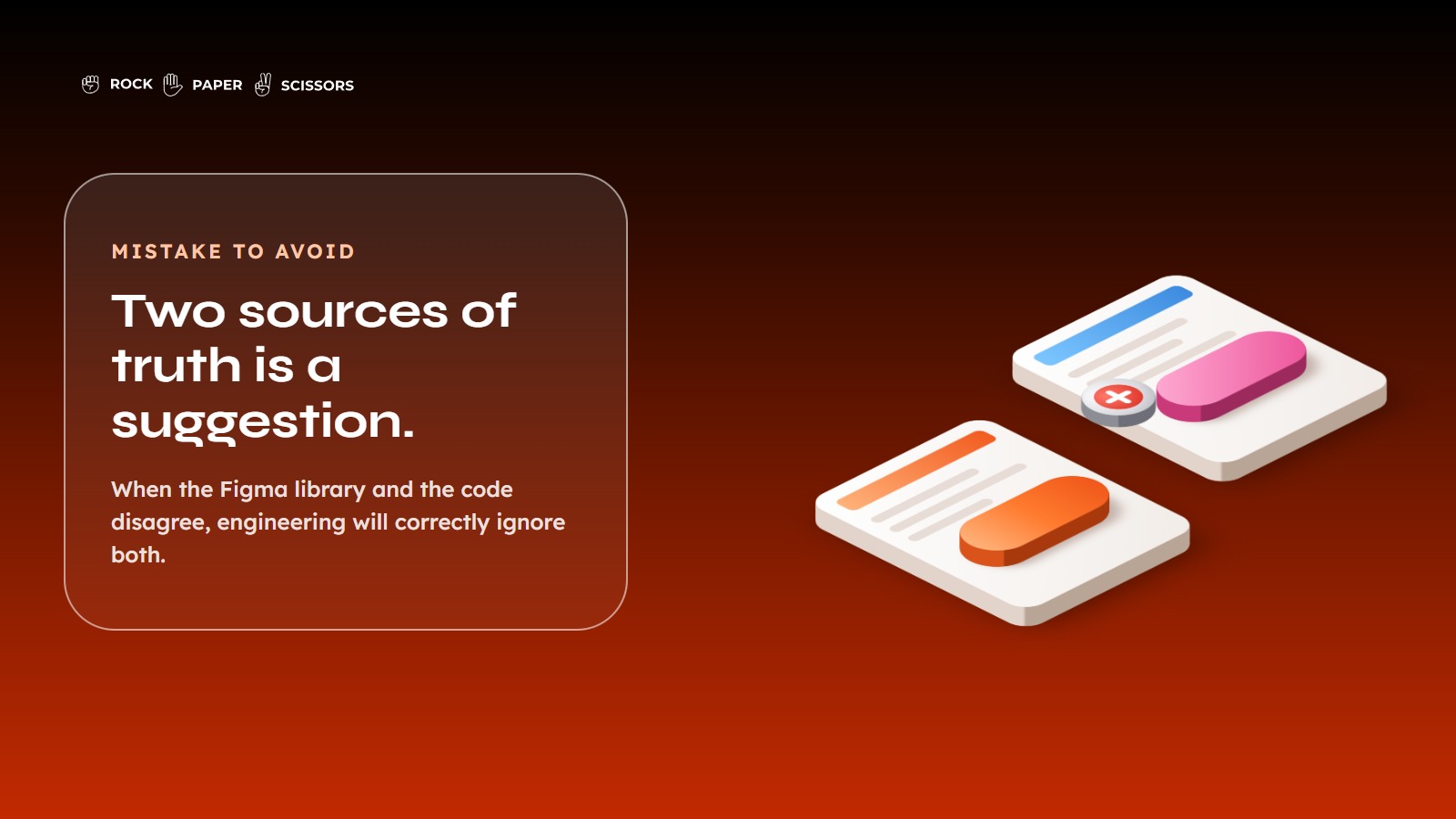
Design system mistake: Figma library and code disagree

Copying a system built for a company with different problems

Material Design solves Google’s problem, which is thousands of engineers building for billions of users across a dozen platforms. Adopting its component list wholesale means maintaining components your product will never render.

Chasing full coverage

The last 20% of components take longer than the first 80% and serve edge cases that appear once a year. Systems die of exhaustion more often than they die of rejection.

Running two sources of truth

If the Figma library and the code library disagree, you do not have a design system. You have a design suggestion, and engineering will correctly ignore it. This is the failure that undoes the return calculated above, because a system nobody trusts still costs upkeep while saving nothing.

Our guide to building a UI design system covers the mechanics underneath this, and the next article in this series covers the pattern layer, which is where most of the remaining value sits.

Who to Approach

Whoever builds your system should be able to work in the codebase, not only in the design file, because a system that exists only in Figma cannot enforce anything.

Three questions separate a partner who will build you a system from one who will build you a component file.

Ask what they would refuse to build

A partner who agrees to everything in the scoping call is selling hours, not judgment. Scope control is most of the value in this work.

Ask how the system reaches your code

If the answer stops at handover of Figma files, you are buying an artifact that starts decaying at delivery. The answer should involve tokens exported to your repository and components mapped to their code counterparts.

Ask who owns it after they leave

The correct answer names a person on your side and a handover that transfers ownership rather than files.

At Rock Paper Scissors we build systems for enterprise fintech and insurance products, where the constraint is usually regulatory and operational rather than aesthetic. The Nuvama wealth management platform is a representative example. The platform served Relationship Managers handling large volumes of leads, approvals, and client context, and the core problem was not that it looked dated. It was that inconsistent patterns across the product increased the learning curve, so users had to interpret different controls, layouts, and status behaviors on every screen, which pushed up training time. The work replaced that with standardized interaction patterns and a reusable component structure built to extend across lead management, admin, and task workflows.

That project is also why article two in this series exists. Our own writing on why components are cheap and patterns are hard covers the layer where that kind of work actually gets decided.

If you are choosing between building in house and bringing in a partner, the honest split is this. In house is better when you already have a design engineer and the roadmap is stable, because the knowledge stays with you. A partner is better when you need the build compressed and want the sequencing decisions made by someone who has made them before. Either way, name your internal owner before the work starts.

FAQ

What should you build first in a design system?

Design tokens, before any component. Color, type scale, spacing, and radius defined once as named values. Everything built afterward inherits them, so components built before tokens exist have to be rebuilt. Foundations usually take one to two weeks for a single product.

How many components does a design system need?

Fewer than most teams build. Target the components that appear across multiple features, typically twenty to forty for a single product. Full coverage is where budgets are lost, because the final components serve rare cases while consuming disproportionate build and maintenance time.

How do you calculate design system ROI?

Compare the cost of repeat interface work today against the same work with reusable components, then subtract the build and upkeep cost. The deciding variable is what share of your team’s time goes to repeat UI production, not headcount alone.

When is a design system not worth building?

When little of your team’s time goes to repeat interface work. One designer on one product with no theming requirement gets more value from tokens and a tidy component file than from a full system, at a fraction of the maintenance cost.

Should we use Material Design or build our own?

Material Design solves problems specific to Google’s scale and platform range. Most products need a fraction of its components and a different visual language. Borrow its structural thinking, then build your own component list from what your product actually renders on screen.

What is the difference between a component library and a design system?

A component library is a set of reusable elements. A design system adds tokens underneath, patterns above it, plus documentation, a named owner, and a governance process. The library is the artifact. The system is what keeps that artifact accurate over time.

Conclusion

Building in the right order is the difference between a system that pays for itself inside a year and one that quietly becomes a maintenance obligation. Tokens, then the components on every screen, then patterns, then stop. The teams that struggle are almost never the ones that built too little.

There is a check you can run tomorrow without any of this. Ask your lead engineer and lead designer to count the button variations in your codebase. If there are more than three, you already have the problem this article describes, and the calculator above will tell you what it is costing.

Let’s build with intent.
RPS // Blogs // Figma Shortcuts Every SaaS Designer Should Know (That Save Hours Weekly)
Figma Shortcuts Every SaaS Designer Should Know (That Save Hours Weekly)

The Designer Who Got Tired of Clicking

Dylan Field founded Figma in 2012 with a vision: make design collaboration easy.

What most people don’t know is that Dylan became obsessed with one thing: eliminating unnecessary clicks.

In the early days, Dylan would watch designers use Figma. He noticed something that bothered him. Designers spent 30-40% of their time doing repetitive tasks. Clicking the same buttons. Typing the same text. Creating variations of the same component.

These weren’t creative moments. These were mechanical moments. Time wasted.

Dylan made a decision: Figma would be built around shortcuts. Keyboard shortcuts. Workflow shortcuts. Automation shortcuts.

The idea was simple: reduce the time designers spend on mechanical tasks so they can spend more time on thinking.

Over the years, Figma accumulated hundreds of shortcuts. Most designers know maybe 10 of them. The rest are hidden away, waiting to save time.

Dylan’s insight applies to every SaaS designer: the difference between a designer who finishes work in eight hours and one who finishes in four hours isn’t talent. It’s knowing the tools inside out.

Why Shortcuts Matter More Than You Think

A designer who knows Figma shortcuts saves 10-15 hours per week.

That’s not an exaggeration. That’s based on how much time designers spend on repetitive tasks.

Let’s do the math. A SaaS designer works 40 hours per week. Of those:

About 35% of time is spent on actual design thinking (strategy, research, deciding what to build).

About 40% of time is spent on execution (building components, creating layouts, making variations).

About 25% is spent on collaboration and communication.

Of the 40% execution time, most is repetitive. Copying components. Creating variations. Adjusting spacing. Duplicating elements.

If you know shortcuts, you cut that execution time from 16 hours to 6 hours per week.

That’s 10 hours back. That’s a quarter of your week.

In a year, that’s 500 hours. That’s three months of work.

A shortcut that saves 30 seconds per task, repeated 100 times per week, saves 50 hours per year.

This is why Dylan obsessed over shortcuts. It’s not about being fast. It’s about getting your time back for work that matters.

The Shortcuts That Actually Save Time

Not all shortcuts are created equal. Some save five seconds. Some save five minutes.

The ones worth learning are the ones you’ll use dozens of times per day.

Shortcut 1: Duplicate (Ctrl+D or Cmd+D)

Every designer knows this one. Select something. Press Cmd+D. It duplicates.

But most designers don’t know where duplicates appear. They appear exactly where you expect: directly on top of the original, offset slightly.

This matters because you can duplicate something five times and each duplicate is stacked on top, offset. You can see all of them.

Why this saves time: Instead of copy-paste-paste-paste, you press one key. Instead of arranging duplicates, Figma arranges them for you.

A designer creating five button variations uses this 50 times per day. That’s 50 keypresses instead of 200 mouse clicks.

Shortcut 2: Create Component (Cmd+K)

Creating a component is the foundation of efficient design.

A component is a reusable element. You create it once. You use it 100 times.

Change the component once. All 100 instances update automatically.

Most designers know components exist. Most don’t know the shortcut to create them.

They right-click, look for the menu option, create component that way.

Cmd+K is faster.

Why this saves time: You’re not digging through menus. You’re pressing one key.

But the real time savings is bigger. When you have proper components, you spend 60% less time on repetitive variations.

Shortcut 3: Select All with Same Properties (Double-click a property)

Select a button. It’s 48px tall, blue color, Roboto font.

Now you want to find all buttons that are 48px tall and change them to 56px.

Without this shortcut, you’d have to select each one individually.

With this shortcut, you double-click the 48px height property. Figma selects all elements with that height.

Then you change the height to 56px. All of them update.

Why this saves time: You’re not manually selecting dozens of elements. Figma does it for you.

Shortcut 4: Rename Layers Quickly (Double-click layer name)

Figma layers are how you organize your design.

A messy layer panel means you can’t find anything.

Most designers ignore layer naming. They end up with “Frame 1,” “Rectangle 5,” “Group 3.”

Good designers name layers properly. But naming takes time.

Double-click a layer name. It becomes editable. Type the new name. Press Enter.

This is faster than right-click, rename, enter new name.

Why this saves time: You spend less time searching for layers because they’re organized.

This compounds. Over a year, you save hundreds of hours just from finding things faster.

Shortcut 5: Component Swap (Hold Alt, hover over a component)

Imagine you have 50 instances of a button component in your design.

Now you realize you should use a different button style.

Without this shortcut, you’d have to delete each button and create new ones.

With this shortcut, you hold Alt and hover over another button component. Your current button swaps to that one.

You can do this for all 50 buttons in minutes.

Why this saves time: You’re not recreating work. You’re swapping it.

This is especially powerful when you’re iterating. You can quickly try different components and see which works best.

Shortcut 6: Auto Layout (Shift+A)

Auto Layout is a feature that automatically arranges elements.

You select multiple buttons. Press Shift+A. Figma arranges them in a row or column with consistent spacing.

When you change one button’s size, the others adjust automatically.

Without Auto Layout, you’d manually space every element.

Change one element’s size? You’d have to manually adjust everything else.

Why this saves time: You’re not manually spacing 20 buttons. Auto Layout does it.

And when you change one button, everything adjusts. You don’t have to manually fix spacing.

Shortcut 7: Copy Properties (Right-click, Copy Properties)

You have a button that’s styled perfectly. Text color, button color, shadow, everything.

Now you have another button that you want to style the same way.

Without this shortcut, you’d manually recreate all the styling.

With this shortcut, you copy properties from the first button and paste them onto the second.

Why this saves time: You’re not manually styling elements. You’re copying styling.

This is powerful when you’re making variations of components. You create the style once. Copy it 10 times. Done.

Shortcut 8: Lock/Unlock (Cmd+Shift+L)

When you’re designing a complex layout with many elements, sometimes you accidentally move things.

You lock elements you don’t want to change. They become unmovable.

Most designers unlock elements by right-clicking and selecting unlock.

Cmd+Shift+L toggles lock faster.

Why this saves time: You’re not right-clicking repeatedly. You’re pressing one key.

This matters when you’re working on intricate details and don’t want to accidentally move background elements.

The Workflow Shortcuts That Change How You Work

Beyond individual shortcuts, there are workflow patterns that save enormous time.

Pattern 1: The Variation Workflow

You’re designing a button. It has hover, active, disabled states.

Instead of designing from scratch each time, you:

  1. Create the base button
  2. Duplicate it (Cmd+D)
  3. Rename it “Button – Hover”
  4. Adjust the styling
  5. Duplicate again, rename “Button – Active”
  6. Make it a component (Cmd+K)
  7. Create component variants

With shortcuts, this takes 5 minutes. Without them, it takes 20 minutes.

The time difference is that you’re not digging through menus. You’re pressing keys.

Pattern 2: The Copy Component Styling Workflow

You have a perfect button component. You need a secondary button that’s similar but slightly different.

  1. Duplicate the button component (Cmd+D)
  2. Rename it
  3. Right-click, select “Copy Properties” from the original
  4. Right-click the new one, “Paste Properties”
  5. Adjust only the colors

Without this pattern, you’d recreate styling from scratch.

With this pattern, you copy styling and change only what’s different.

Pattern 3: The Batch Update Workflow

You have 30 buttons throughout your design.

The designer decides all buttons should have more spacing inside.

You select one button. You note its padding (12px).

You double-click the 12px padding property. All buttons with 12px padding select.

You change to 16px. All 30 update.

Without this workflow, you’d change each button individually.

With this workflow, you change them all in seconds.

The Hidden Shortcuts Nobody Talks About

Most designers know the obvious shortcuts. The hidden ones are where real time savings happen.

Hidden Shortcut 1: Shift+Number Keys to Change Opacity

Select an element. Press Shift+5. Opacity becomes 50%.

Press Shift+8. Opacity becomes 80%.

Most designers use the opacity slider (finding it, clicking it, dragging it).

With this shortcut, you press one key and move on.

Why it matters: You adjust opacity dozens of times per day. This is faster every single time.

Hidden Shortcut 2: Cmd+B to Bold Text

You’re adjusting typography. You want to make text bold.

Most designers click the bold button or use the font dropdown.

Cmd+B toggles bold instantly.

This is the same shortcut every word processor uses. Figma supports it.

Hidden Shortcut 3: Cmd+I to Italicize Text

Same as bold. Cmd+I italicizes text instantly.

Hidden Shortcut 4: Alt+Drag to Duplicate and Position

Select an element. Hold Alt and drag.

Instead of moving the element, you’re dragging a duplicate.

This is faster than duplicate-paste-position.

Why it matters: When you’re arranging elements, this is instant.

Hidden Shortcut 5: Cmd+] and Cmd+

Layers in Figma have a stacking order. Sometimes you want to bring something forward or send it back.

Most designers right-click and select “Bring Forward” or “Send Back.”

Cmd+] brings forward. Cmd+

This is instant.

Hidden Shortcut 6: Cmd+Enter to Finish Editing

When you’re editing text or a layer name, pressing Cmd+Enter confirms the change.

Instead of clicking away or pressing Tab, you press Cmd+Enter.

This sounds tiny. But you do this dozens of times per day.

Hidden Shortcut 7: / to Search for Tools

Instead of clicking the toolbar, you press / and search for what you need.

Type “text” and the text tool activates.

Type “hand” and the hand tool (for panning) activates.

This is faster than clicking.

Hidden Shortcut 8: Shift+2 to Zoom to Fit

You’re zoomed in on details. You want to see the whole canvas.

Shift+2 zooms to fit the selection or page in the viewport.

Most designers use the menu or zoom dropdown.

This is instant.

How Dylan’s Philosophy Changed Design Work

Dylan’s obsession with shortcuts came from one belief: designers should be thinking, not clicking.

Every click takes time. Every menu takes time. Every decision point takes time.

The best design tool gets out of the way.

Figma did this by building shortcuts into everything.

Modern SaaS designers who’ve grown up with Figma expect this. They expect keyboard shortcuts for everything.

This expectation changed what good tools look like.

The Real Time Savings

Let me give you specific numbers from real SaaS designers who use these shortcuts.

A designer at a Series B SaaS company tracked their time before and after learning Figma shortcuts.

Before learning shortcuts:

  • Creating a button with five states: 25 minutes
  • Creating variations of a component: 40 minutes
  • Updating all instances of a component after design change: 30 minutes
  • Total per day: 8-10 hours of work

After learning shortcuts:

  • Creating a button with five states: 8 minutes
  • Creating variations of a component: 12 minutes
  • Updating all instances after design change: 3 minutes
  • Total per day: 4-5 hours of work

The difference is 4-5 hours per day.

That’s 20-25 hours per week.

That’s 100+ hours per month.

The designer went from shipping 8 designs per month to shipping 16 designs per month.

All from knowing shortcuts.

How to Actually Learn These

Knowing shortcuts and using shortcuts are different things.

You can’t memorize 50 shortcuts. You’ll forget most of them.

The strategy is to learn three at a time.

Learn one shortcut. Use it 100 times. It becomes muscle memory.

Then learn the next one.

Over three months, you’ll have learned 10-15 shortcuts that matter.

That’s enough to transform your workflow.

Week 1: Learn Cmd+D (duplicate) and Cmd+K (make component)

These two alone will save hours.

Every time you need to duplicate, use Cmd+D instead of copy-paste.

Every time you need a component, use Cmd+K instead of the menu.

Week 2: Learn Cmd+Shift+L (lock/unlock) and Alt+Drag (duplicate and position)

Once duplicating is muscle memory, learn these.

Week 3: Learn Shift+Number Keys (opacity) and / (search tools)

These are smaller but compound with the others.

By week 3, you’re using five shortcuts constantly.

Your workflow is noticeably faster.

The Mistake Most Designers Make

Most designers learn Figma by learning features.

“Here’s how to use Auto Layout.” “Here’s how to create components.”

They learn the concept. They forget the shortcut.

Then they use the menu every time.

The fast designers learn the shortcut first. They use it so much it becomes automatic.

Then they understand the feature deeply because they use it constantly.

The order matters.

Why SaaS Designers Specifically Need This

SaaS designers create components constantly.

They iterate. They create variations. They update components across screens.

A designer working on a marketing website might design 10 components.

A SaaS designer designs 100 components.

The time savings from shortcuts compounds for SaaS designers.

Shortcuts that save 30 seconds per task, done 500 times per week, save 250 hours per year.

That’s three months of work.

For SaaS designers, shortcuts aren’t optional. They’re required to ship fast.

The Tools That Work With Figma Shortcuts

Figma has plugins that amplify shortcuts.

Evernote’s Figma plugin lets you export designs to Evernote with keyboard shortcuts.

Notion’s plugin exports designs to Notion instantly.

These don’t replace shortcuts. They extend them.

But the core shortcuts matter most.

What Dylan Would Tell You

Dylan Field’s philosophy about design tools is: the tool should disappear.

When you’re designing, you shouldn’t be thinking about the tool. You should be thinking about the design.

Every time you’re clicking a menu or searching for a button, the tool is getting in the way.

Shortcuts eliminate that friction.

A designer using shortcuts is in flow. They think of something, they execute it instantly.

A designer using menus is interrupted. They think of something, they search for it, they execute it.

The difference is huge over time.

This Week

Pick one shortcut. Just one.

Learn Cmd+D (duplicate).

Use it instead of copy-paste for the next week.

Count how many times you use it.

Multiply by the time it saves per use.

You’ll be shocked at the total.

Next week, learn Cmd+K (make component).

In four weeks, you’ll have four shortcuts that save hours weekly.

In a year, you’ll be 50% faster at design execution.

That’s the compounding power of shortcuts.

Dylan built Figma around this idea.

The designers winning today are the ones who understand it.

Also Read: 5-Minute Design Audit – One Framework That Works Every Time

RPS // Blogs // Your Authentic Path to UX/UI Design Mastery in 2025: A Reality Check for Indian Designers
Your Authentic Path to UX/UI Design Mastery in 2025: A Reality Check for Indian Designers

The internet has lied to you. “Complete Figma course in 14 days.” “Learn UI/UX and land a job in 90 days.” These aren’t roadmaps, they’re fantasy stories sold by people making commissions.

I’ve mentored 50+ designers entering this field. The ones thriving? They followed a completely different approach. No shortcuts. Just strategic progression grounded in real-world application.

Foundation First: The Unsexy Truth Nobody Teaches

Here’s where 89% of aspiring designers crash. They jump straight to tools when they should be building mental frameworks.

Before opening Figma – literally before – you need to understand why interfaces work. Typography isn’t about picking pretty fonts. It’s about cognitive load management. Your brain processes Helvetica differently than Comic Sans. This isn’t aesthetic preference. It’s neuroscience.

Color theory transcends “pick a palette.” Colors trigger emotional responses measurable through eye-tracking studies. Apple’s minimalist grays communicate luxury through restraint. Netflix’s red demands urgency. These choices drive conversion metrics.

Layout hierarchies determine whether users find critical information or abandon your interface. Information architects discovered that users scan pages in F-patterns or Z-patterns depending on content structure. Understanding these natural reading behaviors means the difference between a 45% conversion rate and a 12% one.

Spend 3-4 weeks consuming this foundation. Study Ellen Lupton’s typographic principles. Analyze Josef Albers’ color interaction theories. Examine award-winning case studies from design firms like One Thing Design or Procreator Design. Document spacing ratios in products you use daily. This investment pays dividends for your entire career, tools become secondary when principles anchor your thinking.

Deliberate Tool Mastery: Figma as Language, Not Magic

Only after internalizing design fundamentals should you touch Figma. Here’s the critical difference: Learn Figma as a design system, not as a feature list.

Most tutorials teach you buttons. Real mastery teaches you workflow. Spend 2-3 weeks building component libraries, not from templates, but from scratch. Build a button system with 12 states. A form input with error handling. A navigation menu responding to different screen sizes.

The constraint reveals everything. When you’re forced to create a reusable component, you immediately understand what variables matter and which are decoration. This shifts you from tool operator to design thinker.

Competitive Analysis Through Reverse Engineering

Redesigning apps for your portfolio? That’s amateur hour. Professional designers study products strategically.

Open Figma alongside your target application. Measure every spacing unit. Why is that button 44px tall instead of 40px? (Answer: Apple’s human interface guidelines recommend minimum 44px touch targets for accessibility.) Why does Gmail use a sans-serif while The New York Times uses serifs? (Different audiences, different credibility signals.)

Create 3-4 detailed teardowns. Document design decisions. Find the reasoning behind choices. This trains you to see the “why” behind interfaces, skills that distinguish junior designers from senior ones earning ₹15-25 lakh annually in India’s design market versus ₹4-8 lakh for those following template approaches.

Building With Friction: Your Real Education

This step separates those who eventually work at studios like Rock Paper Scissors Design Studio from those perpetually freelancing on Upwork.

Build something nobody asked for. An app for your apartment building to track maintenance requests. A marketplace for your neighborhood’s gardeners. A budgeting tool for your friend group managing a trip.

Real users create real constraints. You’ll discover that your gorgeous mobile design becomes unusable with a keyboard visible. That “intuitive” gesture navigation confuses your 55-year-old aunt trying to book her flight. That your 120-character label exceeds the button’s physical space in production.

These friction points become your curriculum. You learn responsive design when a desktop layout collapses on iPhone SE. You grasp information architecture when users get lost in your navigation. You understand accessibility when your color-blind friend can’t distinguish form error states.

The Validation Loop: Testing With Actual Humans

Here’s where most learning breaks down. Designers show work to other designers. Predictable feedback. Predictable improvement. Limited growth.

Instead, recruit 5-7 non-designers. Record them using your product. Don’t explain. Don’t guide. Just observe.

Their confusion reveals your design assumptions. When your cousin can’t find the “Save” button you thought was obvious, you’ve discovered something. When your neighbor needs three attempts to complete checkout, you’ve identified a friction point costing you conversions.

Accelerated Growth Through Professional Proximity

After establishing these fundamentals, the fastest acceleration comes from working alongside experienced designers.

Indian user experience design studios increasingly need apprentices and junior designers. Studios across Bangalore, Mumbai, and Pune offer internships exposing you to real client work. You’ll observe how professionals handle design briefs, collaborate with engineering teams, and justify design decisions to stakeholders who prioritize metrics over aesthetics.

Three months of observing professionals often compress 2-3 years of independent learning into actionable insight. You’ll understand the difference between beautiful design and commercially successful design, a distinction few self-taught designers grasp.

What Actually Separates Success From Struggle

Designers earning premium rates share one characteristic: they think in systems, not pixels. They understand that interface design serves business outcomes measured in retention rates and customer acquisition costs.

The roadmap isn’t mysterious. Foundation → Tools → Analysis → Creation → Validation → Professional Growth.

Jaldi shuru karo, lekin sahi tarike se (Start quickly, but start right). Your foundation determines your ceiling.