RPS // Blogs // The UX Audit Process That Turns Fintech Drop-Offs Into Conversions
The UX Audit Process That Turns Fintech Drop-Offs Into Conversions

Nearly 90% of fintech users drop off during onboarding. Not because products are bad. Because the experience breaks trust before users ever move money.

This statistic haunts fintech founders. But most never dig deeper. They assume users aren’t ready. The problem isn’t readiness. It’s friction hidden inside every screen.

A UX audit reveals what no amount of guessing can uncover.

Understanding the Fintech Drop-Off Problem

Think about what fintech asks users to do upfront:

Verify identity. Upload government ID. Answer security questions. Connect bank accounts. Accept compliance disclosures. All before accessing a single core feature.

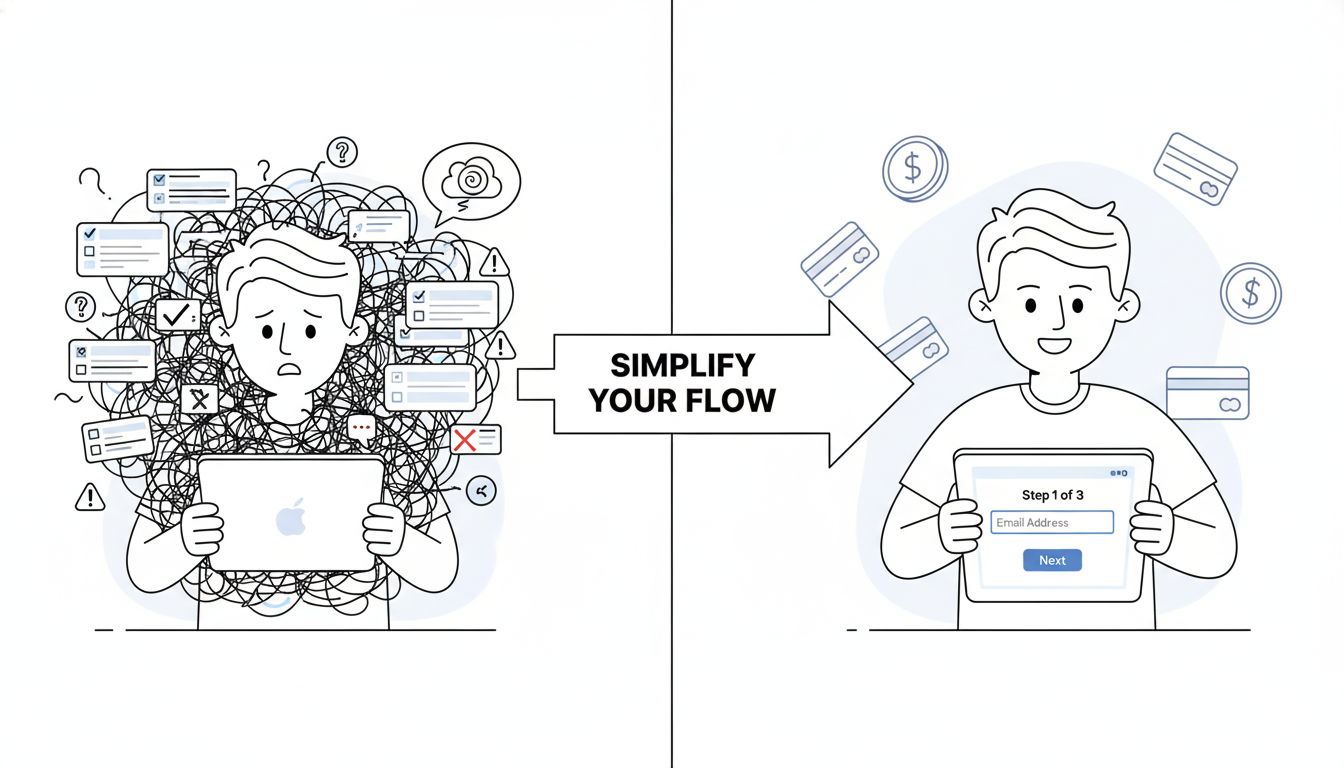
Most apps require this sequentially. Users see long forms and abandon before finishing.

Research from Plaid’s customer base shows drop-off rates range from 20% to 88% depending on design. The difference? How well the experience explains what’s happening and why.

When compliance becomes friction instead of clarity, users leave. When security feels paranoid instead of protective, they go elsewhere.

Why Generic Audits Fail Fintech

Standard UX audits focus on usability. Does the button work? Is the navigation clear? Fintech needs more.

Fintech audits must answer different questions:

Does the app clarify what will happen with personal data? Does it explain why KYC is necessary before requesting it? Does it offer resume options if users get interrupted? Does it handle errors gracefully or blame users? Does it show progress or leave users wondering how many more steps remain?

A proper fintech audit connects every friction point to business metrics. Not design preferences.

How Real Companies Fixed Their Onboarding

Robinhood simplified by deferring configuration. Users open an account and immediately access trading. Account setup happens later. This removes a major friction point without sacrificing functionality.

Chime breaks onboarding into single-question screens. One field per page. This reduces cognitive load. Users complete faster because they’re not overwhelmed by choices.

Stripe optimized their KYC process for speed. Identity verification completes in minutes, not hours. They removed unnecessary fields, improved verification algorithms, and added real-time feedback.

What connects these approaches? They removed complexity without removing security.

The Audit Process That Actually Works

Step one focuses on scope. Don’t audit the entire app. Focus on flows that impact revenue: onboarding, first transaction, account activation. These are conversion gates.

Step two involves data gathering. Pull analytics on where users drop off. Analyze session replays. Review support tickets. Find patterns in where users struggle.

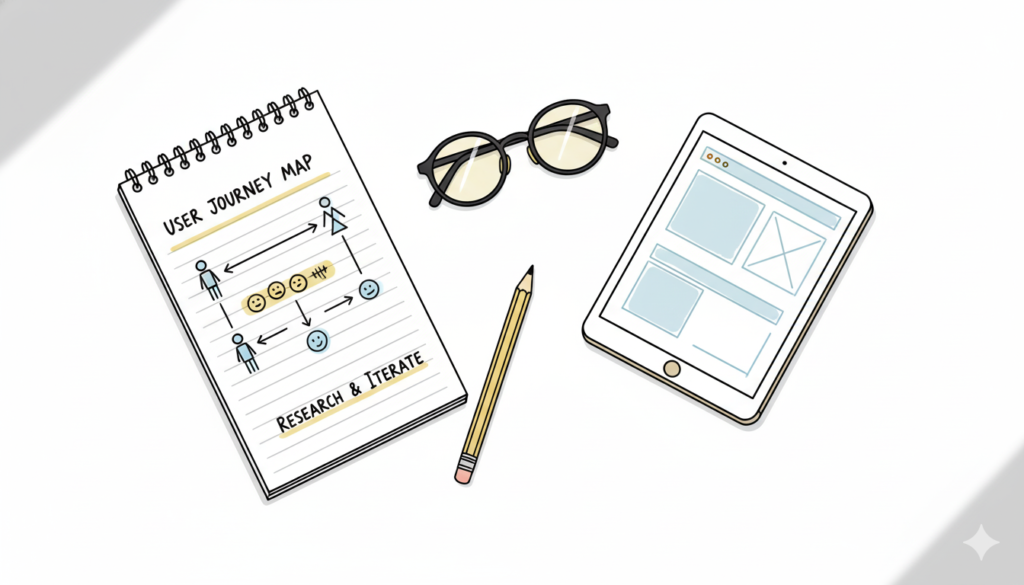
Step three requires usability testing. Recruit five real users. Give them tasks. Watch them try to complete onboarding without your help. Don’t guide them. Observe where they pause, get confused, or give up.

Step four evaluates against fintech principles. Does the experience explain security clearly? Does it show why data requests are necessary? Does it build trust or create doubt?

Step five prioritizes by impact. Which issues hurt conversion most? Fix those first. Ignore cosmetic problems. Focus on behavior-change problems.

Step six maps findings to business metrics. Connect every fix to concrete results like onboarding completion rate, KYC success rate, support volume, or account activation speed.

One Example That Shows Impact

A lending platform discovered their problem wasn’t the payment interface. It was onboarding asking for six pieces of information simultaneously.

Applicants saw the form and bailed. Too much upfront. Too many fields. Too overwhelming.

The fix was simple: break it into six screens. One question per screen. Same information collected. Different experience.

Completion rate jumped from 23% to 78%. Support tickets for “how do I apply” dropped 80%. Application volume increased 250%.

This didn’t require redesigning the product. It required understanding user behavior and prioritizing what mattered most.

Why Most Audits Fail

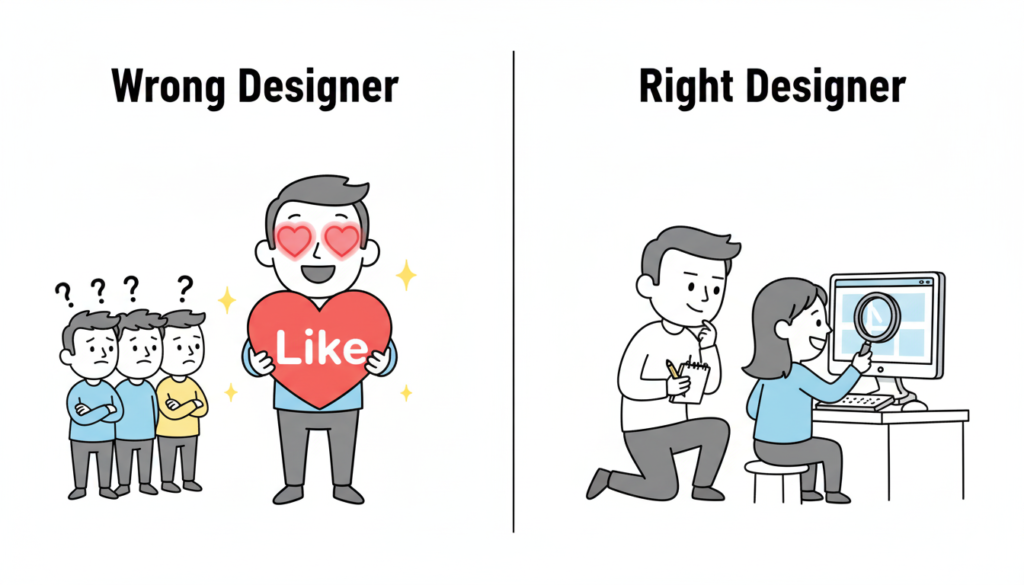
Fintech teams often confuse an audit with design feedback. They show screens to a designer. The designer suggests changes. They call it an audit.

That’s not an audit. That’s opinion.

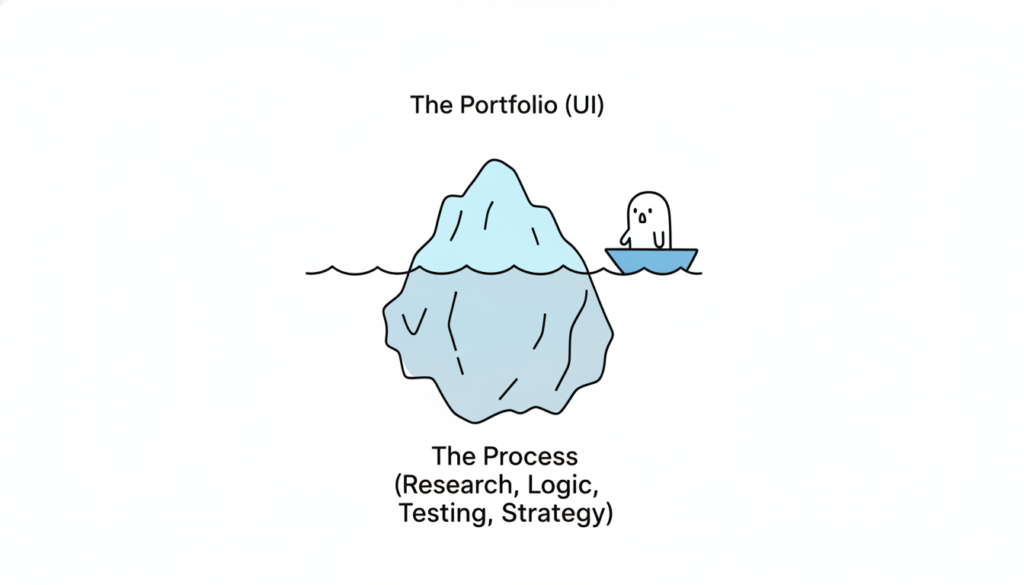
A real audit measures user behavior. It tracks where people actually get stuck, not where designers think they should. It connects findings to business outcomes.

Common failure points:

Teams audit everything instead of focusing on conversion gates. They gather data but don’t watch real users interact with the product. They don’t prioritize fixes by business impact. They treat compliance as unavoidable friction instead of an opportunity to build trust.

What Changes When You Get This Right

When fintech teams run proper audits, several things shift.

Onboarding completion improves because each step clarifies rather than confuses. Support costs drop because users understand the process without calling for help. Conversion rates rise because trust builds through transparency. Retention improves because users feel confident the app protects their interests.

These aren’t design outcomes. They’re business outcomes.

Starting Your Audit Tomorrow

Pull your analytics today. Find your biggest drop-off point during onboarding. That’s where your audit begins.

Record a session replay of a user struggling at that exact spot. Watch what goes wrong. Ask yourself: is this friction necessary or accidental?

Necessary friction (like identity verification) can be explained clearly. Accidental friction (like unclear form fields) should be removed.

Run a quick usability test. Give five users a task. Watch where they pause. That tells you what’s genuinely confusing.

The companies winning fintech right now aren’t winning because of clever features. They’re winning because they optimized the parts that matter most: trust, clarity, and ease.

An audit shows you exactly where to focus.

Also Read: Clean Design – Why Removing Features Makes Better Products

RPS // Blogs // The $2M Design-Dev Miscommunication That Almost Killed Airbnb’s Rebrand
The $2M Design-Dev Miscommunication That Almost Killed Airbnb's Rebrand

Last month, I watched a designer and developer argue for 45 minutes about a button.

The designer insisted it should expand on hover. The developer said that wasn’t in the specs. The product manager checked out mentally after 10 minutes.

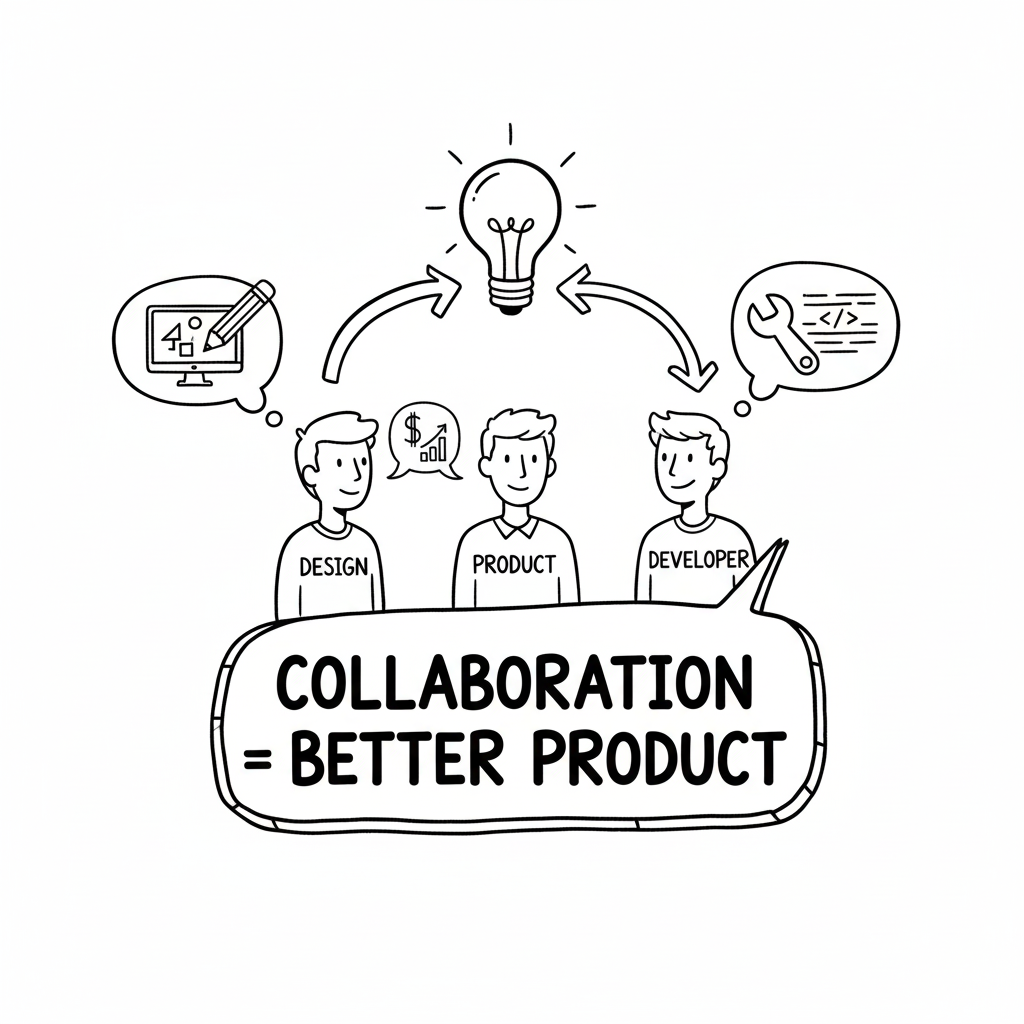
This isn’t a story about perfectionism. It’s about what happens when teams don’t speak the same language.

And honestly? This pattern destroys more SaaS products than bad technology ever could.

The Pattern Everyone Recognizes

Designer creates beautiful mockup. Hands it to development. Developer builds something that technically works but feels wrong. Designer sees final product and says “that’s not what I designed.” Developer responds “your specs weren’t clear.”

Six weeks and thousands of dollars later, nobody’s happy. Users get a compromised experience. The cycle repeats.

Sound familiar? It should. This happens at almost every company I’ve worked with.

When Airbnb Almost Got This Wrong

Back in 2014, Airbnb did a massive rebrand. The “Bélo” symbol launch. New visual system. Complete redesign.

According to interviews with their design team, the initial handoff between design and engineering was a disaster. Designers created comprehensive mockups. Engineers started building. Then they realized the designs didn’t account for loading states, error conditions, or mobile responsiveness at dozens of interaction points.

The teams had to stop. Regroup. Start over with integrated collaboration.

What saved them? They created “design-eng pods” where designers and developers worked side-by-side from concept to ship. No handoffs. Just continuous collaboration.

The rebrand eventually succeeded, but not before they learned this lesson the expensive way.

Spotify’s Solution Actually Works

Spotify handles this differently. Their design system team includes both designers and front-end developers. Not separate teams that occasionally meet. One unified team.

When Spotify builds new features, designers prototype in Figma while developers simultaneously think about implementation. They solve problems together before anything gets “handed off.”

Result? Spotify ships cohesive experiences faster than competitors. Their developers understand design intent. Their designers understand technical constraints. Nobody’s surprised by the final product.

The Framework That Fixes This

Here’s what actually works, based on what companies like Slack, Notion, and Figma do internally:

Week 1: Everyone in the room
Designer presents initial concepts. Developer immediately asks technical questions. “How does this behave when loading?” “What’s the mobile breakpoint?” “How do we handle errors?” Product clarifies business requirements. Everyone discusses feasibility together.

Week 2: Iterate with constraints
Designer refines based on technical reality. Developer shares what’s easy vs. hard to build. Product keeps everyone aligned on user impact. The design evolves with everyone’s input.

Week 3: Comprehensive specs
Designer creates annotated specs in Figma. Every interaction documented. Every edge case addressed. Developer reviews for gaps before any code gets written.

Week 4: Collaborative development
Handoff happens but designer stays involved. Developer builds. Designer reviews daily. They handle surprises together immediately.

The Data Backs This Up

A study from InVision’s 2024 Design Maturity Report found that companies with integrated design-dev collaboration shipped features 40% faster than companies with traditional handoff models.

More importantly, those products had 67% fewer post-launch fixes and 34% better user satisfaction scores.

Why? Because when teams collaborate early, they catch problems before they’re expensive to fix.

What This Looks Like Practically

Use living documentation. Figma specs that developers can inspect directly. Not static PDFs that get outdated immediately.

Create shared communication channels. One Slack channel per project. Design, dev, product. Everyone sees the same conversations.

Do actual syncs. 30-minute weekly meetings. Designer demos progress. Developer shares blockers. Product clarifies priorities. No status updates. Just problem-solving.

Document edge cases together. “What if data is missing?” “What if it takes 10 seconds to load?” Answer these questions in specs before development starts.

Prototype interactions. Figma prototypes show intended behavior better than static screens. Removes 90% of “that’s not what I meant” conversations.

The Real Cost of Bad Collaboration

One SaaS company I know spent 11 weeks building a feature with traditional handoff: 3 weeks design, 6 weeks development, 2 weeks fixing miscommunications.

They switched to integrated collaboration. Same feature complexity: 2 weeks collaborative design, 4 weeks development. 6 weeks total with better results.

That’s 5 weeks saved. On every feature. Forever.

Multiply that across a product roadmap and you’re looking at shipping twice as fast with the same team size.

How We Do This at Rock Paper Scissors Design Studio

At Rock Paper Scissors Design Studio, Shivendra Singh built this into our process from day one. We don’t hand off designs. We collaborate with development teams throughout.

Designers join standups. Developers join design reviews. Product stays involved continuously. Problems get solved when they’re small instead of after they’re built wrong.

The result? Our clients ship faster with fewer surprises and better products.

Your Next Step

Stop doing design handoffs. Start doing design collaboration.

Get your designer, developer, and product person in the same meeting. This week. Talk through your next feature together from the beginning.

You’ll immediately see where miscommunication would have happened. Fix it before it costs you six weeks and thousands in rework.

The goal isn’t “better handoff.” It’s better products. And that only happens when teams actually communicate.

What’s your biggest design-dev miscommunication horror story? Drop it in the comments.

RPS // Blogs // How to Know When Your SaaS UI UX Design Needs a Refresh (Before Users Leave)
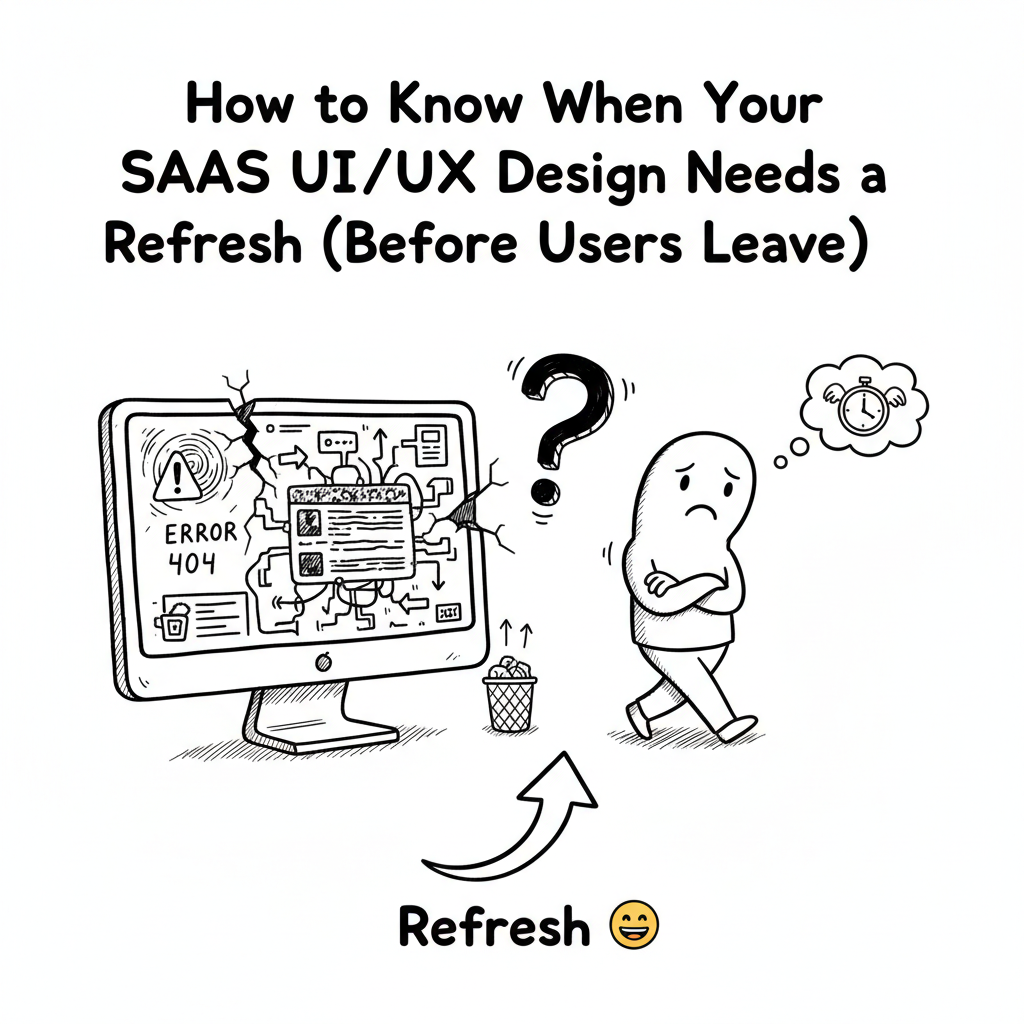
How to Know When Your SaaS UI/UX Design Needs a Refresh (Before Users Leave)

Your product still works. Technically, everything functions fine. Your engineers built it well. But something’s off.

Users are switching to competitors. Support tickets are increasing for “how do I…” questions. Your newest onboarding cohort has a 45% bounce rate instead of 15%. Nobody’s complaining directly, but they’re leaving quietly.

This is what happens when your UI/UX design gets old.

Not old like “from 2015” old. Old like “designed without understanding actual user behavior” old. Old like “designed by committee” old. Old like “designed once and never touched again” old.

Most founders don’t want to hear this. They think, “If it’s not broken, don’t fix it.” But user interfaces are always slowly breaking. They’re always getting less effective. They’re always losing users to products that adapted to how people actually behave.

Here’s how to spot when your SaaS design needs refreshing:

Red Flag 1: Your onboarding is a gauntlet
If it takes more than 5 minutes to get started, you’re losing people. If users have to fill out 15 fields before they see any value, they’re gone. If they can’t accomplish something meaningful in their first session, they won’t come back.

Test this yourself. Create a new account. How long until you do something useful? If it’s more than 5 minutes, your UI UX design needs work.

Red Flag 2: Power users love it. Normal users are confused.
If your most engaged users praise the product but your average users struggle, your design is too complex. Good design works for everyone, not just people who’ve spent 100 hours in your product.

Red Flag 3: Support tickets are about basic functionality
When your support team is answering “How do I…” questions about core features, your UI/UX design failed. Good design answers those questions without needing support.

Red Flag 4: Users switch to competitors after trying yours
People don’t switch because competitors have better features. They switch because the experience is faster, simpler, or more intuitive. Your UI/UX design is losing users to experience.

Red Flag 5: Your analytics show high bounce rates on key pages
If 40%+ of users hit your dashboard and immediately leave, something’s broken. If signup pages have 60%+ abandonment, your design is confusing. Track where users get stuck and you’ll find your biggest design problems.

Red Flag 6: You haven’t changed your design in 18+ months
Industries move fast. User expectations evolve. Design trends shift. If your product looks the same as it did 2 years ago, it’s showing its age. And users notice.

Red Flag 7: Mobile users hate your product
If your desktop experience is good but mobile is a disaster, your UI/UX design isn’t responsive. 60%+ of users are on mobile. If they’re not happy, you’re failing half your market.

These patterns show up everywhere. And they’re always fixable.

Here’s your audit process:

Step 1: Watch real users try your product for the first time. Don’t help them. Don’t explain features. Watch where they get stuck.

Step 2: Map your support tickets. What questions do people ask most? Those are your design problems.

Step 3: Check your analytics. Where do users abandon most? Those are your friction points.

Step 4: Interview 5 customers who didn’t renew. Ask why. Usually it’s UX-related.

Step 5: Test your product on mobile. Right now. If it’s painful, that’s your biggest problem.

One SaaS company did this audit. They discovered their onboarding was the killer. Users were completing it, but slowly. They were frustrated. They weren’t coming back.

The company redesigned just the onboarding. Better copy. Fewer fields. Faster value demonstration. Onboarding time dropped 67%. Activation rate improved 89%.

That’s what happens when you audit before you panic-redesign. You find the actual problem. You fix the actual problem. Everything else improves naturally.

Your UI/UX design probably needs a refresh. Not a complete overhaul. But something needs updating. Find out what by watching your users struggle. Then fix that specific thing.

That’s how you keep users from switching to competitors.

Also Read: Fintech UX for Indian Startups: Why Trust Beats Features

RPS // Blogs // Design Tool Graveyards: When Software Giants Become Digital Ghosts
Design Tool Graveyards: When Software Giants Become Digital Ghosts

You know that feeling when you find an old USB drive and discover files from apps that literally don’t exist anymore? Yeah, that’s the design tool graveyard for you. Every few years, tools that seemed unstoppable just… vanish. And honestly? The stories behind their disappearances are way more fascinating than you’d think.

Timeline of Forgotten Design Tools: Rise and Fall (1988-2025).

The data doesn’t lie, we’ve witnessed some of the most dramatic tool transitions in software history. Between 2015 and 2025, the entire design tools market exploded from $2.1 billion to a projected $13.8 billion, but most of the original players got buried along the way.

Let’s dig into the digital graveyard and see what we can learn from these fallen giants.

When Adobe Fireworks Got Fired by Adobe

Back in the early 2000s, if you were doing web design, you lived in Fireworks. This wasn’t some random tool; it had over 2 million web designers at its peak. While Photoshop was busy being a photo editor and Illustrator was doing its vector thing, Fireworks was the only tool actually built for screen design.

Illustrator CC interface showing fireworks artwork with recolor tool active, illustrating vector graphics design and color editing.

The wild part? Fireworks could handle both raster and vector work seamlessly. You could slice images for HTML export, create clickable hotspots, and build actual prototypes. In 2009, it commanded a solid 15% market share in the design tools space. But here’s where it gets messy Adobe bought Macromedia in 2005 and suddenly had two tools doing similar things.

Design Tools Market Growth: From Tool Chaos to Platform Consolidation (2015-2025)

By May 2013, Adobe just… pulled the plug. Their reasoning? “Overlap with other Adobe products.” Translation: “Why maintain three design tools when we can just make people use Photoshop and Illustrator?” The design community was not happy. Reddit threads from that day are still painful to read one designer literally posted “Good night, sweet prince”

But get this Adobe kept selling it even after discontinuing development. Talk about milking a dead cow. Today, that 0.04% market share is basically digital archaeology.

FreeHand: The Vector Tool That Could’ve Been King

Before Illustrator became the default, FreeHand was the scrappy underdog that illustrators absolutely swore by. We’re talking about 500,000+ passionate illustrators who argued it was faster, more intuitive, and less bloated than anything Adobe had.

Screenshot of Macromedia FreeHand 5.0B demo running on Windows 95, highlighting the classic vector illustration software interface from 1995. .webdesignmuseum

FreeHand’s text handling was legendary. Multi-page documents, linked columns, precision that made Illustrator look clunky. At its peak in 2003, it held 25% of the vector illustration market. But then Adobe swooped in, bought Macromedia, and boom FreeHand became a casualty of corporate strategy.

The Federal Trade Commission actually forced Adobe to sell FreeHand back to prevent monopolization in 1994. But when Adobe acquired Macromedia again in 2005? Game over. By 2007, FreeHand was officially dead.

The loyalty was insane though. Even years after discontinuation, FreeHand users were filing antitrust lawsuits and petitioning for its revival. When a tool fits your brain that perfectly, letting go is brutal.

Balsamiq: When Sketchy Was Actually Good

Remember when wireframes looked intentionally rough? That was Balsamiq’s whole thing. In a world obsessed over pixel-perfect mockups, Balsamiq said “Nah, let’s keep it sketchy so people focus on functionality, not fonts.”

Wireframe sketches of a mobile online magazine app created using Balsamiq, showcasing early-stage UI layouts and interactions.

The strategy was genius. Product managers, developers, and designers could throw together screens in minutes. The hand-drawn aesthetic screamed “This is early, let’s discuss flow, not polish.” By 2014, Balsamiq owned 40% of the wireframing market.

But here’s what killed it: the rise of integrated platforms. Tools like Figma and Adobe XD started offering wireframe-to-high-fidelity workflows without platform switching. Suddenly, Balsamiq felt like an extra step nobody wanted to take.

The wireframe tools market is actually growing, projected to hit $2.5 billion by 2033 with a 9.4% CAGR. But that growth is going to integrated platforms, not specialized wireframe tools. Balsamiq still exists, but with less than 5% market share, it’s basically on life support.

Grayscale wireframe mockups shown on tablet, smartphone, and desktop illustrating Balsamiq’s sketch-style interface design approach. upttik.undiksha.ac

Framer Classic: When Designers Learned to Code (Briefly)

Before Framer became a no-code website builder, Framer Classic was this insane code-driven prototyping tool. If you knew a little JavaScript, you could create prototypes that felt completely real not just screen-to-screen transitions, but fully functional, dynamic interfaces.

The learning curve was brutal, but the payoff was massive. We’re talking about 100,000+ developer-designers who could impress stakeholders with prototypes that actually worked. At its peak in 2017, Framer Classic held 8% of the advanced prototyping market.

But then Framer pivoted hard toward accessibility for non-coders. Great for business, devastating for the original user base. The “classic” version became a relic, and a whole generation of designer-developers lost one of their sharpest tools.

The irony? Framer’s current success as a website builder proves there was demand for powerful design tools. They just abandoned their power users to chase a broader market.

InVision: The Collaboration King That Got Dethroned

This one hurts the most. InVision was THE collaboration tool for design teams. Seven million users at its peak, valued at $2 billion, and basically invented design collaboration as we know it.

The Great Design Tool Flip: InVision vs Figma Market Share (2017-2020).

The numbers tell a brutal story. In 2017, InVision dominated prototyping with 60% market share. By 2020? Down to 23% while Figma exploded from 8% to 57%. That’s not gradual decline, that’s industry disruption in real time.

What happened was simple: Figma merged design, prototyping, and collaboration into one platform. InVision suddenly felt like a middleman. Why export from Sketch to prototype in InVision when you could just do everything in Figma?

The company tried pivoting with Freehand (their whiteboarding tool) and InVision Studio (their Figma competitor), but it was too late. They sold Freehand to Miro and shut down everything else by the end of 2024. From a $2 billion valuation to complete shutdown in less than five years.

The Pattern Behind the Graveyard

Here’s what’s fascinating: these tools didn’t die because they sucked. They died because the design ecosystem evolved faster than they could adapt.

Today's Design Tools Market: The Survivors and Winners (2025)
Today’s Design Tools Market: The Survivors and Winners (2025)

Look at today’s market: Figma owns 40.65%, Adobe Creative Suite has 25%, and everything else is fighting for scraps. The market rewards speed, integration, and flexibility. Standalone tools that excel at one thing consistently lose to platforms that can do enough of everything in one place.

But there’s a deeper cultural shift here. Ten years ago, having separate tools for wireframing, design, and prototyping was normal. Today, we expect one product to do it all. Convenience wins, even if we lose some specialization in the process.

The data shows a clear evolution: specialized tools dominated from 1988-2010, acquisition wars raged from 2005-2015, and we’re now in the platform consolidation era (2015-2025). The combined peak user base of these forgotten tools? Over 10.6 million designers. That’s not a small market that’s an entire generation of creative professionals who had to relearn their workflows.

What This Means for Today’s Tools

Here’s the uncomfortable truth: today’s favorite tool could be tomorrow’s nostalgia. The design tools market is projected to hit $18.95 billion by 2030, but that growth is concentrating around fewer, more integrated platforms.

Adobe tried to acquire Figma for $20 billion in 2022 but got blocked by regulators. That tells you everything about market consolidation fears. When one company tries to spend $20 billion to eliminate competition, the market has clearly consolidated too much.

The lesson? Tools don’t just compete on features anymore. They compete on ecosystems. Figma didn’t just build better prototyping, they built a better workflow that eliminated the need for multiple tools.

For designers, this means staying adaptable. The principles of good design outlive any software, but the tools we use to execute those principles are more temporary than we’d like to admit.

The Silver Lining in Software Graveyards

But here’s what gives me hope: good design thinking outlives any platform. I’ve seen small studios keep the thoughtful process work alive, where the craft goes beyond the platform and into the experience itself.

Because the best design tool isn’t the one with the most features it’s the one that shapes how you see the problem. And that mindset? That’s timeless.

Even as we mourn these fallen tools, their influence lives on. Fireworks taught us about web-first design. FreeHand showed us what precise vector work looked like. Balsamiq proved that sometimes rough is better. Framer Classic bridged design and development. InVision invented design collaboration.

Their ghosts haunt every modern design tool. Every time you use components in Figma, you’re using FreeHand’s multi-page concepts. Every time you collaborate in real-time, you’re using InVision’s innovation. Every time you prototype with code, you’re channeling Framer Classic’s spirit.

The tools may be gone, but the ideas never die. They just get reborn in shinier, more integrated packages.

And who knows? Maybe in 10 years, someone will write an article about “that time when Figma dominated everything” while using some AI-powered design tool we can’t even imagine yet.

The graveyard keeps growing, but so does the evolution of how we create. That’s the real story here not the death of tools, but the endless cycle of creative destruction that keeps pushing design forward. Now excuse me while I go back up all my Sketch files… just in case.

RPS // Blogs // Mobile-First Design: Stop Squeezing Desktop Into Phones
Mobile-First Design: Stop Squeezing Desktop Into Phones

Mobile devices account for 59.7% of global web traffic in 2025. That’s not a trend anymore. That’s reality. Yet teams still design for desktop first, then cram everything into mobile viewports. This creates terrible experiences and costs you customers.


Mobile-first design isn’t about mobile devices. It’s about starting with constraints that force better decisions. When you design for the smallest screen first, you prioritize what matters. Then you enhance for larger screens.

Why Desktop-First Design Fails

Desktop screens are forgiving. You have space to add another column, another button, another feature. This creates bloated interfaces full of things users don’t need.


Mobile screens are ruthless. Every pixel counts. Every element competes for attention. This forces you to make choices: What’s essential? What can wait? What should we cut?


Teams that design desktop-first make different choices. They include everything, then remove features
for mobile. This creates a lesser mobile experience. Mobile users get the “diet” version of your product.


Mobile-first flips this. You build the core experience for mobile, then enhance for desktop. Desktop users get everything mobile users get, plus bonus features. Nobody gets a worse experience.

The Business Case

Mobile users convert differently than desktop users. They’re often on-the-go, distracted, using one hand. Your design needs to accommodate this reality.


Companies that optimized for mobile saw conversion increases of 20% to 62%. Amazon increased mobile conversions by 20% after mobile optimization. That’s real money from design decisions.

Google switched to mobile-first indexing in 2018. Your mobile site determines your search rankings. A bad mobile experience means lower rankings, less traffic, fewer customers. Mobile-first isn’t optional if you want to be found online.

Performance Matters More on Mobile

Mobile users abandon sites that take longer than three seconds to load. 53% of them. Performance isn’t a feature. It’s a requirement.


Mobile-first design forces performance optimization from the start. You design with slow networks and
limited data in mind. You optimize images. You minimize JavaScript. You prioritize critical content.


This benefits everyone. Desktop users get faster experiences too. Performance is universal. But mobile constraints force you to care about it.

Touch Targets and Thumb Zones

Fingers are bigger than mouse cursors. This seems obvious, but teams forget it constantly. Buttons that work fine with a mouse are impossible to tap accurately on mobile.


Minimum touch target size is 44×44 pixels . Smaller than that, users miss. They tap the wrong button. They get frustrated. They leave.


Thumb zones matter. Users hold phones in specific ways. The bottom third of the screen is easy to reach. The top corners require hand adjustments. Put important actions where thumbs naturally land.


Instagram nails this. Navigation sits at the bottom. Primary actions are thumb-accessible. The app feels natural because it’s designed for how people actually hold phones .

Content Hierarchy on Small Screens

Desktop lets you show everything at once. Mobile forces progressive disclosure. Users scroll, tap, and reveal content gradually.


This changes how you structure information. Your mobile-first design needs clear hierarchy. Most important content first. Secondary content below the fold or behind taps.

Google’s mobile search is masterful at this. Search results show just enough information to be useful. Tap for more. This reduces visual clutter while keeping everything accessible.

Forms on Mobile

Forms are painful on mobile. Small keyboards. Autocorrect mistakes. Difficult field navigation. This
makes every form field a potential exit point. Minimize form fields. Every field you remove increases completion rates. Ask only for essential information.

Use appropriate input types. Email keyboards for email fields. Number pads for phone numbers. This
reduces errors and speeds completion. Show helpful error messages. “This password needs at least one number and one special character” beats “Invalid password”. Starbucks streamlined their mobile order forms. The result: higher completion rates and more orders. Small changes, big impact.

Navigation Patterns That Work

Desktop navigation sprawls horizontally. Mobile navigation can’t. You need different patterns: hamburger menus, bottom tabs, priority-plus navigation.


Bottom navigation works best for apps. Thumb-accessible. Always visible. Clear options. Instagram, Twitter, and TikTok all use bottom tabs for a reason.

Hamburger menus work for secondary navigation. Don’t hide your primary actions in hamburgers. Users don’t always tap them. Keep critical features visible.

Priority-plus navigation shows important items, hides others behind a “More” button. This balances
visibility with space constraints.

Testing on Real Devices

Designing in desktop browsers lies to you. Emulators approximate mobile experiences. Real devices show truth.


Test on phones with small screens. Test on tablets. Test with one hand while standing. Test on slow networks. Test in bright sunlight. Test how users actually use your product.


Duolingo tests religiously on actual devices. This obsession with real-world conditions created a 40% increase in mobile lesson completion rates. Testing reveals problems. Problems fixed before launch save customers.

Progressive Enhancement

Start with core functionality working everywhere. Then add enhancements for capable devices. Your base experience works on the oldest phone with the slowest network. Then you detect capabilities and add features: animations, advanced layouts, richer interactions.


This ensures nobody gets a broken experience. Low-end Android users in emerging markets access the same content as iPhone users in New York. The presentation differs, but the functionality works.


Mobile-first design respects your users’ reality. Most of them browse on phones. Many have slow connections. All of them deserve experiences that work. Design for their constraints first, enhancements second.

RPS // Blogs // Select the Best A/B Testing Tool for UI/UX Design and Deliver Quality Work
Select the Best A/B Testing Tool for UI/UX Design and Deliver Quality Work.

Top UX Trends for 2025 A Glimpse into the future

A/B testing is a method of comparing two different versions of a webpage or an advertisement by randomly showcasing them before audiences. The one with more engagement is chosen over the other.
A/B testing helps UI/UX designers gather statistical data based on user choice. UI/UX design becomes more engaging rather than designing based on the opinions of the designer.
As the testing process involves user inputs, it can provide a better user experience. 

Let’s focus on some of the top-tier A/B testing tools for UI/UX designers. 

Top 5 Tools for A/B Testing 

Approximately 33% of companies that are at the highest level of success are running A/B testing for more than a year. It suggests that they have better ROI for A/B testing. 

Here are the top 5 tools for you to run A/B testing as a UI/UX designer.

Tool 1: Optimizely
A/B testing and multivariate testing are some of the crucial tests you can perform on Optimizely. It is a great tool for User Experience (UX) designers to experiment with UI/UX designs.

Key Features
You can run Optimizely for an unlimited time with different variables. It can run concurrent experiments with different variables. Any person without a degree in coding can use the tool to their benefit.
To perfect your UI/UX design as per your target audience, you can manually select customer age, locations, and other data. It helps to improve your decision-making process.

How It Helps UI/UX Designers

UI/UX designers can base their selection on solid customer engagement statistics using Optimizely. Besides, designers can explore their creativity with the feature of conducting unlimited concurrent experiments. 

Pros and Cons
Pros:
You can even use Optimizely WYSIWYG editor without any coding knowledge
It’s so easy to use that a person from the marketing team could also use it by providing relevant information. Easy to understand statistics and graphs for better understanding of the test
The dashboard of the tool is easy to use, it shows test insights helping developers decide

Cons:
The cost of the tool may be expensive for new or small to medium business organizations.
If you upload heavy code, it may slow down and take some time to load
The HTML editor panel sometimes crashes and shows the first few lines of the code.
Sometimes it is difficult to connect the tool with Google Analytics

Our verdict

Use Optimizely if you do not have an issue with its expensive pricing. However, it is a great option for developers to experiment with their creative ideas. But be careful with the volume of commands, it may crash with too much pressure.

Tool 2: VWO (Visual Website Optimizer)
A/B testing and optimizing conversions are two of the excellent features of the VWO platform.

Key Features
User-friendly UI is the most attractive feature of the platform. Anyone with no experience in coding or technical knowledge may find the platform useful. Users can easily run tests by changing small features like changes in headlines, image alterations, and others. 

How It Enhances User Experience

The visual editor of the platform is great for editing and running tests, reducing time for development. The easy-to-use editing and testing features allow users to act without the help of professional developers.

Pros and Cons
Pros:
It not only conducts A/B testing but also channels traffic to the best-performing sites through split URL testing
Non-technical team members can also join the developer in editing UI/US design because it has a user-friendly interface
To evaluate the eligibility of a user as a targeting audience, VWO has a feature called “check once” or “check continuously”

Cons:
It requires a large number of visitors to conduct a test and find a result
Its findings are not accurate in terms of A/B testing, rather it shows “likeliness to beat control”
You cannot easily calculate the total number of days the test has been conducted on the platform

Our verdict

The platform is suitable for small businesses at a growing stage. Any non-technical personnel can run small and easy changes. But complex editing may require expertise and more time.

Tool 3: Google Optimize
When it comes to offering tools to improve the personalized experience of users, Google Optimize is the tool you turn to.

Key Features
The tool is integrated with Google Analytics, helping you to learn about effective test results. The tool offers a no-code visual editor as well as options for professional coders to use advanced code editors.

Benefits for UI/UX Designers

UI/UX designers can create two different HTML to present different options. The tool can help identify the content that is performing better. It uses Bayesian statistics to accurately calculate test results.

Pros and Cons
Pros:
Unlike other tools mentioned above, Google Optimize is free to use. You don’t need to pay anything to use the tool. 
No coding knowledge is necessary for its usage. However advanced features are there for professionals to use code editors.
It provides a flicker-free experience during client-side testing. It also offers server-side testing.

Cons:
It has a limit over simultaneous experiments
Google Optimize does not allow script length of codes beyond 10240
There is no customer support for the free version – Google Optimize, unless you upgrade to Optimize 360
You won’t get the segmentation feature to test your target audience through A/B testing

Our verdict

Before committing to a paid version of any A/B testing tool, try Google Optimize. Try out its features first. It should be enough for you if you are starting your business.

Tool 4: Freshmarketer
It is another option for UI/UX designers to conduct A/B testing with their website designs.

Key Features
It lets the designers test different versions of the website and run A/B testing. It helps them to determine the most engaging version of the web design. Besides, the tool offers segmentation of target audiences helping web designers improve customer experience.

How It Improves Conversion Rates
The tool offers split testing which lets designers know the most effective web design. Based on the result, the designers can improve the conversion rate for the site.

Pros and Cons
Pros:
A heat map is one of the excellent features by Freshmarketer
The customer support team provides assistance all the time
Session reply from customers is an excellent feature of the tool, providing a unique view of customer interaction 

Cons:
The tool does not offer different internal tests
The free plan is too basic for customers to conduct A/B testing and related activities

Our verdict

You can go for Freshmarketer if you prefer using features like heat maps and replay customer sessions. It will help you identify areas that customers prefer. You can give it a try and if you run into any trouble, their customer support will be able to help you.

Tool 5: Adobe Target
Adobe Target can be a great tool to conduct A/B testing for multiple channels.

Key Features
You can use Adobe personalization, A/B and multivariate testing to provide a better experience to customers. Based on the test result, you can customize the user experience.

Why UI/UX Designers Choose Adobe Target
Adobe Target also splits traffic into two versions of web pages or mobile app elements. Then compare the engagement level among those two. The designer can then decide on keeping the better-performing version.

Pros and Cons
Pros:
Its report tells you the number of visitors, visitors’ countries, etc.
You can create a target audience based on their country, region and others
The tool is easy to use for people with no coding skills

Cons:
Customer support is not that helpful at all
The area to write text is small, so it can be challenging for designers to write codes on the tool
Targeting audiences from a geographical area is only limited to the paid version

Our verdict

If you want to pay a good amount for the paid version of the tool, then it can be useful for your campaigns. Use the tool if you conduct business internationally as it will allow you to view visitors from around the world. 

Conclusion
When it comes to choosing the best A/B testing tool for UI/UX designers, free tools top the user choice list. Especially if it comes from Google itself. We also suggest you try Google Optimize. 
You don’t need coding knowledge to operate the tool. Another benefit of the tool is its flicker-free experience during testing. 


However, if you want to try another tool, use the VWO A/B testing tool. User-friendly interface is what attracts customers to use the tool. 


A/B testing is a great way to improve your customer experience as it involves making decisions on solid statistics. Users also contribute to the UI designing process. Ultimately user experience helps to improve how customers feel visiting your websites. Hence, A/B testing is valuable to UI/UX designers. 

RPS // Blogs // Create a UI design system for your website with our easy-to-use guide
Create a UI design system for your website with our easy-to-use guide

A Complete Guide to Creating a UI Design System for Your Website in 8 Simple Steps

Projected to exceed 3.693 billion USD by 2028, the global market for UI design is fast growing. The main reason is that website design is the main impression for 94% of users. A good UI design increases conversion rates by 200%. 

Thus, having a UI design that suits your brand image, and is functional and navigable is the need of the hour for brands.

What is a UI Design System?

With a focus on aesthetics, UI focuses on creating an interface design (across devices) that users find interactive and easy-to-use. When designed and implemented well, UI improves the usability of your website and drives user engagement, making your website more productive.

Whether you want to make your website fun, interactive, or informative, the right UI design will help you achieve your website goals.

Definition of a UI Design System

Using a collection of standards, patterns, and interactive design, a UI design system aims to provide users a consistent experience across digital products and platforms. When it comes to designing a website, the UI design system standardizes the way the multiple pages have been designed. This reduces the time taken to recreate each page.

Why Do Websites Need a UI Design System?

In websites, visual consistency is a key and helps maintain uniformity. An intelligent UI design system ensures that:

  • Your website is scalable.
  • It is easy to implement changes and make updates.
  • Collaborative work is easier between the developing team and the designers.
  • You can control quality over the website.

Benefits of a UI Design System

Across all software systems, the use of UI design system has gained popularity due to the following reasons:

  • Makes a website unique and can act as a USP.
  • Make your website reflect the brand image.
  • Creates a better user experience.
  • Reduces the risk of losing knowledge when losing a team member.
  • Improves the speed and responsiveness of your website.
  • Draws more users to the website.
  • Facilitates easy navigation across web pages.
  • Makes it easier to convert customers and boost sales.

Preparing to Build Your UI Design System

Whether you want to revamp your website or deploy a new one, the best way forward is to pick a design that resonates with your brand. This carries over from the interface that you have to the tone that you use. 61.5% of designers state that clients will leave a site due to poor structure and navigation.

Thus, you need to decide whether to keep your current layout, start from scratch, or merge some existing elements with a new design. Audit your current website, and identify elements that can be useful and those that need to be scrapped. 

To add, a key component to having the UI design is identifying your target audience. A website catering to the professional sphere will be vastly different from that catering to Gen Z consumers. Pick a design that works well for your target audience. Once this is done, you are ready to get started.

8 Simple Steps to Create a UI Design System

Though UI design has a broad scope and can involve a lot, you can take a piecemeal approach with the following steps:

Step 1: Define Your Design Principles

The more haphazard the design, the higher the bounce rate* for a website. Lay out a guide that outlines every aspect from scope to design to usability. This will help create uniformity between the multiple pages. Further, this should be device compatible since 50% of users visit the mobile website of a brand instead of downloading an app.

* Bounce rate: The percentage of unengaged sessions. The user stays on the website for less than 10 seconds, does not view any other page in the website, and there are no key events. 

Step 2: Create a Visual Style Guide

Pick a typography that makes your content stand out and easy to read. Further, using the brand colors on the website creates a link between the brand and the website. To add, the content (images, texts, links, etc.) should be spaced properly to create an appealing style.

The best way to do this is to create a visual guide before the developers start working on the website’s design.

Step 3: Build a Component Library

Take all the functional/decorative items such as input fields, menus, buttons, and images. Sort through them to identify what is usable and what is not.

Once you have what is useful, create a repository from which you can pick components as required.

Step 4: Document Interaction Patterns

Test how interactive your design is. This includes the hover effects, button animations, sliding images, pop ups, menus, drop downs, etc. Check their functionality and response time. Faster websites have 11% higher conversion rates and increased engagement by 20%.

Step 5: Set Up Accessibility Standards

To increase the target audience base and ensure that people have an easier time navigating your website, it needs to meet the accessibility standards. This ensures that people, whether differently abled or otherwise, can use the website. This means being perceivable, operable, understandable, and robust. 

Make sure that the website sticks to the WCAG 2.0 guidelines and can be scaled up as and when required. 

Step 6: Choose the Right Tools

Figma, Sketch, Adobe XD, and InVision are some of the top tools that can help test your website at the design and prototype stage. Pick the tool that suits you best to run all the checks before roll-out. 

Step 7: Test Your Design System

A firm belief of 83% of users is that websites should provide a seamless experience no matter the device. No matter the target audience, websites need to be usable, consistent across the pages, and accessible via different devices. During the testing stage, you need to keep this in mind. 


Some of the most important checks for a website before roll-out are usability, readability, layout consistency, performance, security, and device compatibility. Check all aspects of the website, from response time to formatting before the website is deployed.

Step 8: Maintain and Update Regularly

Website development is not a one-and-done job. Create a route via which the website can be updated regularly to keep up with the security protocols that are deployed as well as other changes that are implemented across the internet. Further, this ensures that the website remains compatible with the different browser versions.

Examples of Effective UI Design Systems

Whether you want to build your own UI design system or use one already in use as a model, you need to be aware of some of the best UI design systems available. Our list includes the below:

Google Material Design System

An easy-to-use system, its main features include Starter Kits for designers, Design Source Files, Themes, Layout, Typography, Mobile Guidelines, and more. Thus, it has turned out to be the preferred choice for many.

Apple Human Interface Guidelines

Emphasizing user experience and with an extensive design system resource, it simplifies UI design. This makes it useful for advanced designers and novices alike.

Atlassian Design System

Accounting for brand values and using digital experience to increase productivity, this system tracks every step and offers agile practices in product development.

Polaris by Shopify

An easy-to-follow style guide, this makes effective use of design elements for a better user experience.

Carbon Design System by IBM

To meet the needs of large corporations, this tool is more targeted toward businesses that work in the professional sphere such as consulting, finance, IT, and others. Further, it offers integration with tools such as Adobe and Sketch for designers as well as developers.

Common Mistakes often Faced in UI Design

70% designers state that poor design and response time is the biggest reason why clients leave a website. For the best user experience, make sure to avoid the following:

  • A mismatch in design across web pages.
  • A tough-to-navigate interface.
  • Having a poor touch target (for mobile devices).
  • Formatting errors such as poor typography, bad iconography, alignment issues, etc.
  • Not having a balance between text and images.
  • Focusing on uniqueness but not usability.
  • Not testing the website properly before deploying.

Conclusion

Your website needs to reflect your brand image, being one of the first things your customers will see. Hence, it needs to be as flawless as can be for an excellent user experience.Having the right UI design system is a must when it comes to addressing this. Revamp your existing website with the steps listed in this guide or create a new, more functional website for your clients.

RPS // Blogs // Make the best impression on your website by implementing a successful UI Design
Make the best impression on your website by implementing a successful UI Design

The 7 Key Qualities That Make a UI Design Successful

The global market for UI design stood at 2.43 billion USD in 2024, estimated to rise to 7.43 billion USD by 2032, a predicted CAGR of 15.01%. For 94% of users, the impression a website makes on them is design-related.

Thus, to make a website successful, the UI Design implemented needs to match up to the standards of the audience.

A Brief Intro to UI Design

User experience can make or break a website. If your website is designed well, visitors will use it without complaint. However, as important aesthetics are, functionality is what truly interests users.

Herein comes UI Design. A whole process designed to make a software both useful and visually appealing, applying UI Design principles to your website gives it an edge over others.

During its lifetime, UI design goes through the following cycle:

  • Analysis of the existing website.
  • Conception and design.
  • Development and testing.
  • Evaluation of the website with the help of user feedback.
  • Iterative action to fine-tune the website.

The Whys and Hows of UI Design

For 94% of users, navigation is one of the biggest factors influencing them to use a website. Further, as per Forbes, effective UI design can lead to a 200% boost in client conversion. 

Applying UI Design principles to a website results in the following:

  • Makes the website efficient and user-friendly.
  • Guides users toward particular pages.
  • Decreases the cognitive load on the users.
  • Creates the brand perception that you want.

When creating a UI Design for any website, it is important to keep the following in mind:

  • Know your audience.
  • Remove what is unnecessary.
  • Make website navigation easy.
  • Carefully plan the content you want to upload.
  • Test the website properly to remove glitches and bugs before making it live.
  • Update as and when required.

7 Traits that Make a UI Design Fruitful

While the basics are known to all designers, certain design aspects can make your website stand out among the others. Though UI Design is implemented by all websites to some extent, having the below makes applying UI Design worth the effort:


1. Make the Website’s Design Intuitive and Responsive

Some of us are just more technologically challenged than others and this is true when it comes to the users of any website. However, websites are designed for all and not just a select few. Having an intuitive design ensures that the visitors to your website do not feel lost and are able to seek out the web page they need.

Further, many access websites through mobiles while others use a computer. 39% leave a website if the images take too long to load. The UI design needs to be compatible and responsive irrespective of devices. This helps users navigate the site easily and in turn makes the website rank higher on search indexes.

2. Introduce Familiarity to the Interface

Being intuitive is not all that a website needs to be. If people are completely unfamiliar with the icons, indexes, and even the layout of a website, an intuitive website will not result in much. If users are unable to find the right webpage or product, they will leave the site, increasing your bounce rate.

Having an element of familiarity in the design makes the website easy to understand and navigate. In turn, this reduces cognitive strain on the users.

3. Maintain a Clear and Consistent Outline and Content

A uniform design makes the user’s experience on any website pleasant. The interface needs to have a clear and consistent design across pages, making it easy to navigate. Further, it makes the multiple design aspects work together like a single unit. 38% stop interacting with a website if the content is not appealing. It also makes the different pages predictable to users once they are familiar with the website, giving a boost to user comfort.

To add, clarity in the design makes the website well organized. Using a legible font and the same font across pages, icons that can be easily identified and located, and a design that does not overwhelm the users will result in a more concise and functional website. Implement this to save time, increase engagement, boost credibility, and enhance your brand image.

4. Less can be More if Done Right

Too many pictures, pop-ups, or text, can overwhelm a person when they look at a website. When a website is overcrowded with CTAs or text, it comes across as too commercial and pushy, immediately losing visitors.

Opting for a minimalist UI Design will help clean up your website of unnecessary content and thus reduce clutter. This will also result in a streamlined website that has clear CTAs and redirect links to relevant pages.

If you look at the top brands, you will find that the homepage has only a few lines of relevant text and images along with a well-organized CTA. This reflects a minimalist outlook resulting in a clean, sleek design.

5. Guide Users with Visual Hierarchy

When designing a website, you can choose to push a certain product or service. However, this is best done with subtlety, guiding them toward the product as they navigate the website.

Here, visual hierarchy comes into play and the UI design can be used effectively. Some aspects of this include making some elements larger than others to draw attention (such as CTAs), using bright colors as well as muted tones, and adjusting the spacing and layout.

86% would rather look at the product pages than the homepage. Guide your users across the page by putting the more important elements on top and making them stand out. Try clean lines and defined elements to make your website look appealing and organized.

6. Make the UI Design Accessible and Inclusive

Websites, though they are targeted towards a certain part of the population, need to be inclusive of all. This includes people who have different levels of technological ability and those who are differently abled. Not everyone can be expected to navigate the website with the same amount of ease.

Impacting 8-10% of the adult male population, color blindness can be a hindrance when accessing a website. Furthermore, 253 million people suffer from some level of blindness.

Contrast between headers, tabs, and icons, using alt image text, interactive links, and keyboard tabs (for handheld devices), can be a good option to make your website more accessible. Use a font as well as a color scheme that is visible, interpretable, and appealing. You can also try using prompts beside the entry fields to make them easier for people.

Following the Web Content Accessibility Guidelines help ensure that the website you design is accessible to a broad group of people.

7. Be Ready for an Iterative Process

UI Design is not a one-and-done activity. While you need to test the website extensively before making it live, user feedback also needs to be collected once it is live. This helps developers and designers reevaluate the design implemented.

Making small tweaks such as a few changes to the checkout page or the service pages, or a few changes in the layout of the menu tabs can make a big difference. This can be done over time from the various inputs that you get from the users.

Some Pro Tips for UI Design

To make a website that is perfect for your target audience, you can try the below:

  • View the website from the perspective of the users.
  • Make using the website so effortless that the UI does not seem like a separate entity.
  • Streamline the workflow when you get started on the design.
  • Test the site repeatedly before deploying.

Though it seems repetitive, these are tried and tested methods adopted by the experts for the best results.

Improving UI Design for a better user experience

While a number of factors work in tandem to ensure that a website is aesthetically pleasing and easy to navigate, UI Design is a core aspect. A successful UI design is targeted towards the audience, intuitive, accessible, and concise.

For a seamless experience that ensures visitor retention, use UI Design to create a user-centric website.