RPS // Blogs // UX Audit Checklist – The 10-Point Framework That Exposes Flaws in Minutes
UX Audit Checklist - The 10-Point Framework That Exposes Flaws in Minutes

Let’s talk about the “A-word.”

Audit.

Just saying it out loud makes people want to take a nap. It sounds expensive. It sounds corporate. It sounds like a guy in a suit charging you $500 an hour to tell you that your font size is too small or that your logo is slightly off-center.

In the design world, we treat audits like root canals: painful, expensive, and something to be avoided until the patient is screaming.

But you don’t need a consultant to tell you your website sucks. You likely already know it. You feel it in your gut when you watch a user struggle with a form you built. You see it in the analytics where the drop-off rate looks like a cliff edge. You just don’t know where it sucks specifically.

Most UX audits are massive overkill.

Agencies love to deliver 100-page PDFs filled with jargon like “cognitive friction” and “information scent.” Those documents usually end up in a folder called “Old Stuff,” never to be read again. You don’t need a thesis. You don’t need a philosophy lecture. You need a 10-point checklist that exposes the ugly truth in under 20 minutes.

The “Common Sense” Framework

Most usability issues stem from a violation of basic heuristics—fancy words for “stuff Jakob Nielsen figured out 30 years ago.” These aren’t trends; they are the laws of physics for the web.

If you want to fix your product, stop looking at analytics for a second and look at the interface. Analytics tell you what is happening (they are leaving), but an audit tells you why.
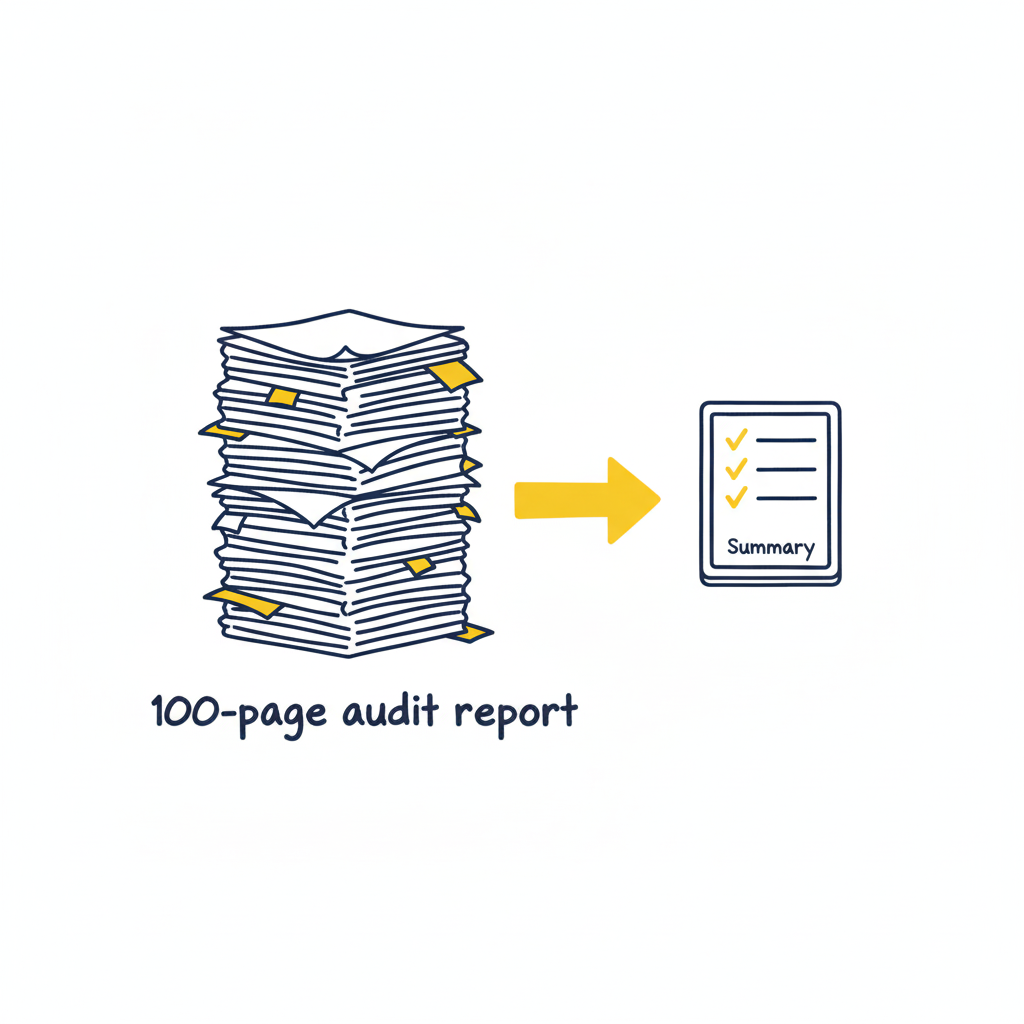
Here is the framework. It’s not about perfection; it’s about triage. You are looking for the “bleeding neck” problems—the ones causing users to rage-quit—before you worry about the “paper cuts.”

1. Visibility of System Status (Don’t Leave Me Hanging)

Does the user know what’s going on? Is the button loading? Did the save work?
The Context: Silence is the enemy of UX. If a user clicks “Buy” and nothing happens for 3 seconds, they assume it’s broken. They will click again. They will double-charge their card. They will hate you.
The Check: Does every action have a reaction? Spinners, progress bars, and “Success” checkmarks aren’t decoration; they are reassurance.
2. Match Between System and Real World (Speak Human)

Are you speaking “Developer” or “Human“?
The Context: Users don’t know your internal terminology. They shouldn’t have to.
The Check: Look for jargon. Instead of “System Error 404,” try “We couldn’t find that page.” Instead of “Execute Protocol,” try “Run Backup.” If your grandmother wouldn’t understand the label, rewrite it.

3. User Control and Freedom (The Emergency Exit)

Is there an “Undo“? Can they get out of a flow easily?
The Context: Users make mistakes. They click the wrong link. They change their mind. If they feel trapped in a flow, they panic.
The Check: Ensure there is always a “Back,” “Cancel,” or “Home” button. Never trap a user in a modal or a multi-step form without a way out.

4. Consistency & Standards (Don’t Gaslight Me)

Does your “Submit” button say “Submit” on one page and “Save” on the next? Does the logo go to the homepage on the desktop app but not the mobile site?
The Context: Inconsistency makes users feel stupid. They learn a rule on page 1, and you break it on page 2. That creates cognitive friction.
The Check: Audit your terminology and placement. Pick a style and stick to it religiously.
5. Error Prevention (The Best Error is the One That Never Happens)

Don’t just fix errors; design them out of existence.
The Context: Error messages are a failure of design. Why did you let the user click that button if the form was empty?
The Check: Gray out invalid options. Disable the “Submit” button until the password is strong enough. Guide the user before they stumble.

6. Recognition Rather Than Recall (Don’t Make Me Think)

Don’t make the user memorize stuff from page 1 to page 2.
The Context: The human brain is lazy. It doesn’t want to hold information.
The Check: Are menu options clearly visible? Do form fields show examples (e.g., “[email protected]”) inside the box so the user knows the format? Make the options visible, not hidden in memory.

7. Flexibility and Efficiency of Use (Speed for Pros)

Can a power user speed through the task?
The Context: New users need guidance; experts need shortcuts.
The Check: Do you have “Skip” buttons for onboarding? Do you support keyboard shortcuts (Tab, Enter) for forms? Don’t slow down the experts just to hand-hold the newbies.

8. Aesthetic and Minimalist Design (Less is More)

Every extra element is competing for attention.
The Context: If everything is bold, nothing is bold. If you have three “Call to Action” buttons, you have zero.
The Check: Remove, remove, remove. If a paragraph doesn’t help the user achieve their goal, delete it. If a button isn’t critical, hide it.

9. Help Users Recognize, Diagnose, and Recover from Errors (Be Nice)

When things break, explain exactly how to fix them.
The Context: “Invalid Input” is useless. “Password must contain a symbol” is helpful.
The Check: Read your error messages. Are they blaming the user (“Illegal operation”) or helping them? Use plain English and highlight the specific field that needs fixing.

10. Help and Documentation (The Last Resort)

Ideally, the design is so good you don’t need a manual. But if you do…
The Context: Sometimes things are complex.
The Check: Is your help searchable? Is it context-aware (a help button right next to the complex feature)? Don’t bury the “Contact Support” link five levels deep.

How to Run the Audit (The “Fresh Eyes” Protocol)

As the folks at Eleken point out, a structured approach to reviewing your product against standard usability heuristics is the fastest way to spot those “tiny imperfections” that ruin the user experience.
But you can’t do it alone. You know where the bodies are buried. You know why that button is weirdly placed (because of a legacy API from 2019). Your users don’t care.

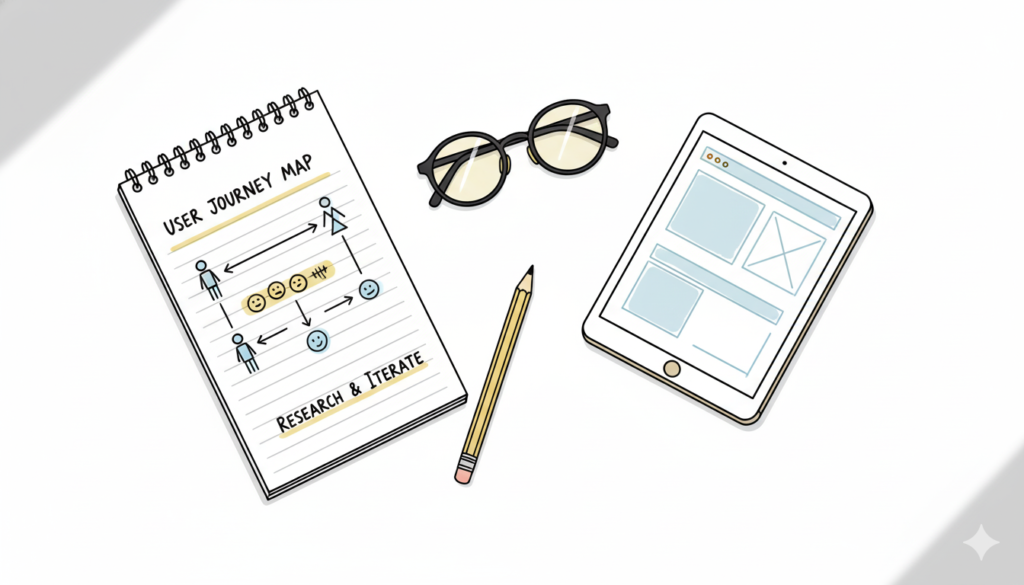
  1. Print the Checklist: Physical paper helps. It feels like a detective’s notebook.
  2. The “Jerk” Test: Go through your product and try to break it. Click randomly. Leave fields empty. Type gibberish.
  3. The “Mom” Test: Watch someone who isn’t in tech try to use your site. Don’t help them. Just watch where they pause.

Downloadable Asset

We’ve turned the heavy theory into a lightweight tool. Grab our “Is This Trash?” UX Audit Checklist. It’s a single-page PDF that walks you through the 10 critical heuristics listed above. Print it out, tape it to your monitor, and go to town.
[📥 Download the “Is This Trash?” Checklist]

FAQs

Q: Can I audit my own design?
A: You can try, but you’re blind to your own children’s flaws. You know why you built that confusing button (it seemed like a good idea at 2 AM). Your users don’t. Get a friend to do the checklist.

Q: What if I fail the audit?
A: You will fail the audit. Everyone fails the first audit. That’s the point. If you passed, you weren’t looking hard enough. Now fix it.

Q: Is a checklist better than user testing?
A: No. User testing is king. But a checklist is free and takes 10 minutes. Do the checklist first to fix the obvious, stupid stuff before you pay real humans to test it. Save your money for the complex problems.

Also Read: UX Design Patterns – Why Your “Unique” Design Is Hurting Your Users
RPS // Blogs // UX Design Patterns – Why Your “Unique” Design Is Hurting Your Users
UX Design Patterns - Why Your "Unique" Design Is Hurting Your Users
We all want to be the artist. The visionary. The one who reinvents the wheel.

We look at sites like Awwwards or Dribbble and see interfaces that float, glide, and defy gravity. We see elements that don’t look like buttons but feel like portals. We think, “If I build that, I will be famous.”

But in UX design, reinventing the wheel is usually just a fancy way of saying “confusing the hell out of your users.”

There is a dangerous myth in our industry that “unique” equals “good.” Agencies and junior designers alike often chase the Dribbble aesthetic—interfaces that look like sci-fi movie props but function about as well as a chocolate teapot. They build portfolios to impress other designers, forgetting that real users aren’t looking for art; they are looking to get a job done.

If your user has to learn how to use your interface, you have failed.

The Tyranny of Learning Curves

Users bring with them a “mental model“—a set of expectations based on every other app, site, and tool they’ve ever used. They know that a “hamburger menu” hides navigation. They know that a magnifying glass means search. They know that a trash can deletes things.

This isn’t laziness; it’s efficiency. The human brain is an energy-conserving machine. It loves patterns because patterns require less processing power.

This is known as Jakob’s Law: Users spend most of their time on other sites.

When you decide that your “Close” button should be a rotating hexagon in the bottom left corner instead of an “X” in the top right, you aren’t being creative. You’re being selfish. You are forcing the user to burn cognitive calories just to figure out how to leave the page. You are disrupting the flow they have established over thousands of hours of internet usage.

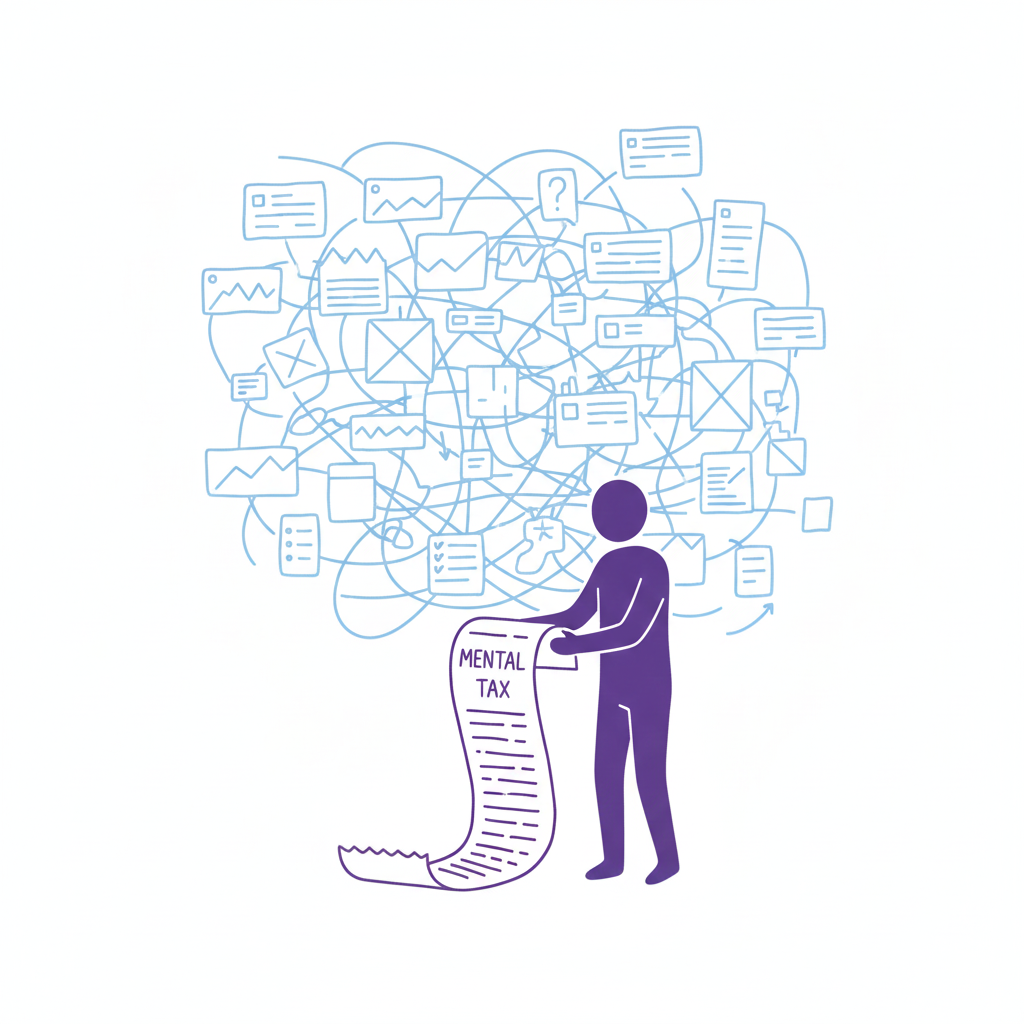
Every time a user pauses to ask, “Wait, where is the menu?” you are extracting a “mental tax.” If the tax gets too high, they close the tab and go to a competitor who respects their time.

The “Selfish Designer” Syndrome

Why do we break patterns? Usually, it’s ego. We want our work to stand out. We fear that if we use a standard left-sidebar navigation, our app will look “generic.”

Usability is invisible.

When a design works perfectly, the user doesn’t notice the design; they notice the task getting easier. If your design is loud, flashy, and confusing, the user notices you. And in B2B SaaS or e-commerce, the user doesn’t want to notice the designer. They want to pay their invoice, book their flight, or send their email.

The best design is the design that gets out of the way.

When to Use Patterns (and When to Break Them)

Does this mean you should copy-paste Bootstrap and call it a day? No. That’s laziness, not design. But you should use established UX design patterns as your foundation. You should only break the rules if you have a solution that is objectively 10x better than the standard.

Until then, stick to the script:

  • Navigation: Stick to standard layouts (top bar, left sidebar). Users shouldn’t need a map to find the “Home” button. If you hide your navigation inside a gesture-based mystery menu, you are playing a game of hide-and-seek that your user didn’t sign up for.
  • Input Forms: Don’t reinvent the radio button or the checkbox. These patterns exist because they work. We’ve all filled out thousands of forms. Don’t make us re-learn how to select “Male/Female/Other” or how to check a box.
  • Feedback: When something loads, show a spinner. When something saves, show a checkmark. Don’t invent a new language of “success.” If your error message is a cryptic riddle, you have failed.

“The usage of UX design patterns in your design process promotes creating usable and high-convertive websites… we know it from our experience.” — Eleken

Skeleton vs. Skin: How to Be Unique Without Being Confusing

This is the part where designers panic. “If I use common patterns, my app will look exactly like my competitor’s!”

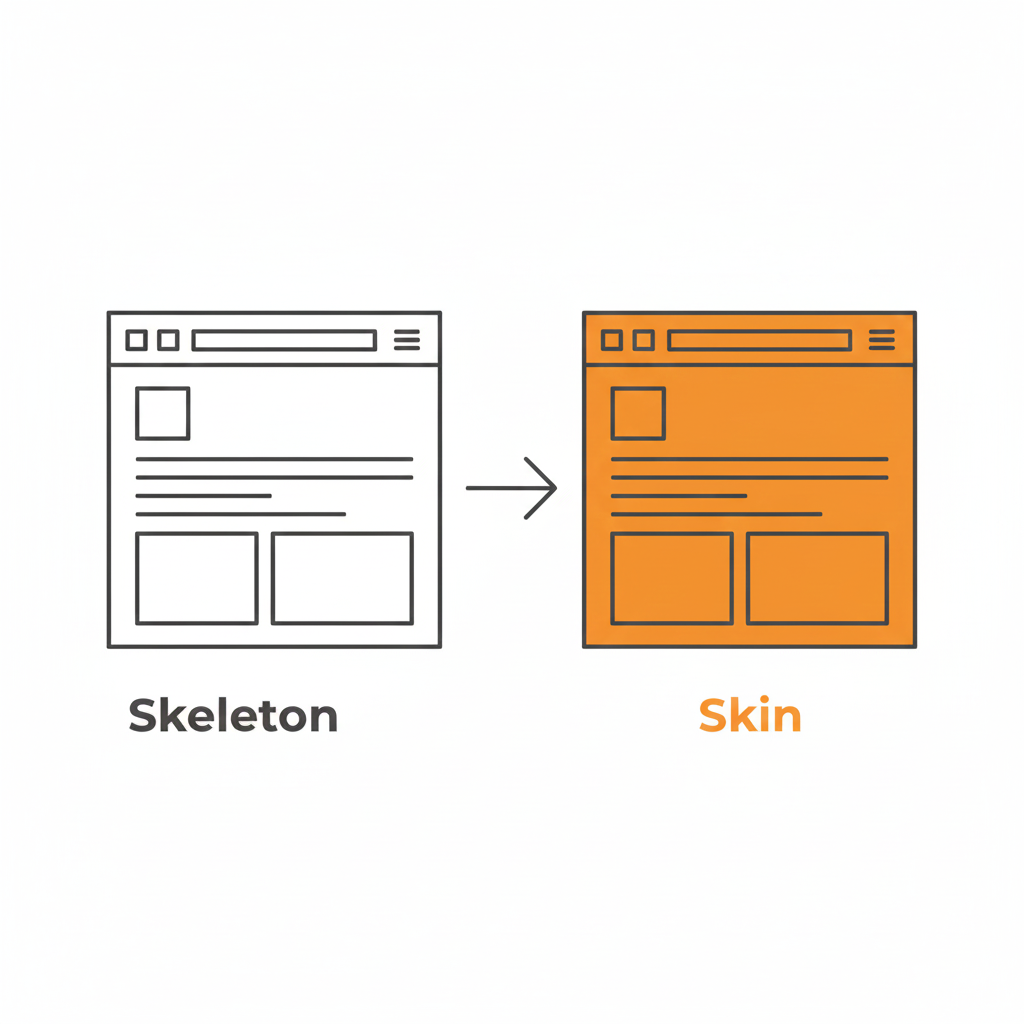
False. This is where the distinction between Skeleton and Skin comes in.

  • The Skeleton: This is the structure. The placement of the navigation, the layout of the form fields, the position of the primary CTA. This should be standard. This should be boring.
  • The Skin: This is the visual design. The typography, the color palette, the iconography, the micro-interactions, the copywriting. This is where you can be as unique as you want.

You can have the most boring, standard left-sidebar layout in the world, but if you pair it with bold illustration, witty micro-copy, and a vibrant color palette, your brand will shine through. You can be distinct without being difficult.

Use a pattern library. There are tons of them (like GoodUI or UI Patterns) that offer battle-tested solutions based on A/B testing. These aren’t “crutches”; they are cheat codes for usability. They free up your brain power to solve the actual hard problems of the product, rather than wasting time deciding if your “Login” button should be oval or square.

Be Boring to Be Brave

Real creativity in UX isn’t making a button look like a banana. It’s solving a complex problem so seamlessly that the user never notices the design at all.

It takes guts to say, “We’re going to use a standard tab bar because it’s what our users expect.” It takes confidence to know that your product’s value lies in its utility, not in its novelty.

So, go ahead. Be boring. Your users will thank you for it. And by “thank you,” I mean they will actually use your product instead of rage-quitting.

Downloadable Asset

We’ve compiled a “Don’t Be Weird” Pattern Library. It’s a collection of the most effective, standard UI patterns for navigation, forms, and data tables that you can drop into your project to ensure users feel instantly at home.
[📥 Download the Pattern Library]

FAQs

Q: But what if my brand is ‘quirky’ and ‘different’?
A: Your brand voice can be quirky. Your navigation should be predictable. Don’t make me solve a riddle to find the “Login” button. You can be a comedian without hiding the exit sign.

Q: Are carousels (sliders) a safe pattern?
A: Lord, no. Carousels are often terrible for UX. They hide content, they auto-scroll when you’re trying to read, and mobile users hate swiping them. Only use them if you hate conversion rates.

Q: If I use standard patterns, won’t my site look generic?
A: Customizing the skin (typography, color, spacing) allows for branding without breaking the skeleton (usability). Don’t break the skeleton. A skeleton with a broken arm doesn’t look “edgy”; it looks like it needs a doctor.

Q: What is the one time I should break a pattern?
A: Only when the existing pattern is fundamentally broken for your specific use case. But be prepared for the learning curve. And test it. If your users fail, you were wrong. Go back to the standard.

Also Read: Profile Page Design – The Underrated Conversion Goldmine You’re Ignoring

RPS // Blogs // Profile Page Design – The Underrated Conversion Goldmine You’re Ignoring
Profile Page Design: The Underrated Conversion Goldmine You’re Ignoring

Let’s be honest. When was the last time you got excited about a “Settings” page?

Exactly. Never.

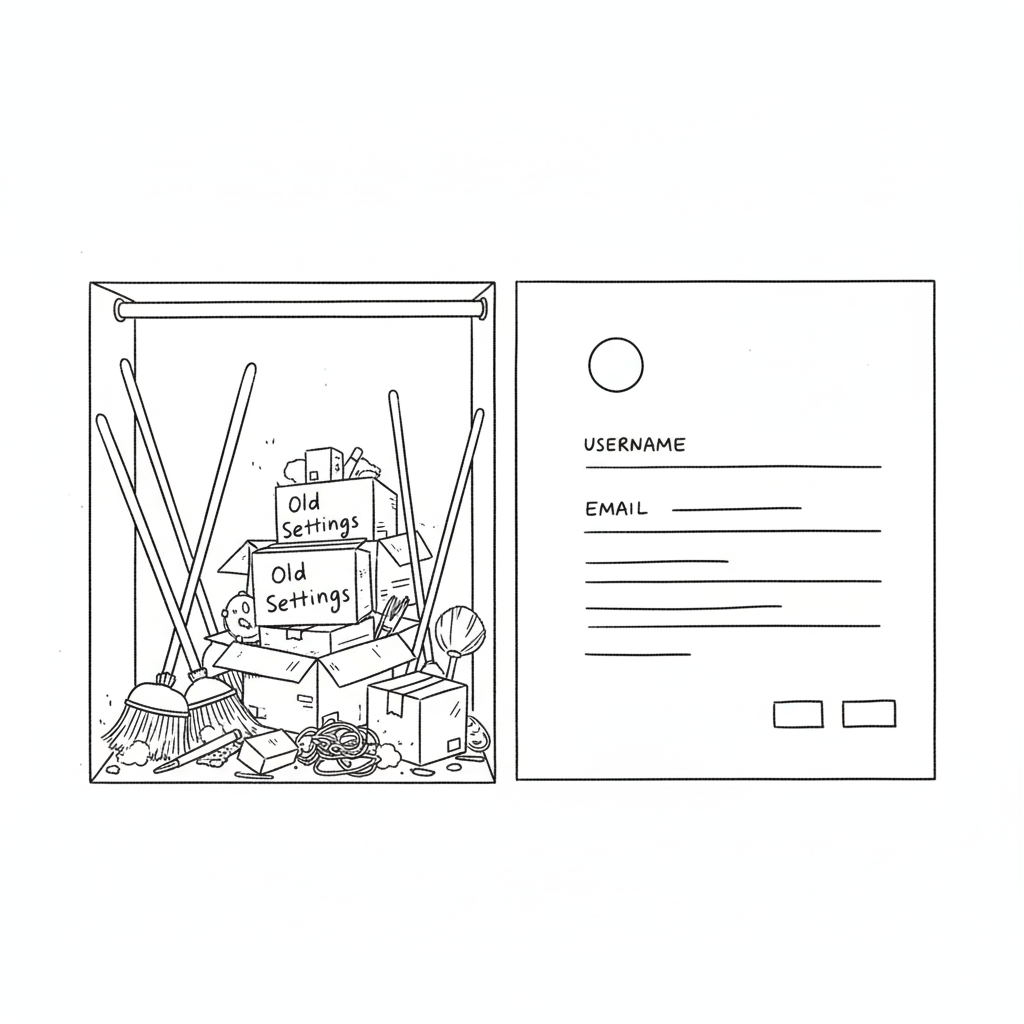
In the design world, the profile or settings page is the digital equivalent of the utility closet. It’s where we shove the brooms, the mismatched Tupperware, and the holiday decorations. As long as the door closes and the clutter is hidden, we’re happy. We prioritize the landing page, the dashboard, and the analytics graphs. We treat the profile page like a tax form, a necessary evil.

Your profile page is a retention killer.

We spend months agonizing over landing page hero images and CTA button colors. But the moment a user signs up, where do they go to set up their account? The profile page. If that experience is cluttered, confusing, or ugly, you’ve just poured gasoline on your churn rate.

You can have the sexiest onboarding flow in the world, but if the user feels lost the second they try to upload an avatar or change their password, they’re gone. The “First Time User Experience” doesn’t end at the signup screen; it ends when the user successfully customizes their space.

Why “Boring” Pages Matter (The Psychology of Ownership)

A profile page isn’t just a data dump; it’s a user’s personal space within your product. It’s the only part of the app that truly belongs to them. In a sea of charts, graphs, and other people’s data, the profile page is the only mirror.

If you treat it like an afterthought—hiding it behind a vague gear icon or making it look like a 1990s database form—you are subtly telling the user that they are an afterthought. You are telling them that their personal comfort is secondary to the system’s efficiency.

This creates a disconnect. In SaaS, specifically, trust is currency. If a user feels they don’t have control over their own identity (can they change their name? can they delete their credit card?), they subconsciously stop trusting the platform with their work.

According to insights from top agencies like Eleken, a well-structured profile page isn’t about looking cool; it’s about information hierarchy. You need to separate the “critical” (email, password, billing) from the “nice-to-have” (newsletter preferences, dark mode toggle, social links). This distinction reduces cognitive load. A user shouldn’t have to scan 50 options just to figure out how to log out.

How to Stop the Clutter

The biggest mistake in profile page UI is trying to show everything at once. We’ve seen massive enterprise tools where the settings page is a literal wall of text—300 form fields with no visual break. That is not a page; that is a resignation letter.

Here is how to fix it:

1. Group the Logic (Don’t Mix “Danger” with “Delight”)

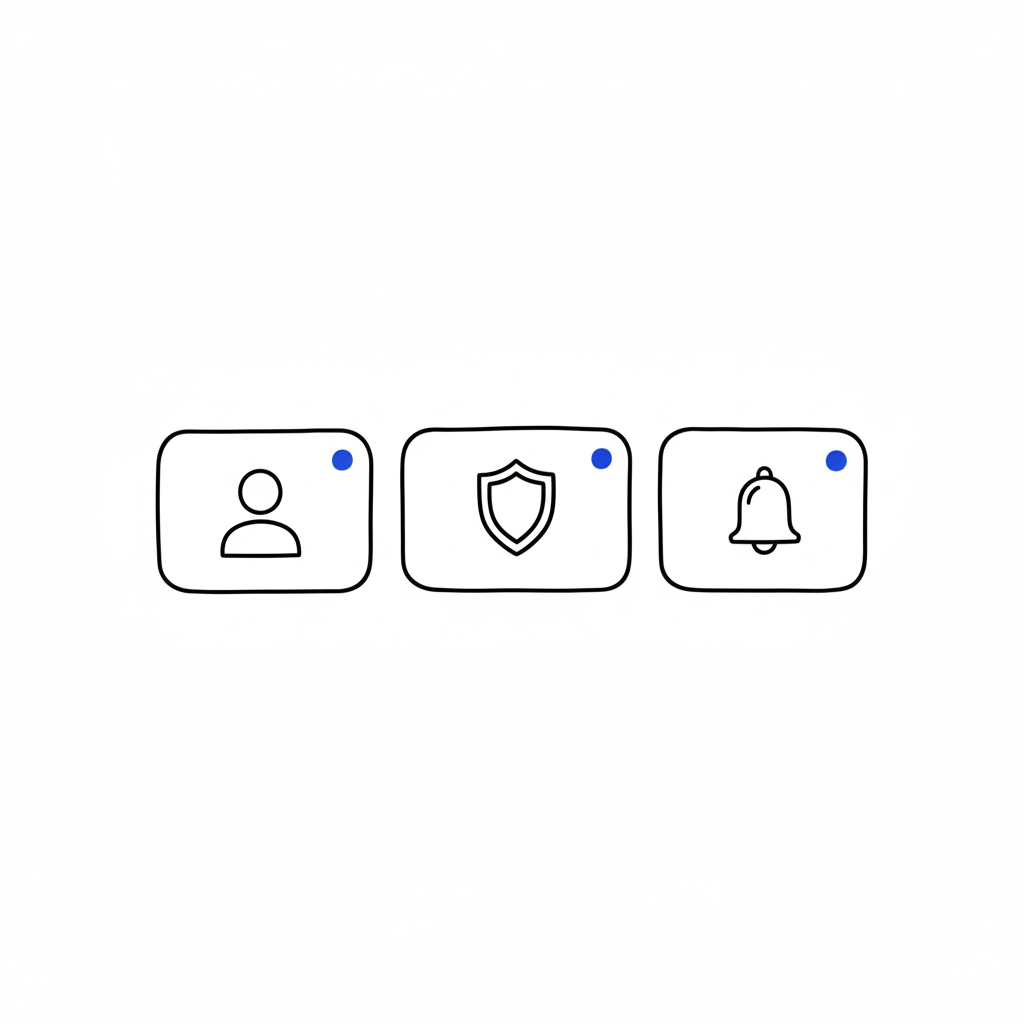
Don’t put “Delete Account” next to “Change Profile Picture.” That’s anxiety-inducing. Group things by intent: Identity (photo, name, bio), Security (password, 2FA), and Notifications. Keep the destructive actions (Delete Account, Downgrade Plan) in a separate, clearly marked “Danger Zone” or bottom of the page. This gives the user psychological safety while navigating.

2. Visual Hierarchy is King

The user’s name and photo should be the stars of the show. Give them real estate. The billing info should be visible but not screaming for attention. Use whitespace aggressively. If a section looks dense, users assume it will be difficult to use.

3. Empty States are Marketing

If a user hasn’t filled out their bio yet, don’t just show empty lines or a gray placeholder. That’s a wasted opportunity. Use that space to teach them the value of the feature. instead of a blank box, try: “Add a bio so teammates know who you are” or “Upload a logo to appear on your invoices.”

“The page that belongs to users… Most profile pages don’t make headlines… But open any app you’ve used, and chances are you’ll find your fingerprints all over that little corner.”Iryna Parashchenko, Eleken

4. Don’t Forget Mobile

This is where most profile pages die. A layout that looks clean on a 27-inch monitor becomes a thumb-twisting nightmare on an iPhone. On mobile, complex forms should be broken into bite-sized steps or collapsible accordions. If you are forcing a user to pinch-and-zoom just to update their phone number, you have failed mobile UX 101.

The “Invisible” Design Goal

The best profile pages are the ones you don’t notice. They feel obvious. They feel like the app was built specifically for that one user. When the design is “invisible,” the user feels a sense of agency and competence. They feel smart because they didn’t have to hunt for anything. And when a user feels smart, they stay.

FAQs

Q: Can I put a link to my design portfolio in the user’s profile for them?
A: You can try, but they will likely change it to a link to their cat’s Instagram. Prioritize their content, not yours.

Q: Is dark mode mandatory for settings?
A: Only if you want users to like you. Yes, it’s mandatory. Blinding white settings at 2 AM is a crime against eyes.

Q: How many tabs is too many tabs?
A: If you need a compass to navigate your settings page, you have failed. Stick to three or four max. Group the rest under “Advanced.”

Q: Should I hide the “Delete Account” button to reduce churn?
A: Never. Hiding it makes you look shady and desperate. Make it accessible, but ask for confirmation. If they really want to leave, a hidden button won’t stop them, just make them angrier.

Also Read: Apple’s Cross-Device UX: How Continuity & Handoff Drive 800M+ Active Users

RPS // Blogs // Apple’s Cross-Device UX: How Continuity & Handoff Drive 800M+ Active Users
Apple's Cross-Device UX: How Continuity & Handoff Drive 800M+ Active Users

Explore Apple’s ecosystem UX design: Handoff, Continuity, and iCloud sync. Learn how seamless device integration increases user lifetime value.

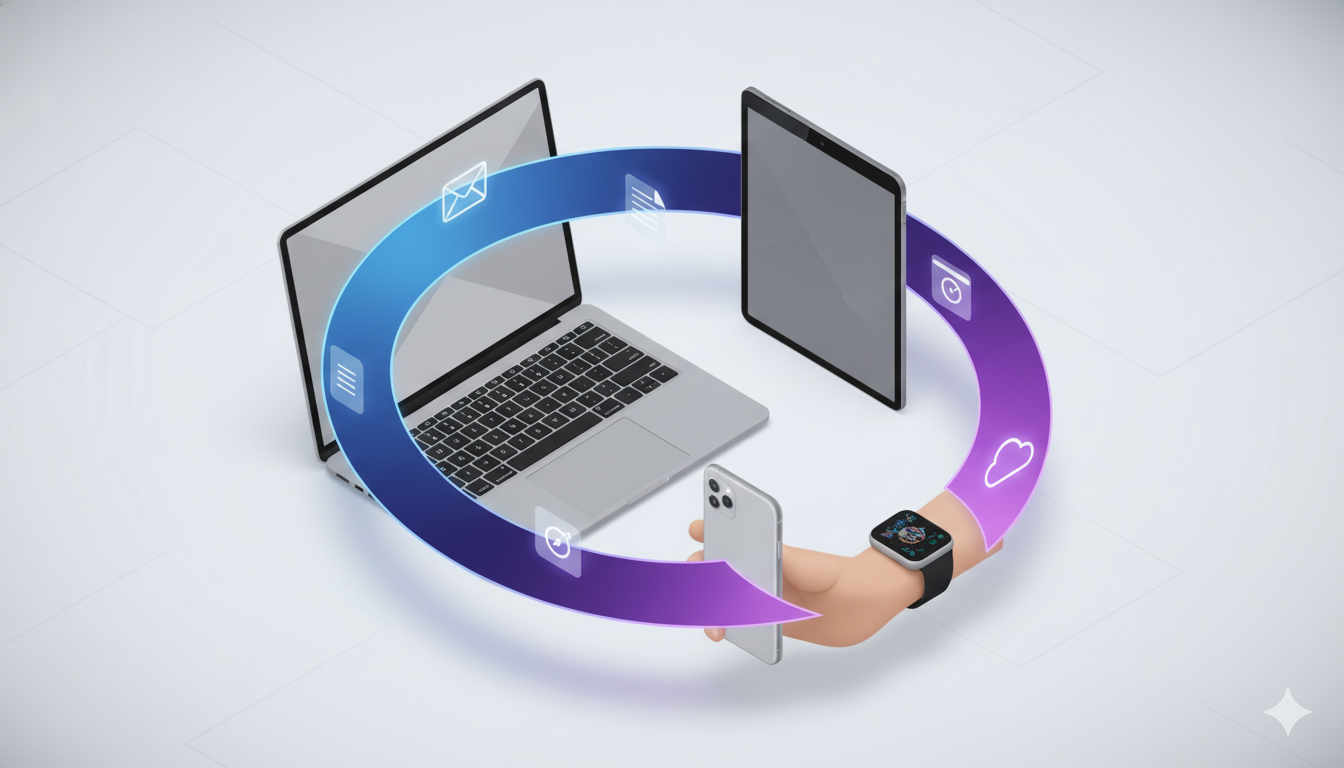
The smartphone era promised liberation—complete access to your digital life, anywhere, anytime. Yet by 2012, a new problem emerged. People didn’t use just one device anymore. They used phones, tablets, laptops, and watches. The friction wasn’t in using individual devices; it was in moving between them. Start composing an email on your iPhone during a commute. Arrive at your desk. Want to finish on your Mac? You’d either send it to yourself, manually copy-paste the text, or restart completely. This fragmentation frustrated power users and demonstrated a critical insight: the future wasn’t about individual devices—it was about seamless experiences across multiple devices.

Apple recognized this wasn’t just a usability problem; it was a competitive opportunity. Samsung offered individual devices. Google distributed them across Android. But Apple owned both hardware and software, meaning they could engineer experiences impossible for competitors. If Apple could make switching between devices feel native and invisible, users would stay locked into the ecosystem not through artificial restrictions, but through genuine convenience. This became the foundation for Apple’s Continuity features—a suite of integrated experiences that transformed the ecosystem from a collection of products into a unified system.

How to Set Up Continuity & Handoff Between Your Mac & iPhone

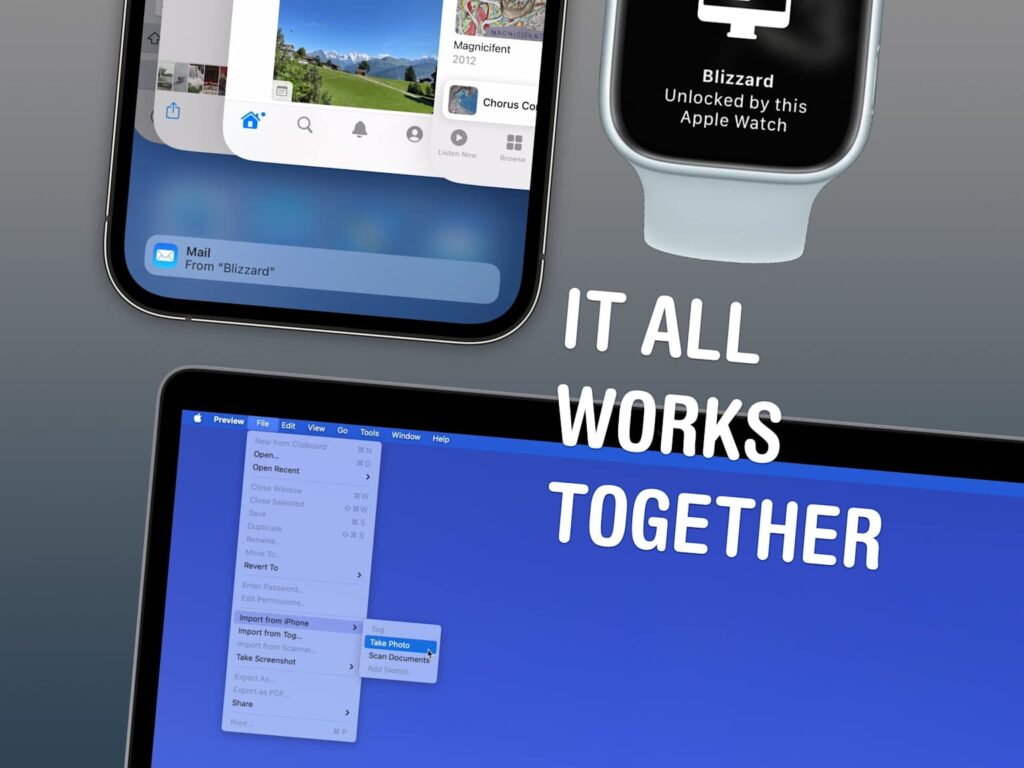
The core innovation was Handoff, introduced with iOS 8 and OS X Yosemite in 2014. The feature allows users to start a task on one device and seamlessly continue on another. Begin drafting a document on your iPad during a meeting. Return to your Mac. Your exact location in that document appears in the Dock—just click it and you’re back where you left off, with full context restored. This sounds simple, but the engineering is profound. Apple had to synchronize app state across devices in real-time, handle network interruptions gracefully, ensure security across device transitions, and design UI that made the feature discoverable without cluttering the interface. Most companies couldn’t coordinate this across their own organization, let alone across multiple platforms.

The magic was in the execution details. Handoff appears as a subtle icon in the Dock on Mac, or in the app switcher on iOS—visible but not intrusive. The transition between devices feels instantaneous because Apple uses Bluetooth Low Energy and iCloud to keep devices in constant lightweight communication. When you tap the Handoff icon, the app launches on your current device with your exact previous state restored. There’s no data loss, no context switching, no friction. Psychologically, this removes the perception that you’re using separate devices—you’re simply continuing work on whichever device is most convenient.

How to use Continuity on your iPhone, Mac, Watch and iPad
How to use Continuity on your iPhone, Mac, Watch and iPad 

The broader Continuity ecosystem expanded on this principle. Instant Hotspot allows your Mac to automatically connect to your iPhone’s cellular data without manual pairing. Universal Clipboard lets you copy text or images on your iPhone and paste them on your Mac—seamlessly. Handoff calls and messages work across devices, so you can start a call on your Apple Watch and continue on your iPhone without hanging up and redialing. AirDrop enables instant file sharing between any nearby Apple devices using encrypted wireless protocols. Each feature addressed a specific friction point—but together, they created a narrative that choosing Apple meant never thinking about device boundaries again.

The business impact proved substantial. Apple’s ecosystem approach created powerful retention mechanics. Users invested in multiple Apple devices earned increasing returns—each new device added value to the existing devices. This compounding value makes switching to competitors expensive. Microsoft users can move their email and documents to Google Workspace and lose nothing; Apple users face a genuine loss if they switch. This isn’t achieved through forced lock-in, but through genuine experience superiority that emerges from ecosystem integration.

The user research behind Continuity revealed something crucial: people don’t think about devices—they think about tasks. A user preparing a presentation doesn’t want a “Mac experience” and an “iPad experience”; they want a single, coherent presentation experience that happens to leverage multiple devices. Traditional device manufacturers optimized for individual devices; Apple optimized for the task spanning devices. This task-centric thinking guided every design decision. Notifications sync across devices—you don’t get duplicate alerts. Your default apps remain consistent across devices. Your iCloud data stays synchronized automatically, creating a unified information experience.

How to use Continuity on your iPhone, Mac, Watch and iPad

The Continuity handoff concept inspired competing products like Google’s cross-device computing features and Microsoft’s universal clipboard, validating that Apple had identified a genuine user need. But because Apple controlled the full stack—hardware, OS, and apps—they executed with consistency competitors couldn’t match. A third-party developer building for both iOS and macOS has to manage different code bases, different design guidelines, and different OS capabilities. Apple’s first-party apps (Mail, Notes, Safari, Maps) work identically across all platforms because they share underlying code and design principles.

The security and privacy architecture deserves mention because it’s invisible but critical. Handoff data transmits encrypted between devices. iCloud synchronization uses end-to-end encryption for sensitive data. When you hand off a task containing private information, Apple’s infrastructure ensures that data never exists on unencrypted servers where Apple itself can read it. This technical foundation builds trust—users can hand off anything, from financial records to health data to private messages, knowing the system protects privacy by design.

By 2024, the Apple ecosystem had grown to over 800 million active devices. Continuity features account for a portion of this growth because they make the ecosystem objectively more functional than alternatives. Samsung users with an iPhone cannot access Handoff. Google ecosystem users switching to Apple gain these capabilities. The competitive advantage compounds—each new user who experiences seamless handoff becomes a stronger advocate within their social network.

The UX principle here transcends Apple: Seamless experience across touchpoints reduces friction, but unified design philosophy ensures consistency. Continuity succeeded not because Apple created magical technology (the underlying wireless protocols existed for years), but because they designed comprehensive, coherent features that addressed real user pain points. They treated the multi-device world not as a fragmentation problem but as an opportunity to create differentiation through integration. That’s how a feature that seems invisible—because it works so smoothly you never think about it—becomes one of the most powerful retention mechanics in the tech industry.

Also Read: Amazon One-Click Checkout: The UX Case Study That Revolutionized E-Commerce

RPS // Blogs // How to Implement AI as a Design Collaborator in 2026: A Practical Guide for UX/UI Teams
How to Implement AI as a Design Collaborator in 2026: A Practical Guide for UX/UI Teams

AI Design Tools 2026: How to Integrate AI Into Your Design Workflow Without Chaos

Learn how to use AI as a design collaborator in 2026. Practical strategies for integrating AI tools like Figma AI and Builder.io into your UX/UI workflow without losing control or quality.

Look, I get it. You’ve been designing the same buttons, the same cards, the same navigation patterns for five years. And now AI can generate that stuff in 30 seconds. That feels existential. But here’s what I’ve realized after watching design teams actually implement AI in 2026: the panic is real, but the opportunity is bigger. The key isn’t fighting AI. It’s using it to stop wasting your brain on repetitive work so you can spend it on actually deciding what matters.

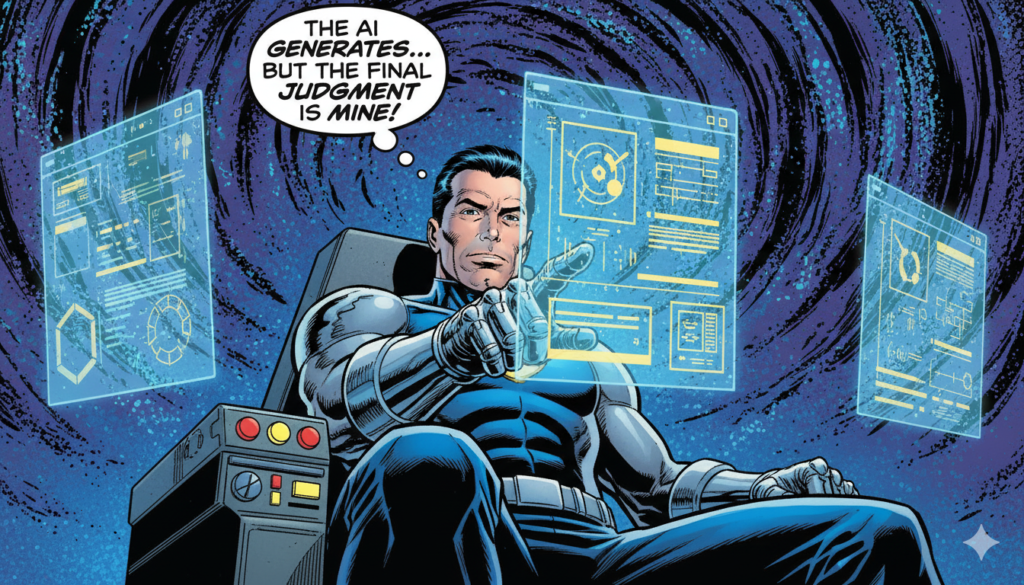
The problem most teams hit first is treating AI like a designer replacement instead of a design assistant. They point at Figma AI or generative tools and think, “Why do I need a junior designer anymore?” So they remove the junior designer, and suddenly they’re drowning in options with no one to evaluate them. That’s backwards. AI should handle the options generation. Humans should handle the judgment.

The "Option Overload" Trap
The “Option Overload” Trap

Here’s where I landed after seeing this play out: AI is phenomenal at expanding the canvas. Give it a brief, and it spits out ten layout variations. Give it a component library, and it suggests how they could work together. Give it a user flow, and it generates twelve different information hierarchies. But then what? A human has to look at those twelve variations and ask the questions AI can’t: Does this actually solve the user’s core problem? Does this align with our business constraints? Does this feel like our brand? That’s where the real work happens. That’s where designers become indispensable.

The teams winning in 2026 aren’t the ones using AI to move faster. They’re the ones using AI to move smarter. They’ve stopped using Figma as a place to create designs and started using it as a place to decide between AI-generated options. The operational shift is small but profound. Figma’s AI features in 2026 now include smart layer organization, component suggestions, and a feature called “Check Designs” that acts like a design system linter recommending your design tokens and variables automatically based on what you’ve built before. That’s not replacing you. That’s removing friction from work that doesn’t require human judgment.​

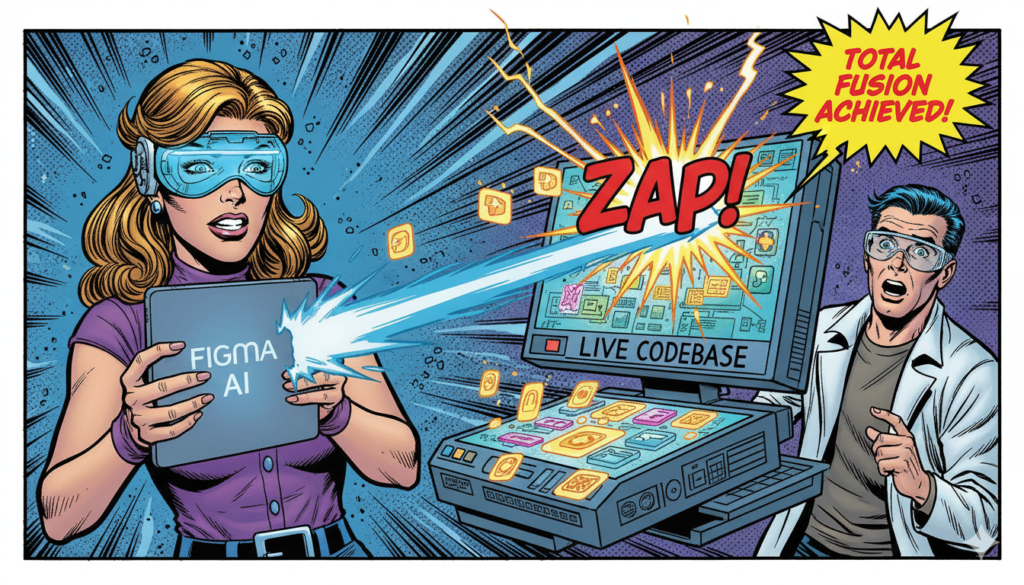
Where this actually transforms your process: when you connect AI tools to your existing design system and component library. Most teams don’t do this. They use AI standalone, which generates random buttons and layouts that don’t align with anything. But if you configure AI to work with your production components, everything changes. Builder.io Fusion, for example, generates production-ready code that connects directly to your codebase and design system. You’re not designing mockups that developers rebuild. You’re designing the actual product in a Git workflow. Every change gets reviewed and merged like code. That’s not just faster. That’s the removal of the handoff problem itself.​

The “Fusion” Solution

The practical implementation roadmap for most design teams looks like this: start with one real project, not a pilot that exists to prove concepts. Run your normal project timeline, but have AI generate three design variations for key screens instead of the designer generating one. Your designer then evaluates those three and makes a decision, potentially combining elements from multiple options. Measure what changes: number of revision rounds, time spent on design feedback, developer questions during handoff. In teams that implemented this cleanly, design revisions dropped roughly 30 percent because ambiguity was resolved earlier.​

The mistake most teams make is rolling AI out to everyone at once, then wondering why the output is inconsistent. Smart teams do the opposite. They run one project with one designer who’s comfortable with experimentation. That designer learns the tool, figures out what prompts generate useful output versus noise, and discovers where AI actually saves time versus where it creates busywork. After two to three projects, they train the rest of the team based on real patterns, not theoretical ones.

The “Decider” Mindset Shift

There’s also the psychological shift that matters more than people admit. Designers often feel like they’re in competition with AI. That if they use it, they’re admitting they’re not good enough. Flip that. The designers who embrace AI early are the ones who go from “I executed this design” to “I made the decision that this was the right design, and I evaluated these five alternatives to get here.” That’s more valuable. That’s harder to automate. That’s what keeps you employed when AI gets cheaper.

Also Read: Why Everything Looks the Same in 2025: The Copy-Paste World

RPS // Blogs // AI Won’t Replace Designers It’ll Replace Bad Design Execution
AI Won't Replace Designers—It'll Replace Bad Design Execution

AI is disrupting design but not designer demand. Learn why AI struggles with strategy, which designers will thrive, and how to evolve before the market shifts.

AI-generated design is everywhere. Paste a prompt, get a UI. Seconds instead of weeks. No revisions. No meetings. Naturally, designers are nervous. But here’s the uncomfortable truth that nobody wants to admit: AI isn’t killing designer demand. It’s killing a specific kind of designer. And that kind was already becoming obsolete.

The panic makes sense on the surface. Tools like Midjourney and Figma’s AI features are getting better every month. Generated landing pages look respectable. Dashboard mockups arrive in seconds. For someone whose value proposition is speed and visual execution, this feels existential. But if you zoom out and look at what AI actually does versus what design actually requires, the picture gets much more interesting—and much more hopeful for designers who understand the difference.

What AI Can Actually Do (And Where It Stops Dead)

Today’s AI tools are impressively good at generating basic UI patterns. Landing pages? AI handles them beautifully. Marketing sites with proven conversion patterns? AI nails them. Simple dashboards with standard layouts? AI produces them faster than you can set up your Figma file. Given a halfway decent prompt, AI can produce something visually acceptable—sometimes even genuinely impressive.

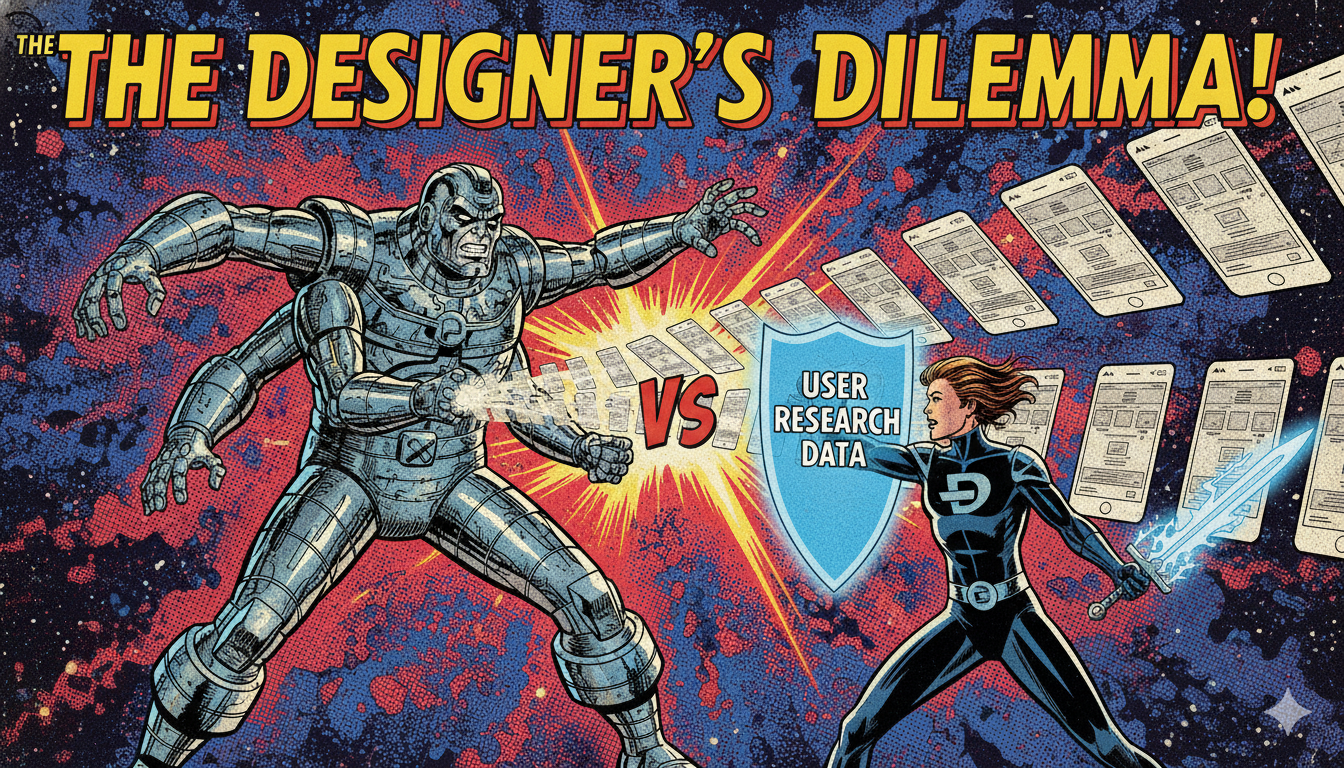
But here’s where it breaks: acceptable isn’t the same as effective. AI can assemble components. It can remix patterns. It can imitate style flawlessly. What it cannot do is understand why a product exists in the first place. It doesn’t know the user problem that matters most. It doesn’t understand the business trade-off between feature completeness and cognitive load. It has no idea about regulatory constraints, internal politics, or long-term product vision. Design is fundamentally decision-making under constraint, and AI has no stake in the outcome. It can generate options, but it can’t weight them.

The Real Pattern: AI Is Commoditizing Commodity Design


The real threat isn’t to “designers” as a whole. The threat is to commoditized design. If your value is pushing pixels, executing instructions without questioning them, or delivering visuals without understanding context, AI will undercut you—fast. Take simple brochure websites. AI handles these perfectly. Many clients don’t need more than that. Those jobs will disappear. And honestly? They probably should. The market doesn’t need thousands of junior designers executing mid-level pixel-pushing work at human salaries when AI can do it cheaper.

But now look at complex SaaS products. Multi-step onboarding flows. Permission-based dashboards that change based on user role. Edge cases. Conflicting user goals where you have to choose which one matters more. AI struggles here because complexity isn’t visual—it’s conceptual. We’ve tested AI-generated flows for enterprise tools. They look visually fine until you actually try to use them. Then everything breaks: wrong prioritization, missing states, no understanding of user anxiety or risk tolerance. AI doesn’t fail loudly. It fails subtly. And subtle failures—the kind that make power users frustrated or new users confused—those are expensive. They cost retention. They cost support tickets. They cost revenue.

The Shift: From Delivery to Decision-Making

Designers who survive the AI era won’t be the fastest executors. They’ll be the best decision-makers. The role evolves from “here’s the design” to “here’s why this is the right design, given what we know about users, constraints, and trade-offs.” That requires skills AI doesn’t have: defining the problem before solving it, choosing what not to design, making trade-offs explicit, defending decisions with evidence.

Prompting is a skill—and it’s not obvious. Everyone assumes asking AI for a design is easy. It’s not. Getting useful output requires clear thinking, precise constraints, iterative refinement, and taste. Bad designers get bad AI output faster. Good designers get leverage. The real opportunity is having AI handle repetitive layouts, variations, exploration, and documentation—freeing designers to focus on strategy, user research, system thinking, and business alignment.

The Timeline and the Middle Layer


Over the next 3–5 years, AI will start replacing mid-level execution-heavy design roles. Not senior strategists who shape product vision. Not junior learners soaking up fundamentals. The middle—designers who were competent executors but didn’t develop deeper judgment. Designers who adapt now—learning AI tools, sharpening judgment, owning decisions—will win disproportionally.

AI won’t replace designers. It will replace designers who mistake output for value. The future belongs to designers who decide—not just deliver.

Also Read: Mobile First Design Myth: Why It Excludes Billions & What to Do Instead

RPS // Blogs // Amazon One-Click Checkout: The UX Case Study That Revolutionized E-Commerce
Amazon One-Click Checkout: The UX Case Study That Revolutionized E-Commerce

Learn how Amazon’s 1-click checkout increased conversions by 300% and reduced cart abandonment. The UX design principles behind $738B in e-commerce.

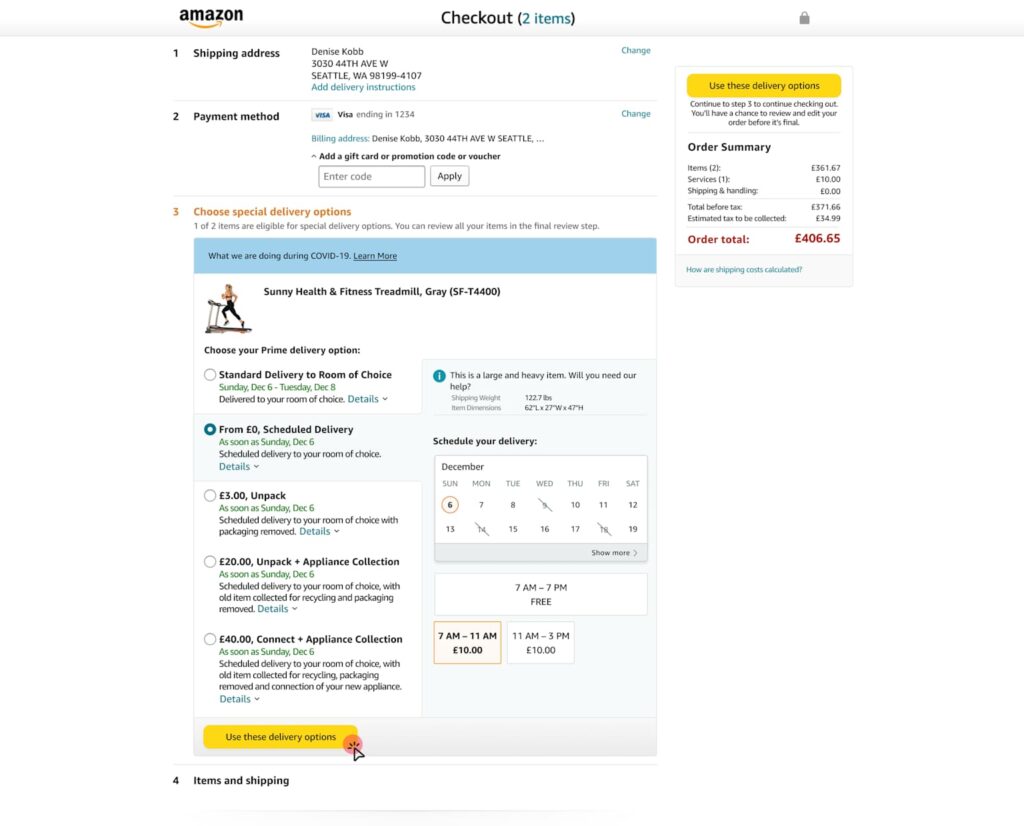
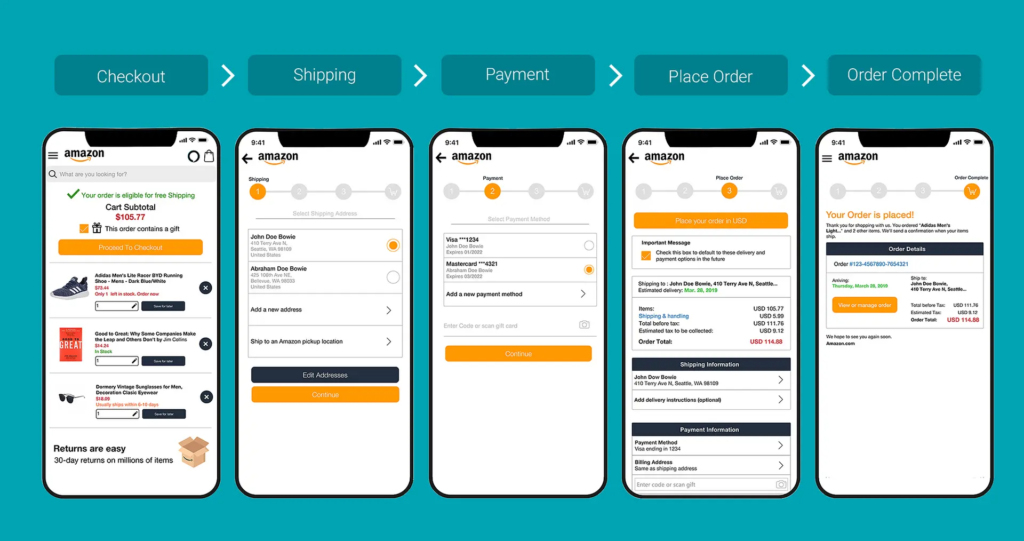
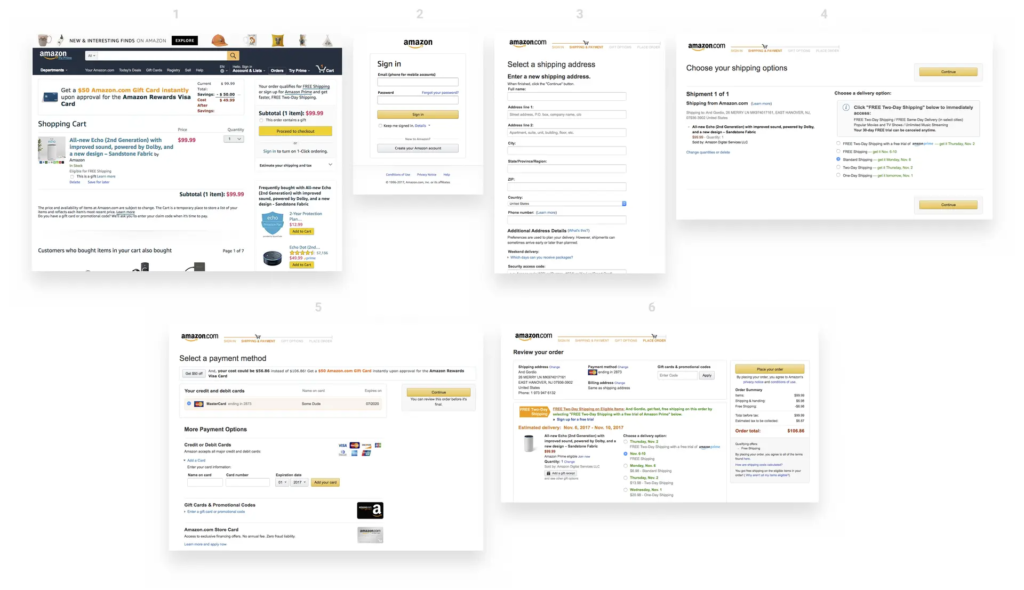
In 1999, Amazon filed a patent for something that sounds impossibly simple: letting customers buy something with a single click. Today, “One-Click Checkout” sits alongside the iPhone and Post-it Notes as one of those inventions so intuitive we forget what shopping was like before it existed. Yet when Amazon introduced this feature, it was genuinely revolutionary. The average e-commerce checkout required customers to navigate through 4–5 separate steps: cart review, account login, address entry, payment details, and order confirmation. Each step was a decision point. Each decision point was an opportunity for buyers to reconsider, procrastinate, or abandon altogether.

The problem wasn’t complexity—it was friction. Even highly motivated customers faced friction from decision fatigue. Enter a shipping address. Enter a billing address (sometimes different). Enter credit card details. Verify everything. Confirm the order. By the time checkout completed, the psychological momentum that drove the initial purchase had dissipated. Mobile shopping made this even worse. Typing a 16-digit credit card number on a three-inch screen felt so cumbersome that many shoppers simply abandoned their carts rather than complete the transaction.

Amazon Checkout UX Design Case Study — EMILY PAK

Amazon’s data revealed something striking: checkout cart abandonment rates hovered around 70% across the e-commerce industry. Worse, roughly 18% of shoppers abandoned carts specifically because the checkout process felt too complicated or time-consuming. This represented catastrophic revenue leakage. Industry analysis suggested that e-commerce stores could recover an estimated $260 billion in lost orders simply by optimizing the checkout experience. The mathematical incentive was undeniable, but the design challenge was equally clear: how do you remove friction without compromising security or data collection?

One-Click Checkout solved this through a progressive disclosure strategy. Instead of asking for all information upfront, Amazon securely stored customer payment and shipping details. On subsequent visits, users could complete a purchase with literally one click. The cognitive load dropped from “fill five forms” to “confirm one decision.” This wasn’t about removing information requirements—it was about removing the moment of friction at the point of impulse buying. When users decided they wanted something, they could act on that decision instantly, before motivation faded or distractions intervened.

The results were staggering. Amazon’s conversion rates jumped from approximately 2.5% to over 10%—a 300% relative increase. Cart abandonment rates plummeted by 40–45%, meaning 40% more people who started the checkout process actually completed it. Average order value increased by 5.3%, and behavioral data showed that One-Click customers visited 7% more frequently and spent 7.8% more time browsing per session over 15-month periods. More pages per session—9.3% more, to be precise—suggested that removing checkout friction freed customers to explore more products rather than rush through the purchase experience.

Competing research corroborated Amazon’s findings. Studies by the Baymard Institute indicated that optimizing checkout alone could boost conversion rates by up to 35%. Later implementations like Apple Pay demonstrated similar patterns: when HotelTonight integrated one-click payment, they saw a 26% immediate increase in orders. Shop Pay, Shopify’s one-click solution, reported 70% faster checkout times and conversion rates 1.72 times higher than traditional multi-step flows. These weren’t isolated success stories—they were consistent validation of a principle: friction correlates directly to abandonment.

What made Amazon’s approach sophisticated wasn’t the technology—it was the psychological insight. Friction isn’t just a feature problem; it’s a behavior problem. Humans experience decision fatigue. Each form field, each validation step, each page load depletes mental resources. By the time customers reach payment, they’re mentally exhausted and vulnerable to second thoughts. One-Click didn’t just save time; it preserved the psychological state that motivated the initial purchase. The customer remained in a state of desire and action, uninterrupted by procedural complexity.

The design also understood security perception. Many users worried that storing payment information online was risky. Amazon addressed this through explicit security messaging, encryption transparency, and brand reputation. The UX communicated that their security was strong enough that you could trust instant payments. This was crucial because removing friction can only succeed if users feel safe. Security concerns still matter—they’re just addressed through design communication, not by adding more form fields.

Mobile optimization became critical as shopping shifted to phones. One-Click’s convenience became exponentially more valuable on mobile devices where typing and navigation felt clunky. Rather than design a separate “mobile checkout,” Amazon recognized that the frictionless principle applied universally. Whether desktop or phone, the goal remained identical: minimize steps between desire and transaction completion. This consistency across devices reinforced One-Click’s value proposition and built user habit.

The business impact extended beyond immediate revenue. One-Click created switching costs that benefited Amazon for decades. Customers stored payment information on Amazon, making it easier to buy from Amazon again than from competitors who required re-entering all information. This small UX advantage compounded over time into massive competitive moat. New competitors couldn’t instantly match Amazon’s frictionless experience because customers had already invested in the convenience of One-Click.

The core takeaway isn’t that you should copy One-Click—it’s that you should map your checkout for friction. Where do users hesitate? Where do they reconsider? Where do form fields outnumber motivation? Those are your design opportunities. Amazon proved that removing even tiny friction points accumulates into massive business impact. The difference between a 2.5% and 10% conversion rate isn’t the result of flashy design; it’s the product of systematic friction reduction at every touchpoint. That’s how a simple checkout feature became one of the most valuable innovations in e-commerce history.

Also Read: Airbnb UX Design Case Study: Building Trust in Peer-to-Peer Travel

RPS // Blogs // Airbnb UX Design Case Study: Building Trust in Peer-to-Peer Travel
Airbnb UX Design Case Study: Building Trust in Peer-to-Peer Travel

Discover how Airbnb’s user-centered design solved trust barriers and scaled to 4M+ hosts. Learn the UX principles behind their $100B+ valuation.

When Airbnb launched in 2008, they faced an almost impossible challenge: convincing millions of people to stay in strangers’ homes. The psychological barrier wasn’t just about logistics—it was about overcoming deep-rooted fear and skepticism. The peer-to-peer accommodation concept seemed risky, even unsafe. Hosts questioned whether guests would respect their spaces, while travelers worried about scams, safety, and whether photos matched reality. Airbnb didn’t win the market through aggressive marketing or competitive pricing alone. They won it through intentional, human-centered design that systematically dismantled every friction point in the user journey.

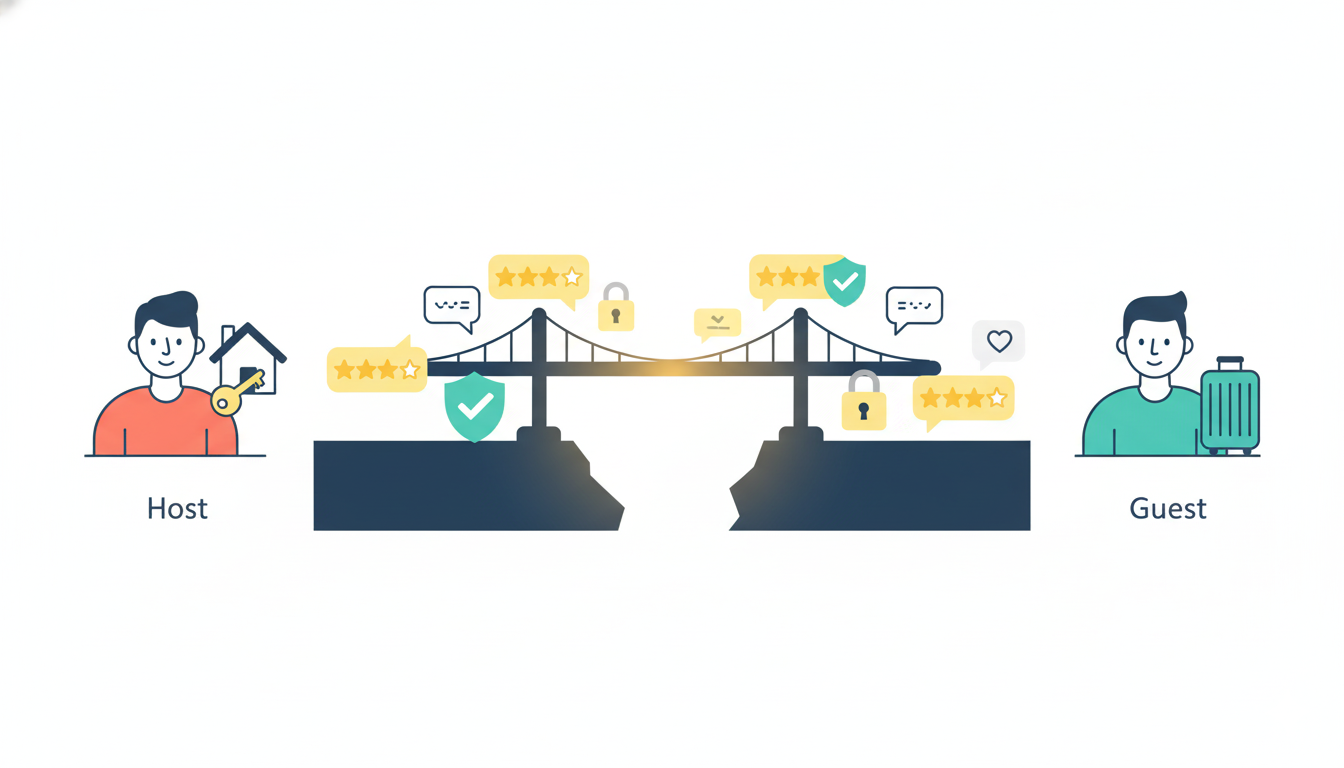
The core problem Airbnb identified was this: trust doesn’t exist in a vacuum—it must be designed into the product. Both hosts and guests needed tangible proof of legitimacy before committing. Hosts needed visibility and professional presentation tools, while travelers needed reassurance that their money and safety were protected. Rather than building features in isolation, Airbnb mapped the emotional journey of both user groups and designed interfaces that spoke directly to their fears.

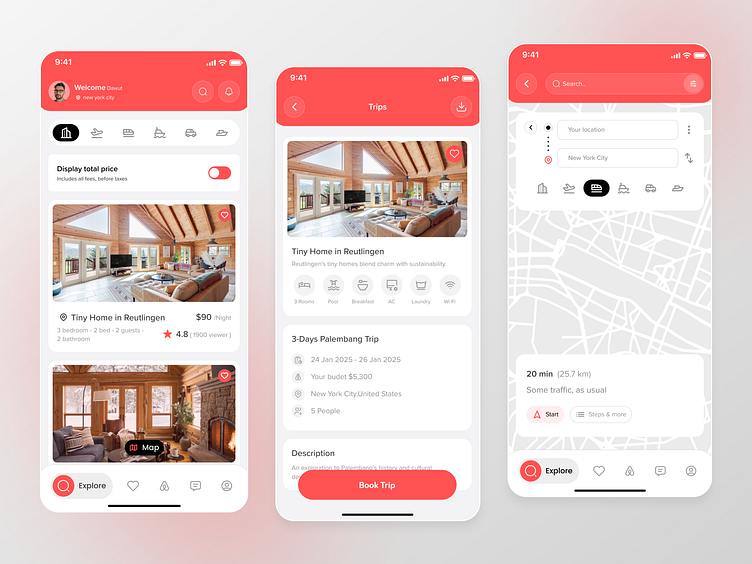
Airbnb Travel App UI Design by Alomgir Hossen on Dribbble

The breakthrough came through a deceptively simple mechanism: two-way reviews and verified profiles. But the genius wasn’t in the concept—it was in the execution. Airbnb didn’t just add a review button; they embedded trust signals throughout the entire interface, making reputation visible at every decision-making moment. Ratings appeared above the fold on listing pages, filterable and sortable to ease choice anxiety. Review counts carried visual weight equivalent to pricing information, signaling that community feedback was as important as cost. Microinteractions—like highlighting keywords such as “clean,” “friendly host,” and “responsive“—reduced cognitive load and subconsciously reinforced safety during the critical booking moment. This wasn’t decoration; it was strategic psychology embedded in UI.

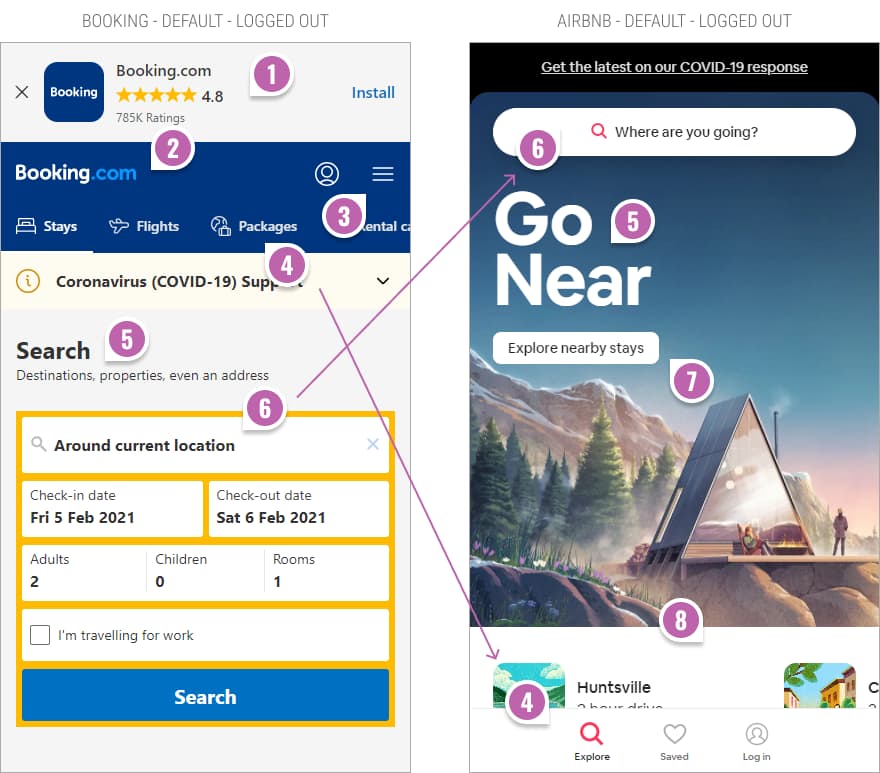
Booking's vs. Airbnb's Mobile Homepage UI | GoodUI Blog
Booking’s vs. Airbnb’s Mobile Homepage UI | GoodUI Blog

To address the visual trust barrier, Airbnb invested heavily in professional photography. They recognized that most hosts lacked professional equipment or skills to showcase their spaces effectively. Instead of assuming hosts would solve this problem themselves, Airbnb launched a free professional photography service. High-quality images didn’t just look better—they fundamentally changed how guests perceived value and reduced booking hesitation. This hands-on approach demonstrated Airbnb’s understanding that not all UX problems can be solved with code. Sometimes the most impactful design decisions happen offline, in real homes, with real people.

The search and filtering experience was engineered for cognitive ease. Rather than overwhelming users with hundreds of parameters, Airbnb grouped filters contextually: location, price range, amenities, and experience type. They added an interactive map feature that allowed users to think geographically rather than scrolling through endless lists. Each listing card prioritized information hierarchy—stunning photos, transparent pricing, review highlights, and instant booking availability. Users could scan a grid of results and instantly identify matches. This wasn’t beautiful design for beauty’s sake; it was friction-reduction through clarity.

Airbnb A/B Tests More Filters On Their Listing Screens With

The booking flow itself became a masterclass in reducing abandonment. Airbnb introduced Instant Book, eliminating the approval step that created uncertainty and delayed gratification. Pricing transparency went further than competitors: Airbnb displayed total costs upfront, including service fees and taxes, removing the shock factor that triggers checkout abandonment. In-app messaging enabled direct communication between hosts and guests, reducing the risk of miscommunication and building rapport before arrival. Each touchpoint was designed to reinforce the narrative that you’re not dealing with a faceless corporation—you’re connecting with a real person in a real home.

The impact speaks for itself. By 2023, Airbnb scaled to over 4 million hosts and 1.4 billion guest arrivals, achieving a valuation exceeding $100 billion. More importantly, the company maintained a 4.3-star app rating across more than 138,000 reviews, a testament to consistent, thoughtful experience design. This wasn’t achieved through a single feature launch but through systematic, user-centered iteration that treated trust-building as a design problem, not a marketing challenge.

The UX lesson here is fundamental: When your product requires users to overcome psychological barriers, design must address emotion before function. Airbnb didn’t just create a platform to list homes; they created a system of reciprocal accountability, transparency, and human connection. They understood that reviews weren’t social proof—they were psychological scaffolding that made the leap from “I’d never trust a stranger” to “I’m excited to meet this person.” That’s the difference between a good product and a transformational one.

Also Read: How to Implement AI as a Design Collaborator in 2026: A Practical Guide for UX/UI Teams

RPS // Blogs // What 1/60th Onboarding Time Really Means
What 1/60th Onboarding Time Really Means

Most creative agencies use vague language when describing their onboarding process. “Fast.” “Efficient.” “Streamlined.

These words mean nothing. A client has no way to measure them.

1/60th onboarding time is different. It’s specific. It’s measurable. And it changes how agencies operate from day one.

Understanding 1/60th: The Math Behind the Concept
The name comes from a simple formula: reduce onboarding to 1/60th of traditional time.

If traditional onboarding takes 30 days, 1/60th equals 12 hours.
If traditional onboarding takes 60 hours, 1/60th equals 1 hour.
If traditional onboarding takes 2 weeks, 1/60th equals 3-4 hours.

This isn’t arbitrary. Real agencies using this model report that 1/60th of traditional onboarding time delivers 80-90% of the information they actually need to begin work.

The remaining 10-20% of questions? They emerge naturally during the project.

Real Example: Traditional vs. 1/60th Model

Traditional agency onboarding:

Day 1: Initial kickoff call (90 minutes) → 40-page onboarding document sent

Days 2-3: Client reviews document, returns with questions

Days 4-5: Calls to clarify questions

Days 6-10: Back and forth emails on specifics

Day 11: Finally, project actually begins

Total: 10 calendar days, 5-6 working days, multiple meetings

1/60th model:

Hour 1: Client completes structured intake form (15 minutes)

Hour 2: Designer reviews submission (15 minutes), asks clarifying questions via system

Hour 3: Client answers clarifications (15 minutes)

Hour 4: Team begins work with clear direction

Total: 4 hours, all within one day, one framework

Where Traditional Onboarding Breaks Down
The problem isn’t paperwork itself. The problem is inefficient paperwork.

Friction Point 1: Information Overload on Day One

Traditional agencies send 40-page onboarding documents hoping clients will fill out all sections completely.

Reality: Clients skim. They miss questions. They answer other questions incorrectly because they don’t understand context.

Example: “Who is your primary audience?” Client writes “Small business owners.” But the team later learns they actually mean “3-5 person companies in financial services in tier-1 cities.”

That’s a massive gap created by poor question design.

Friction Point 2: Repeating Information Multiple Formats

Client fills out onboarding form. Then goes on a kickoff call where the creative director asks the same questions again. Then an email comes with a checklist requesting the same information.

Why? Because different systems, different people, lack of synchronization.

Client frustration: “Didn’t I already answer this?”

Agency frustration: “We need written answers, not verbal.”

Result: Client loses confidence. Agency wastes time reformatting information.

Friction Point 3: Undefined Timeline for Getting Started

Traditional model: Client submits information. Agency says “We’ll review and get back to you.”

Client waits. Days pass. Client worries. Did they send the wrong info? Should they follow up?

Meanwhile, the creative director is busy and hasn’t looked at submission yet.

This delay kills momentum. Excitement from the initial “yes” evaporates.

By day 10 when actual work starts, trust is already fractured.

Real Data: The Cost of Slow Onboarding

Research from agencies implementing 1/60th shows:

Clients who wait 5+ days for feedback have 35% higher revision request rates (they’ve second-guessed their input by then)

Client project cancellation rate drops 22% when onboarding completes same day

Revision rounds decrease 40% when clients see direction within 24 hours

Client satisfaction scores increase 60% when they’re engaged within 4 hours of signup

What Changes With 1/60th Onboarding Speed
Everything becomes intentional instead of comprehensive.

Instead of 40-page forms, agencies use 15-question structured intake.

This isn’t cutting corners. It’s asking smarter questions.

Example comparison:

Traditional: “Tell us about your brand” (open-ended, vague response)

1/60th: “Rate your brand personality on these 5 dimensions [with slider], then upload 3 competitor brands you admire” (specific, directional, comparable)

Instead of long kickoff calls, agencies use guided digital flows.

A 90-minute kickoff call isn’t mandatory. Most of what’s discussed could be structured upfront through guided flows.

In 1/60th model:

Client completes intake (15 minutes)

Designer reviews and creates clarification questions (15 minutes)

Client answers clarifications (15 minutes)

Optional 15-minute call if needed (rarely)

Total: 1 hour instead of 90 minutes. More information collected. Both parties prepared.

Instead of asking “everything just in case,” agencies ask “what we need to begin.”

This is the psychological shift most agencies struggle with.

Traditional thinking: “What if we forget to ask something? Let’s ask everything.”

Result: Forms become so long that clients don’t complete them fully.

1/60th thinking: “What’s the minimum viable information to start producing work? We’ll ask follow-up questions as they naturally emerge.”

Result: Clients complete forms fully. You have what you need. Follow-ups feel natural, not exhausting.

Why Agencies Are Adopting 1/60th Model
The shift toward 1/60th isn’t trend-chasing. It’s responding to how work actually happens now.

Reason 1: Client Expectations Changed

Modern clients don’t tolerate slow processes. They see Figma boards same day. They expect feedback within hours. They’ve seen startups move fast.

An agency that takes 10 days to start work looks outdated.

1/60th model signals that the agency moves at modern speed.

Reason 2: Competitive Advantage

If Agency A takes 10 days to start and Agency B starts in 4 hours, which one looks more competent?

1/60th isn’t just about speed. It’s about perceived competence.

Reason 3: Better Project Outcomes

Counterintuitive truth: Less upfront info collection leads to better projects.

Why? Because forcing clients to answer every possible question leads to decision paralysis. They overthink.

When you ask strategically, clients give clearer answers. They think more clearly.

Clearer input + faster iteration = better final product.

Reason 4: Team Morale Improves

Designers hate vague starts. Unclear briefs lead to multiple revisions. Multiple revisions kill morale.

1/60th forces clarity early. Clarity leads to fewer revisions. Fewer revisions = happier, more productive teams.

Creative directors aren’t answering 50 emails clarifying vague information. They’re designing.

Real Numbers: What Agencies See With 1/60th
Agencies implementing 1/60th model report:

Average project start time: from 10 days to 4 hours (96% reduction)

Revision rounds: from 5-6 rounds to 2-3 rounds (50% reduction)

Client satisfaction scores: from 7.2/10 to 8.9/10

Repeat client rate: from 40% to 68%

Team billable hours increase: 12-15% (less time in unclear discovery)

These numbers come from agencies like Rock Paper Scissors Studio, Octet Design Studio, and others tracking the shift.

The 1/60th Framework: Step by Step
Step 1: Replace forms with guided inputs (Typeform, Airtable, Notion forms)
Step 2: Ask 15 strategic questions instead of 40 comprehensive questions
Step 3: Build in auto-clarification (system asks follow-up questions based on responses)
Step 4: Assign owner immediately (designer reads input within 1 hour)
Step 5: Deliver direction fast (wireframe or mood board within 24 hours)

USER Q&A SECTION

Q: Won’t a 4-hour onboarding miss important information?

A: No. Most “important” information agencies collect isn’t used until later in the project. And by then, clients have told you more through feedback. The 4-hour core gets 90% of what you need. The remaining 10% emerges naturally. Traditional 10-day onboarding collects information that sits unused.

Q: What if a client doesn’t respond fast? Does the timeline still work?

A: No. 1/60th only works if client engagement matches. But here’s what changes: agencies set clear timelines upfront. “Submit by Friday, we deliver direction Monday.” Clients respond when they have a deadline. When timeline is vague, they procrastinate.

Q: Doesn’t this only work for simple projects?

A: Complex projects benefit most. Clarity on day one prevents 20 hours of back-and-forth later. Simple projects work even faster. The principle applies regardless of complexity.

Q: How do you prevent misalignment if you don’t have long discovery?

A: You build iteration into timeline. First deliverable is intentionally “direction check” not “final design.” Client gives feedback. You adjust. This rapid iteration prevents misalignment better than lengthy upfront planning.

Q: What tools enable 1/60th onboarding?

A: Figma (for quick mockups), Airtable (for structured forms), Loom (for guided walkthroughs), and project management tools like Monday or Linear. The tools matter less than the process. The process matters most.

Also Read: The “Pretty Portfolio” Trap: Why Founders Hire the Wrong Designers

RPS // Blogs // The “Pretty Portfolio” Trap: Why Founders Hire the Wrong Designers
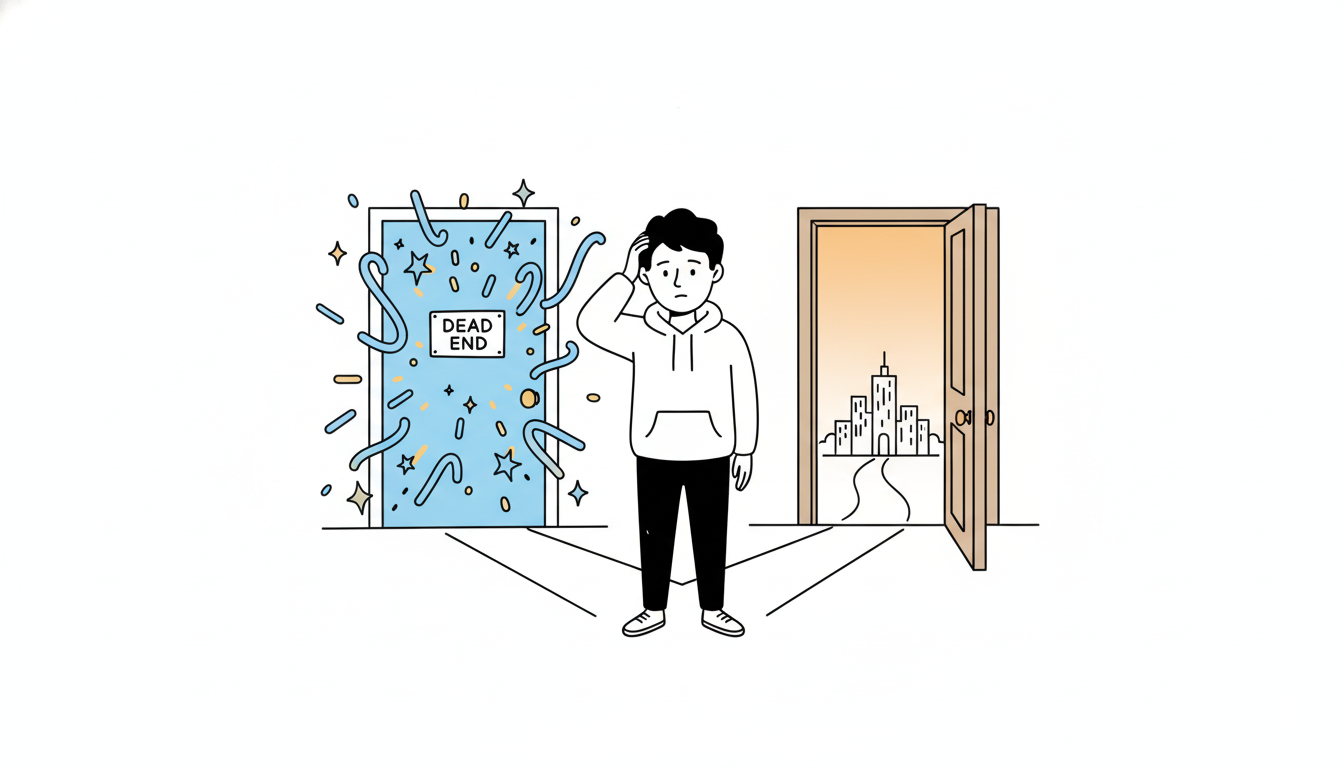
A founder wearing a hoodie, standing at a crossroads with two doors in front of him. Door A is shiny and glowing with squiggly, abstract shapes and stars above it, but there’s a small sign that says ‘Dead End’. Door B is a plain wooden door with a simple blueprint drawing on it, glowing softly and showing a bright path leading to a small doodle city skyline. The founder looks thoughtful, scratching his head. Clean white background, thin black lines, soft pastel accent colors (blue, yellow, orange). Minimalist doodle style, flat 2D composition.”

Most founders are visionaries. They can see the future of their industry, but they often struggle to “see” the difference between a designer who makes things look good and a designer who makes things work.

If you are a founder who doesn’t come from a design background, you likely make decisions based on your eyes. You look at a portfolio, see a sleek, dark-mode dashboard, and think, “This is the person I need.”

But that is exactly how you hire the wrong designer. In the world of UX design hiring, aesthetics are the baseline strategy is the differentiator.

The Mistake: Hiring for Taste, Not Process

The biggest mistake founders make is evaluating a designer based on their “taste.” Taste is subjective. What looks “cool” to you might be a nightmare for your actual users.

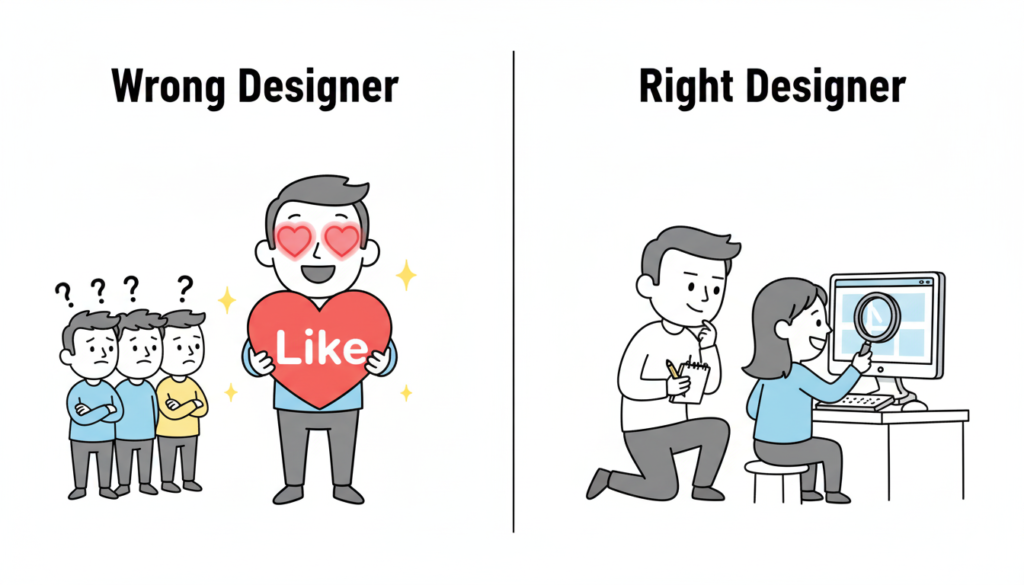
When you hire for aesthetics alone, you are hiring a digital decorator. But what your startup needs is a product designer. A product designer doesn’t just ask, “What color should this be?” They ask, “Why does this button exist in the first place?”

The Right Process: Research → Iterate → Measure → Refine.
The Wrong Process: The designer says, “Trust me, I have a feeling this will look great.”

Red Flags: The “Auteur” vs. The Problem Solver

Watch out for the designer who loves their work more than they love your users.

If a designer gets defensive when you show them negative user feedback, that is a massive red flag. A great designer is a scientist—they want to find the truth, even if it means their first three ideas were wrong.

A common red flag is the “Trust Me” approach. If a designer can’t explain the logic behind a layout using data or psychology, they are guessing. And guessing is expensive for a startup.

The Portfolio Trap: Teams vs. Individuals

Founders often see a portfolio featuring a world-class app like Uber or Airbnb and assume the candidate “built” it.

In reality, those apps are built by teams of 50+ designers. The candidate might have only worked on the “Forgot Password” flow. When hiring a UI designer, always ask: “What specifically was your role, and what were the constraints?” The best work often comes from designers who have worked on “ugly” but highly successful products because they had to solve real, messy problems.

How to Interview: Ask About Failures, Not Wins

Most designers are prepared to walk you through their best work. To find the right fit, you need to go off-script. Ask them: Walk me through your worst project.

A top-tier designer will tell you about a time they failed, what the data showed them, and how they pivoted. This reveals their product design strategy. It shows you if they have the humility to learn and the grit to fix things when they break.

The Story of Brian Chesky and the “Designer Founder”

When Brian Chesky and Joe Gebbia started Airbnb, they were designers. However, they didn’t just focus on making a pretty website. In the early days, they realized the business was failing because the photos of the apartments were terrible.

They didn’t just “redesign the UI.” They rented a camera, flew to New York, and took professional photos themselves. They treated design as a solution to a business problem (trust), not just a visual upgrade.

If you are a founder who can’t design, you need to hire someone who thinks like Chesky—someone who views design as a tool to achieve a business goal, not just an art project.

The Price of “Cheap” Design

Finally, let’s talk about compensation psychology. Many founders try to save money by hiring junior designers to do senior-level strategy.

Underpaying for design leads to “mediocre execution.” You might get a product that looks like a 10/10, but if the user flow is a 2/10, your churn rate will skyrocket. It is cheaper to hire one expensive designer who gets the process right than to hire three cheap designers who build something nobody can use.

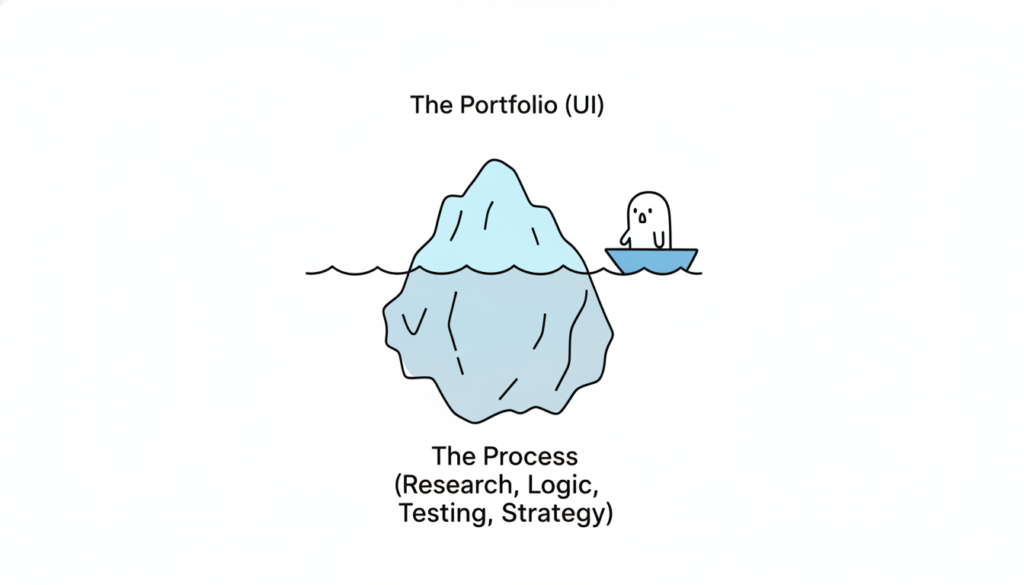
4. Image Prompt (For “The Portfolio Trap” section)

A visual metaphor of an iceberg. The tip of the iceberg above water is labeled “The Portfolio (UI).” The massive part of the iceberg underwater is labeled “The Process (Research, Logic, Testing, Strategy).” This represents the depth required for a successful hire. Modern, clean 3D render.

Also Read: Beyond the Grid: Why Design is Breaking Free from Systems and Dashboards